> ## Documentation Index
> Fetch the complete documentation index at: https://docs.kodelabs.com/llms.txt
> Use this file to discover all available pages before exploring further.
# Asset discovery
> Define data sources, run discovery, configure field mapping and matching, and link assets at the building level
**Asset discovery** lets you import and onboard assets at the [building level](/products/assetops/quickstart/usage-workflow#building-level). You define a data source from an Excel template, then run discovery to add assets to the building.
```mermaid actions={false} theme={"theme":{"light":"github-light","dark":"github-dark"}}
---
config:
theme: neutral
layout: dagre
---
flowchart LR
subgraph s1["Data source"]
B2["Asset 1"]
B3["Asset 2"]
B4["Asset 3"]
end
subgraph s2["Define data source"]
B1["data-source.xlsx"]
D["Data sources"]
Z["Data source name"]
end
B1 -- define assets --- B2 & B3 & B4
AD["Asset discovery"] -- access --- D & DL["Discovery logs"]
D -- upload --- B1
DL -- initiate --- ID["Initiate discovery"]
ID -- discover --- s1
D -- define --- Z
B2:::Rose
B3:::Rose
B4:::Rose
B1:::Sky
Z:::Sky
ID:::Sky
classDef Rose stroke-width:1px, stroke-dasharray:none, stroke:#FF5978, fill:#FFDFE5, color:#8E2236
classDef Sky stroke-width:1px, stroke-dasharray:none, stroke:#374D7C, fill:#E2EBFF, color:#374D7C
linkStyle 0 stroke:#FF6D00,fill:none
linkStyle 1 stroke:#FF6D00,fill:none
linkStyle 2 stroke:#FF6D00,fill:none
linkStyle 3 stroke:#00C853,fill:none
linkStyle 4 stroke:#00C853,fill:none
linkStyle 5 stroke:#00C853,fill:none
linkStyle 6 stroke:#00C853,fill:none
linkStyle 7 stroke:#FF6D00,fill:none
linkStyle 8 stroke:#00C853,fill:none
```
Open a building from [Buildings](/products/assetops/resources/buildings), then select **Asset discovery** in the building sidebar. Use the secondary navigation:
* **Data sources** — Upload and manage import files
* **Discovery logs** — Run discovery and review results
* **Configurations** — [Field mapping](#field-mapping) and [matching rules](#matching-rules)
* **Asset linking** — Merge duplicate assets into one record
***
## Concepts and rationale
**Asset linking** associates newly discovered assets from data sources with existing assets in your building. When multiple discovery sources (BMS, CMMS, IoT sensors) detect the same physical device, linking keeps one record so the database stays accurate and free of redundant entries.
Asset linking provides these capabilities:
| Capability | Description |
| ------------------------ | -------------------------------------------------------------------------------------------------------------------------------------- |
| **Duplicate check** | Runs automatically after discovery, and on demand when you choose match fields. Profiling recommends the strongest fields for the site |
| **Scored suggestions** | Each candidate pair includes a match score so you can filter and confirm high-confidence links first |
| **Linking confirmation** | You review suggested links, confirm matches, and merge information without creating a duplicate |
| **Manual linking** | Pair assets yourself when suggestions do not fit |
Configure [field mapping](#field-mapping) and [matching](#matching-rules) before you link assets. Merged asset fields follow mapping priorities. Duplicate checks use profiling-driven fields and the match configuration you accept or adjust.
### Linking constraints
An asset cannot link to another asset that originates from the same external source. This rule prevents circular references and keeps data logic consistent in your asset database.
***
## Data sources
### View data sources
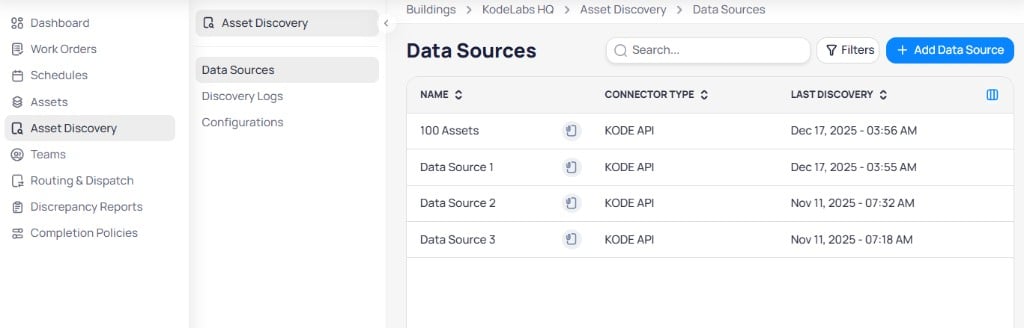 | Column | Description |
| ------------------ | ----------------------------------------------------------------------- |
| **Name** | Data source display name |
| **Connector type** | How assets are retrieved (for example, KODE API for uploaded templates) |
| **Last discovery** | Date and time of the most recent discovery run |
Use **Search** and **Filters** to find sources. Select **+ Add data source** to upload a new file.
### Add a data source
| Column | Description |
| ------------------ | ----------------------------------------------------------------------- |
| **Name** | Data source display name |
| **Connector type** | How assets are retrieved (for example, KODE API for uploaded templates) |
| **Last discovery** | Date and time of the most recent discovery run |
Use **Search** and **Filters** to find sources. Select **+ Add data source** to upload a new file.
### Add a data source
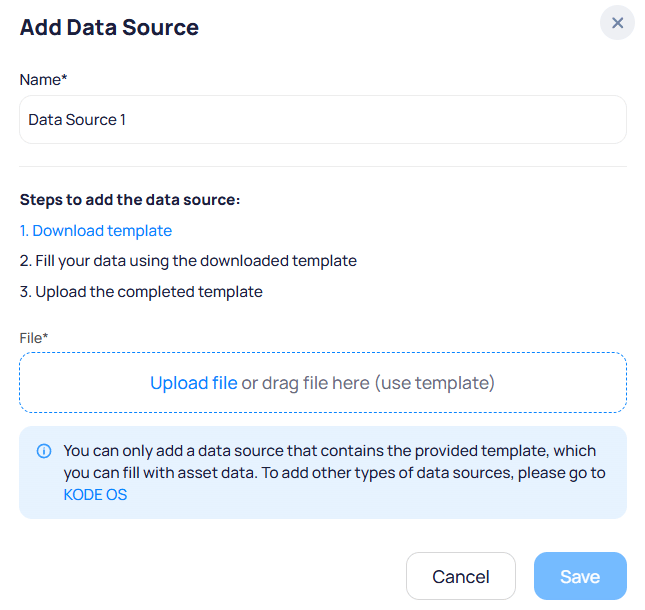 Navigate to **Asset discovery** > **Data sources**.
Select **+ Add data source**.
1. Download the [asset import template](/downloads/asset_import_template.xlsx).
2. Fill in asset data using the template columns.
3. Upload the completed `.xlsx` file in the **File** field.
Enter a **Name** for the data source and select **Save**.
Uploaded sources use the provided template format. To connect other connector types, configure integrations in [Cloud BMS](/products/kode-os/get-started/introduction).
| Field | Example |
| ------------- | ---------------------- |
| ID | `AHU-RT-01` |
| Name | `Rooftop AHU - Zone A` |
| Category | `HVAC` |
| IP address | `192.168.10.45` |
| MAC address | `00:1A:2B:3C:4D:5E` |
| Model number | `48HC-24-500` |
| Serial number | `SN-2024-88421` |
| Status | `Active` |
| Location | `Roof - Zone A` |
See the template file for the full column list and required formats.
### Discover assets from a data source
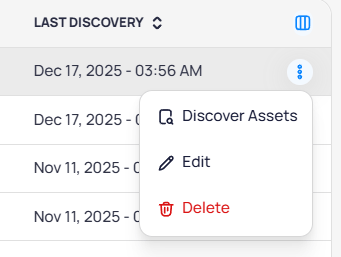
Open the row menu on a data source and select **Discover assets** to start discovery without opening **Discovery logs** first.
Navigate to **Asset discovery** > **Data sources**.
Select **+ Add data source**.
1. Download the [asset import template](/downloads/asset_import_template.xlsx).
2. Fill in asset data using the template columns.
3. Upload the completed `.xlsx` file in the **File** field.
Enter a **Name** for the data source and select **Save**.
Uploaded sources use the provided template format. To connect other connector types, configure integrations in [Cloud BMS](/products/kode-os/get-started/introduction).
| Field | Example |
| ------------- | ---------------------- |
| ID | `AHU-RT-01` |
| Name | `Rooftop AHU - Zone A` |
| Category | `HVAC` |
| IP address | `192.168.10.45` |
| MAC address | `00:1A:2B:3C:4D:5E` |
| Model number | `48HC-24-500` |
| Serial number | `SN-2024-88421` |
| Status | `Active` |
| Location | `Roof - Zone A` |
See the template file for the full column list and required formats.
### Discover assets from a data source
Open the row menu on a data source and select **Discover assets** to start discovery without opening **Discovery logs** first.
 ***
## Discovery logs
### View discovery logs
***
## Discovery logs
### View discovery logs
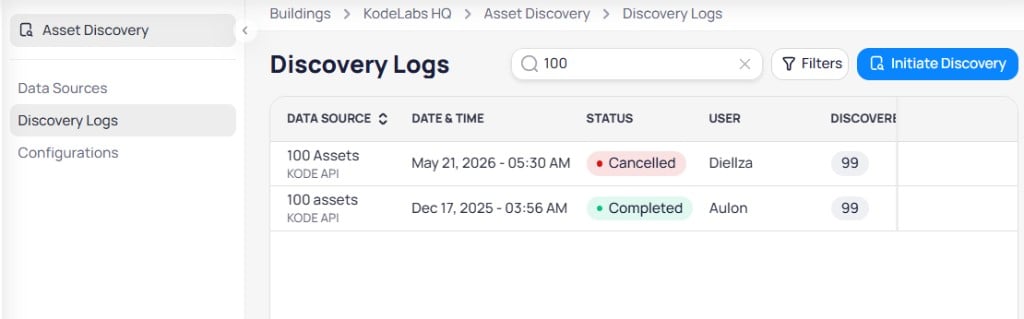
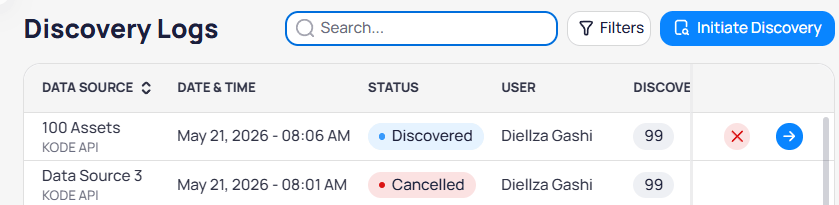 | Column | Description |
| --------------- | ------------------------------------------------------------------------------------ |
| **Data source** | Source name and connector type (for example, **KODE API**) |
| **Date & time** | When discovery started |
| **Status** | **Discovered** when complete, **Cancelled** if stopped, or in progress while running |
| **User** | User who initiated the run |
| **Discovered** | Count of assets found in the run |
Row actions:
* Select the arrow icon to open **Results: Asset Discovery** for that run
* Select the **X** icon to cancel or remove the log entry when available
Use **Search** and **Filters** to find runs. Select **Initiate discovery** to start a new run.
### Initiate discovery
Select **Initiate discovery** to open the discovery dialog.
| Column | Description |
| --------------- | ------------------------------------------------------------------------------------ |
| **Data source** | Source name and connector type (for example, **KODE API**) |
| **Date & time** | When discovery started |
| **Status** | **Discovered** when complete, **Cancelled** if stopped, or in progress while running |
| **User** | User who initiated the run |
| **Discovered** | Count of assets found in the run |
Row actions:
* Select the arrow icon to open **Results: Asset Discovery** for that run
* Select the **X** icon to cancel or remove the log entry when available
Use **Search** and **Filters** to find runs. Select **Initiate discovery** to start a new run.
### Initiate discovery
Select **Initiate discovery** to open the discovery dialog.
 Navigate to **Asset discovery** > **Discovery logs**.
Select **Initiate discovery**.
Select the **Data source** to discover, then select **Initiate discovery**.
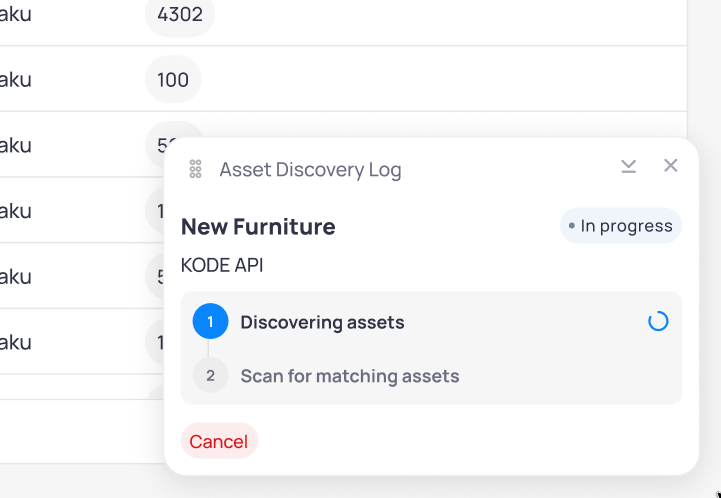
While discovery runs, the **Asset Discovery Log** shows progress for the selected source. The log walks through **Discovering assets**, then **Scan for matching assets**, so matching starts as part of the same run.
Navigate to **Asset discovery** > **Discovery logs**.
Select **Initiate discovery**.
Select the **Data source** to discover, then select **Initiate discovery**.
While discovery runs, the **Asset Discovery Log** shows progress for the selected source. The log walks through **Discovering assets**, then **Scan for matching assets**, so matching starts as part of the same run.
 ### Review discovery results
When discovery completes, select the arrow on the log row to open **Results: Asset Discovery**. The header shows the data source name and connector type (for example, **100 Assets - KODE API**).
Two tabs organize results:
| Tab | Description |
| ------------------- | ------------------------------------------------------------ |
| **New assets** | Discovered records not yet in AssetOps for this building |
| **Existing assets** | Discovered records that match assets already in the building |
Use **Search**, **Filters**, and row checkboxes to work with the list. Select **Done** to exit without saving changes.
#### Add new assets
On the **New assets** tab, select assets to import.
### Review discovery results
When discovery completes, select the arrow on the log row to open **Results: Asset Discovery**. The header shows the data source name and connector type (for example, **100 Assets - KODE API**).
Two tabs organize results:
| Tab | Description |
| ------------------- | ------------------------------------------------------------ |
| **New assets** | Discovered records not yet in AssetOps for this building |
| **Existing assets** | Discovered records that match assets already in the building |
Use **Search**, **Filters**, and row checkboxes to work with the list. Select **Done** to exit without saving changes.
#### Add new assets
On the **New assets** tab, select assets to import.
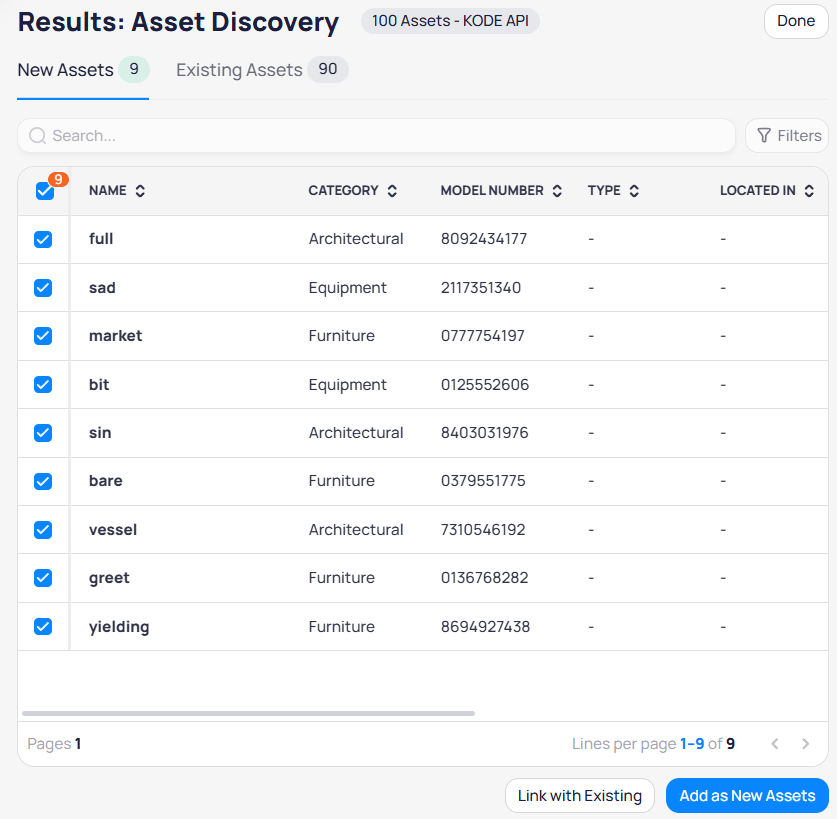 | Action | Description |
| ---------------------- | --------------------------------------------------------------------- |
| **Link with existing** | Map new records to assets already in the building to avoid duplicates |
| **Add as new assets** | Create new building assets from the selected discovered records |
##### Link with existing
Select **Link with existing** to open the **Link with existing assets** page. You can link with [autosuggest](#link-assets-using-autosuggest) or [manually](#link-assets-manually).
You can select up to 50 assets at a time for linking.
| Action | Description |
| ---------------------- | --------------------------------------------------------------------- |
| **Link with existing** | Map new records to assets already in the building to avoid duplicates |
| **Add as new assets** | Create new building assets from the selected discovered records |
##### Link with existing
Select **Link with existing** to open the **Link with existing assets** page. You can link with [autosuggest](#link-assets-using-autosuggest) or [manually](#link-assets-manually).
You can select up to 50 assets at a time for linking.
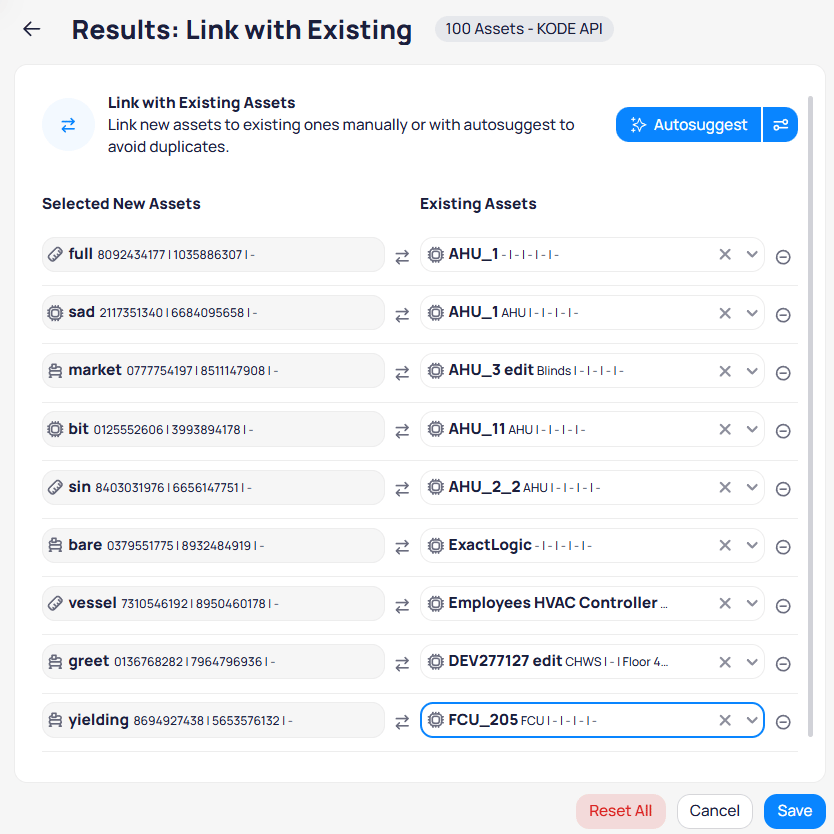 The page has two sides:
* **Selected new assets** — Discovered records you selected on the left
* **Existing assets** — Dropdown on the right for each building asset to link to
Use **Reset all** to clear mappings, **Cancel** to exit without saving, or **Save** to confirm links. Merged fields follow [field mapping](#field-mapping) priorities.
The page has two sides:
* **Selected new assets** — Discovered records you selected on the left
* **Existing assets** — Dropdown on the right for each building asset to link to
Use **Reset all** to clear mappings, **Cancel** to exit without saving, or **Save** to confirm links. Merged fields follow [field mapping](#field-mapping) priorities.
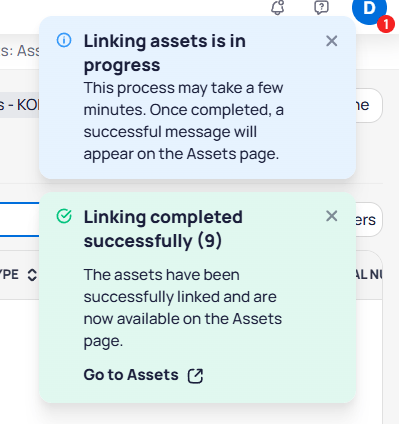 When linking finishes, **Linking completed successfully** shows how many assets linked. Select **Go to Assets** to open the [Assets](/products/assetops/assets/assets) list.
#### Update existing assets
On the **Existing assets** tab, select records to update with values from the discovery run.
When linking finishes, **Linking completed successfully** shows how many assets linked. Select **Go to Assets** to open the [Assets](/products/assetops/assets/assets) list.
#### Update existing assets
On the **Existing assets** tab, select records to update with values from the discovery run.
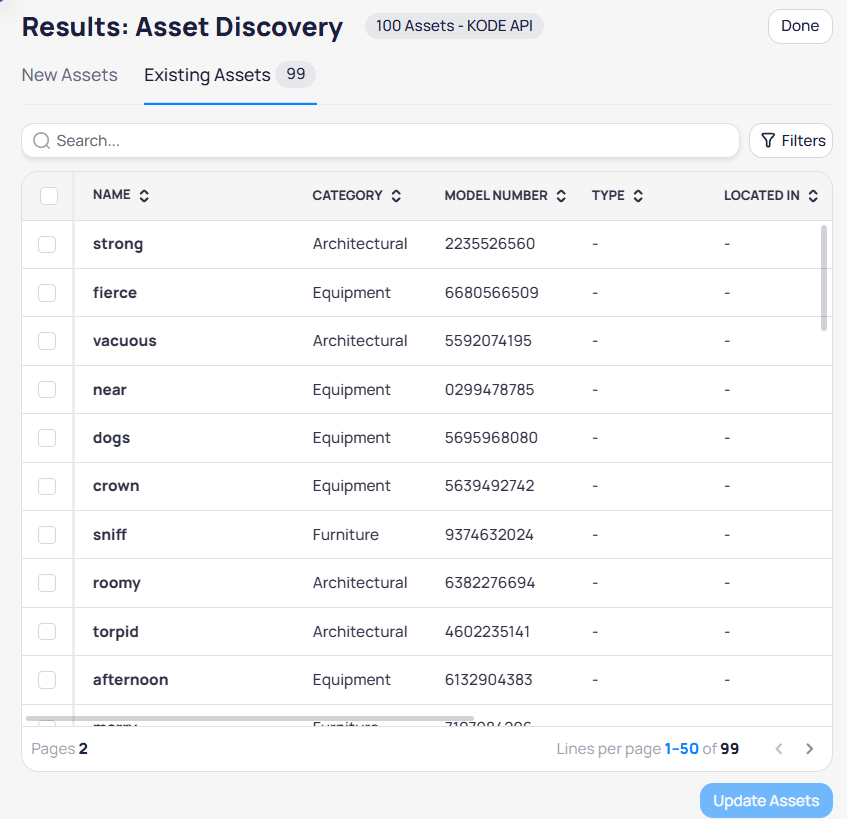 Select **Update assets** to apply field values from discovery to the selected building assets. A confirmation dialog shows how many assets you selected.
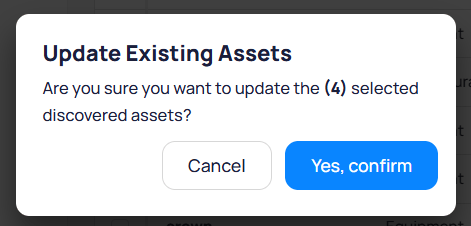 Select **Yes, confirm** to apply updates, or **Cancel** to return to the results screen. Updated assets reflect [field mapping](#field-mapping) priorities when multiple sources supply the same field.
***
## Configurations
**Configurations** control how discovery maps and matches imported assets. Set up configurations before you run discovery and link assets so field updates and duplicate checks behave predictably.
Select **Asset discovery** > **Configurations** in the building sidebar. The page has two tabs: **Field mapping** and **Matching rules**.
```mermaid actions={false} theme={"theme":{"light":"github-light","dark":"github-dark"}}
---
config:
theme: neutral
---
flowchart LR
subgraph s1["Asset fields"]
F3["Field 1"]
F4["Field 2"]
F5["Field 3"]
end
subgraph s2["Data sources"]
D1["Data source 1"]
D2["Data source 2"]
D3["Data source 3"]
end
FM["Field mapping"] --- AF["Asset fields"]
AF --- F3 & F4 & F5
F4 -- priority --- D1
F4 --- D2 & D3
F3:::Sky
F4:::Sky
F5:::Sky
D1:::Rose
D2:::Rose
D3:::Rose
classDef Sky stroke-width:1px, stroke-dasharray:none, stroke:#374D7C, fill:#E2EBFF, color:#374D7C
classDef Rose stroke-width:1px, stroke-dasharray:none, stroke:#FF5978, fill:#FFDFE5, color:#8E2236
linkStyle 0 stroke:#00C853,fill:none
linkStyle 1 stroke:#00C853,fill:none
linkStyle 2 stroke:#00C853,fill:none
linkStyle 3 stroke:#00C853,fill:none
linkStyle 4 stroke:#FF6D00,fill:none
```
### Field mapping
Field mapping defines which data source is the primary source of truth for each asset field (name, serial number, location, and others). For every field, you maintain a priority list of data sources.
When two assets link, AssetOps fills each field with the highest-priority value that exists between the linked records. If a field has no sources in its priority list, that field is not updated during linking.
Select **Yes, confirm** to apply updates, or **Cancel** to return to the results screen. Updated assets reflect [field mapping](#field-mapping) priorities when multiple sources supply the same field.
***
## Configurations
**Configurations** control how discovery maps and matches imported assets. Set up configurations before you run discovery and link assets so field updates and duplicate checks behave predictably.
Select **Asset discovery** > **Configurations** in the building sidebar. The page has two tabs: **Field mapping** and **Matching rules**.
```mermaid actions={false} theme={"theme":{"light":"github-light","dark":"github-dark"}}
---
config:
theme: neutral
---
flowchart LR
subgraph s1["Asset fields"]
F3["Field 1"]
F4["Field 2"]
F5["Field 3"]
end
subgraph s2["Data sources"]
D1["Data source 1"]
D2["Data source 2"]
D3["Data source 3"]
end
FM["Field mapping"] --- AF["Asset fields"]
AF --- F3 & F4 & F5
F4 -- priority --- D1
F4 --- D2 & D3
F3:::Sky
F4:::Sky
F5:::Sky
D1:::Rose
D2:::Rose
D3:::Rose
classDef Sky stroke-width:1px, stroke-dasharray:none, stroke:#374D7C, fill:#E2EBFF, color:#374D7C
classDef Rose stroke-width:1px, stroke-dasharray:none, stroke:#FF5978, fill:#FFDFE5, color:#8E2236
linkStyle 0 stroke:#00C853,fill:none
linkStyle 1 stroke:#00C853,fill:none
linkStyle 2 stroke:#00C853,fill:none
linkStyle 3 stroke:#00C853,fill:none
linkStyle 4 stroke:#FF6D00,fill:none
```
### Field mapping
Field mapping defines which data source is the primary source of truth for each asset field (name, serial number, location, and others). For every field, you maintain a priority list of data sources.
When two assets link, AssetOps fills each field with the highest-priority value that exists between the linked records. If a field has no sources in its priority list, that field is not updated during linking.
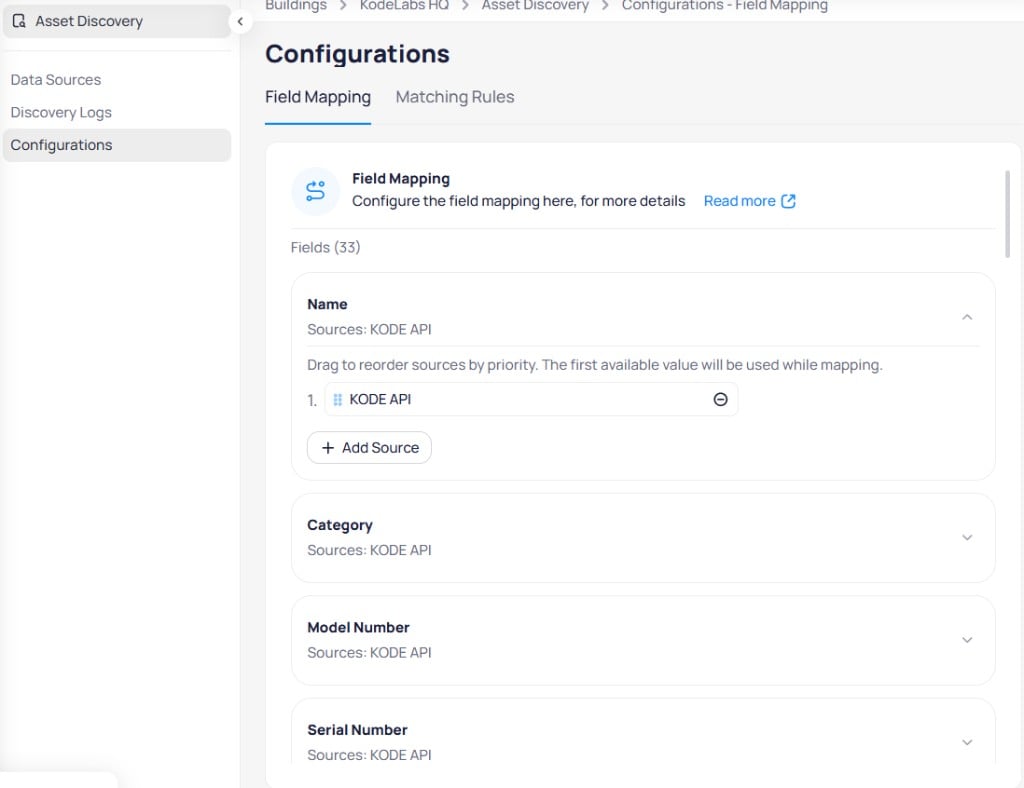 Navigate to **Asset discovery** > **Configurations** and stay on the **Field mapping** tab.
Select a field card to expand it and view current source priorities.
Select **+ Add source**. In the **Add source** dialog, choose a data source from the dropdown, then select **Save**. The source appears in the field list.
Drag sources to reorder priority. The system uses data from the highest-priority source that has a value between the linked assets.
Remove a source with the minus icon when it should no longer apply to that field.
After you upload a template in [Data sources](#data-sources), fields typically show **KODE API** as the source.
#### Mappable fields (33)
AssetOps supports field mapping for these asset attributes:
| Field | Field | Field |
| ----------------- | ---------------- | ---------------- |
| Name | Category | Model number |
| Serial number | IP address | MAC address |
| Installation date | Warranty date | Commission date |
| Turnover date | Asset tag | Initial cost |
| Weight | Life expectancy | Location |
| Belt size | Filter size | Power |
| Tonnage | Amps | Volts |
| RPMs | Status | Manufactured by |
| Repair cost | Replacement cost | Firmware version |
| OS version | Type | Located in |
| Commissioned by | Installed by | Serviced by |
### Matching rules
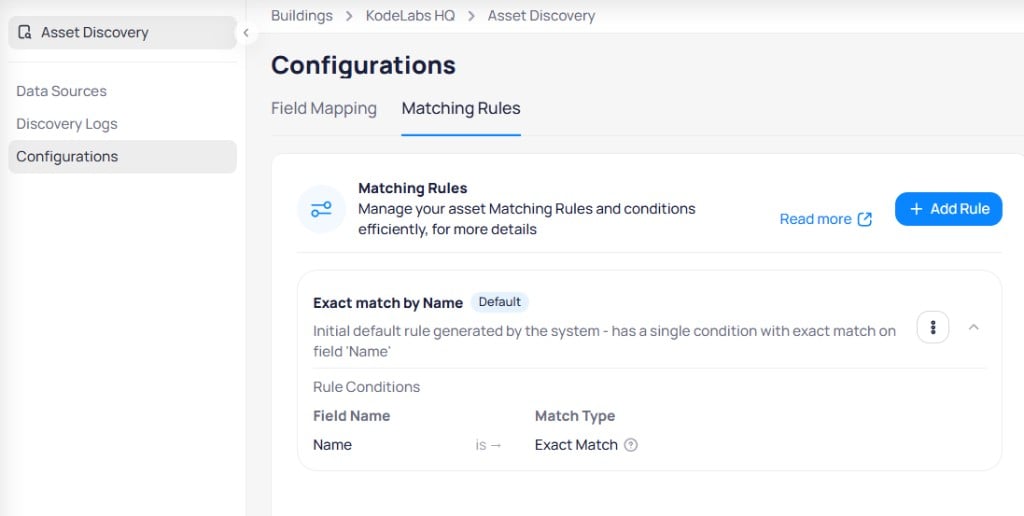
Matching configuration drives automatic and manual [duplicate checks](#link-assets-using-autosuggest). Profiling inspects completeness, uniqueness, and how fields are shared across sources, then recommends fields and match settings for the site. Strong identifiers are preferred when the data supports them. Blank or generic values (for example, `N/A`, `0.0.0.0`, or `00:00:00:00:00:00`) are ignored.
The matching engine compares identifiers and names across common formatting differences (spaces, hyphens, underscores, and reordered tokens). Suggestions include a **match score** so stronger candidates surface first.
Each matching rule contains up to three conditions. Every condition must be true for the rule to suggest a link. One rule must be the default so automatic and on-demand checks always have a baseline configuration.
Navigate to **Asset discovery** > **Configurations** and stay on the **Field mapping** tab.
Select a field card to expand it and view current source priorities.
Select **+ Add source**. In the **Add source** dialog, choose a data source from the dropdown, then select **Save**. The source appears in the field list.
Drag sources to reorder priority. The system uses data from the highest-priority source that has a value between the linked assets.
Remove a source with the minus icon when it should no longer apply to that field.
After you upload a template in [Data sources](#data-sources), fields typically show **KODE API** as the source.
#### Mappable fields (33)
AssetOps supports field mapping for these asset attributes:
| Field | Field | Field |
| ----------------- | ---------------- | ---------------- |
| Name | Category | Model number |
| Serial number | IP address | MAC address |
| Installation date | Warranty date | Commission date |
| Turnover date | Asset tag | Initial cost |
| Weight | Life expectancy | Location |
| Belt size | Filter size | Power |
| Tonnage | Amps | Volts |
| RPMs | Status | Manufactured by |
| Repair cost | Replacement cost | Firmware version |
| OS version | Type | Located in |
| Commissioned by | Installed by | Serviced by |
### Matching rules
Matching configuration drives automatic and manual [duplicate checks](#link-assets-using-autosuggest). Profiling inspects completeness, uniqueness, and how fields are shared across sources, then recommends fields and match settings for the site. Strong identifiers are preferred when the data supports them. Blank or generic values (for example, `N/A`, `0.0.0.0`, or `00:00:00:00:00:00`) are ignored.
The matching engine compares identifiers and names across common formatting differences (spaces, hyphens, underscores, and reordered tokens). Suggestions include a **match score** so stronger candidates surface first.
Each matching rule contains up to three conditions. Every condition must be true for the rule to suggest a link. One rule must be the default so automatic and on-demand checks always have a baseline configuration.
 #### Match types
| Match type | Behavior |
| --------------- | ---------------------------------------------------- |
| **Match** | Case-insensitive comparison (`abc` matches `ABC`) |
| **Exact match** | Case-sensitive comparison (`abc` matches only `abc`) |
#### Default rule
The system creates a default rule with a field and match type for baseline checks. Duplicate checks use the default when you do not select another rule. Profiling may suggest different fields for a given site; accept or adjust those suggestions when you run a manual check.
A default matching rule must always exist and cannot be deleted. Duplicate checks require a default rule to run.
#### Create a matching rule
#### Match types
| Match type | Behavior |
| --------------- | ---------------------------------------------------- |
| **Match** | Case-insensitive comparison (`abc` matches `ABC`) |
| **Exact match** | Case-sensitive comparison (`abc` matches only `abc`) |
#### Default rule
The system creates a default rule with a field and match type for baseline checks. Duplicate checks use the default when you do not select another rule. Profiling may suggest different fields for a given site; accept or adjust those suggestions when you run a manual check.
A default matching rule must always exist and cannot be deleted. Duplicate checks require a default rule to run.
#### Create a matching rule
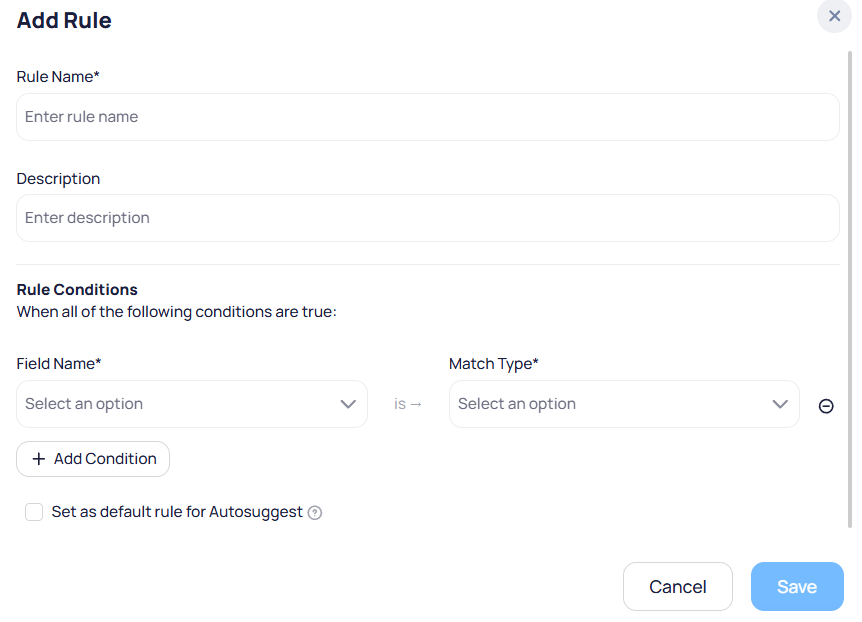 Navigate to **Asset discovery** > **Configurations** and select the **Matching rules** tab.
Select **+ Add rule** in the upper right corner.
Enter a unique **Rule name** and **Description**.
For each condition, set **Field name** (for example, serial number) and **Match type**. Select **+ Add condition** for up to three conditions total. Use profiling suggestions when they appear so you prioritize fields with strong coverage for this data source.
Select **Save**. Enable **Set as default rule for autosuggest** if this rule should become the default.
#### Designate a default matching rule
In the matching rules list, select the three-dot menu on the rule row.
Select **Edit**.
Enable **Set as default rule for autosuggest**, then select **Save**.
You can also enable **Set as default rule for autosuggest** when you create a new rule.
#### Edit a matching rule
Select the three-dot menu on the rule row, then select **Edit**.
Change rule settings as needed, then select **Save**. Select **Cancel** to discard changes.
#### Delete a matching rule
Select the three-dot menu on the rule row, then select **Delete**.
In the **Delete matching rule** dialog, select **Delete** to confirm or **Cancel** to keep the rule.
You cannot delete the default matching rule.
```mermaid actions={false} theme={"theme":{"light":"github-light","dark":"github-dark"}}
---
config:
theme: neutral
---
flowchart LR
subgraph s1["Condition 1"]
Field1["Field"]
Match1["Match type"]
end
subgraph s2["Condition 2"]
Field2["Field"]
Match2["Match type"]
end
MR["Matching rules"] --- R1["Rule 1"]
R1 --- s1 & s2
Field1:::Rose
Field2:::Rose
R1:::Sky
classDef Sky stroke-width:1px, stroke-dasharray:none, stroke:#374D7C, fill:#E2EBFF, color:#374D7C
classDef Rose stroke-width:1px, stroke-dasharray:none, stroke:#FF5978, fill:#FFDFE5, color:#8E2236
```
***
## Asset linking
Link newly discovered assets with existing building assets to merge information and prevent duplicate entries. See [Concepts and rationale](#concepts-and-rationale) for how duplicate checks, scored suggestions, confirmation, and manual linking work together.
Discovery starts an automatic duplicate check when assets are ingested. You can also run checks on demand for selected items or the full result set. You can start linking from the **New assets** tab in [Review discovery results](#review-discovery-results), or select **Asset discovery** > **Asset linking** in the building sidebar.
### Link assets using autosuggest
Use **Autosuggest** to fill **Existing assets** on the right from the duplicate check. The review list highlights the **best match** for each discovered asset. Expand a row to see alternative scored candidates when the top suggestion is wrong. Filter by match score, category, type, or area to focus the list. Confirm high-confidence links in bulk, then save.
Navigate to **Asset discovery** > **Discovery logs**. Run **Initiate discovery** or open a completed log with the arrow icon to reach **Results: Asset Discovery** on the **New assets** tab.
Select discovered assets to link. You can limit the selection to run a check on selected items only. **Link with existing** becomes active.
Select **Link with existing**. The **Link with existing assets** page opens with selected new assets on the left and existing asset fields on the right.
Select **Autosuggest** to run with the current configuration. To choose fields or a rule, open the configuration next to **Autosuggest**, review profiling suggestions, pick a [matching rule](#matching-rules) or fields, then select **Save**. If you do not change the configuration, the [default matching rule](#default-rule) applies.
Navigate to **Asset discovery** > **Configurations** and select the **Matching rules** tab.
Select **+ Add rule** in the upper right corner.
Enter a unique **Rule name** and **Description**.
For each condition, set **Field name** (for example, serial number) and **Match type**. Select **+ Add condition** for up to three conditions total. Use profiling suggestions when they appear so you prioritize fields with strong coverage for this data source.
Select **Save**. Enable **Set as default rule for autosuggest** if this rule should become the default.
#### Designate a default matching rule
In the matching rules list, select the three-dot menu on the rule row.
Select **Edit**.
Enable **Set as default rule for autosuggest**, then select **Save**.
You can also enable **Set as default rule for autosuggest** when you create a new rule.
#### Edit a matching rule
Select the three-dot menu on the rule row, then select **Edit**.
Change rule settings as needed, then select **Save**. Select **Cancel** to discard changes.
#### Delete a matching rule
Select the three-dot menu on the rule row, then select **Delete**.
In the **Delete matching rule** dialog, select **Delete** to confirm or **Cancel** to keep the rule.
You cannot delete the default matching rule.
```mermaid actions={false} theme={"theme":{"light":"github-light","dark":"github-dark"}}
---
config:
theme: neutral
---
flowchart LR
subgraph s1["Condition 1"]
Field1["Field"]
Match1["Match type"]
end
subgraph s2["Condition 2"]
Field2["Field"]
Match2["Match type"]
end
MR["Matching rules"] --- R1["Rule 1"]
R1 --- s1 & s2
Field1:::Rose
Field2:::Rose
R1:::Sky
classDef Sky stroke-width:1px, stroke-dasharray:none, stroke:#374D7C, fill:#E2EBFF, color:#374D7C
classDef Rose stroke-width:1px, stroke-dasharray:none, stroke:#FF5978, fill:#FFDFE5, color:#8E2236
```
***
## Asset linking
Link newly discovered assets with existing building assets to merge information and prevent duplicate entries. See [Concepts and rationale](#concepts-and-rationale) for how duplicate checks, scored suggestions, confirmation, and manual linking work together.
Discovery starts an automatic duplicate check when assets are ingested. You can also run checks on demand for selected items or the full result set. You can start linking from the **New assets** tab in [Review discovery results](#review-discovery-results), or select **Asset discovery** > **Asset linking** in the building sidebar.
### Link assets using autosuggest
Use **Autosuggest** to fill **Existing assets** on the right from the duplicate check. The review list highlights the **best match** for each discovered asset. Expand a row to see alternative scored candidates when the top suggestion is wrong. Filter by match score, category, type, or area to focus the list. Confirm high-confidence links in bulk, then save.
Navigate to **Asset discovery** > **Discovery logs**. Run **Initiate discovery** or open a completed log with the arrow icon to reach **Results: Asset Discovery** on the **New assets** tab.
Select discovered assets to link. You can limit the selection to run a check on selected items only. **Link with existing** becomes active.
Select **Link with existing**. The **Link with existing assets** page opens with selected new assets on the left and existing asset fields on the right.
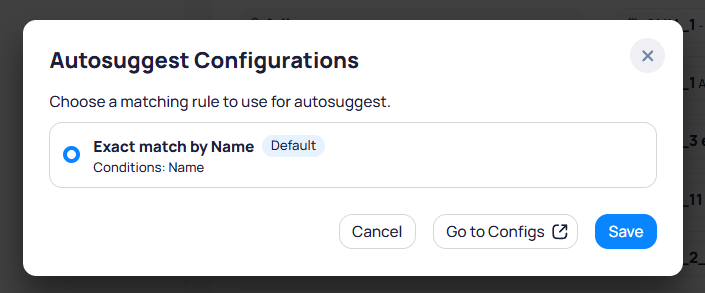
Select **Autosuggest** to run with the current configuration. To choose fields or a rule, open the configuration next to **Autosuggest**, review profiling suggestions, pick a [matching rule](#matching-rules) or fields, then select **Save**. If you do not change the configuration, the [default matching rule](#default-rule) applies.
 | Control | Description |
| ---------------------- | -------------------------------------------------------------------------------------------------- |
| Matching rule / fields | Rules and fields from [Matching rules](#matching-rules), with profiling suggestions when available |
| **Go to Configs** | Opens **Configurations** to edit rules |
| **Save** | Applies the selected configuration and runs the duplicate check |
Filter suggestions by score range (for example, above 90%), category, type, or area. Review the highlighted best match on each row. Expand alternatives when you need a different candidate. Adjust any mapping with the existing asset dropdown.
If matches look weak, run the duplicate check again. Profiling identifies which fields have the strongest coverage for the data source so the next check can use better criteria.
Select **Save** to confirm links. Linked asset fields update using [field mapping](#field-mapping) priorities. Use **Close for now** to leave the session and finish linking later. Use **Reset all** to clear mappings, or **Cancel** to exit without saving.
After you confirm links in bulk, linked assets leave the **New assets** list.
### Link assets manually
Use manual linking when scored suggestions do not fit or you need precise control. For each new asset on the left, search and select the correct building asset from the **Existing assets** dropdown on the right. Filters on the existing-asset picker narrow the inventory so you do not search the full building list.
Navigate to **Asset discovery** > **Discovery logs**. Open **Results: Asset Discovery** on the **New assets** tab.
Select assets, then select **Link with existing**.
For each new asset on the left, select the matching existing asset from the dropdown on the right. Use search and filters on the picker when the list is large.
Select **Save** to link the assets. Fields update per [field mapping](#field-mapping). Use **Close for now**, **Reset all**, or **Cancel** as needed.
After linking, verify merged fields on the [Assets](/products/assetops/assets/assets) page and in the asset **Sources** tab.
***
## Related modules
View and manage assets after discovery completes.
| Control | Description |
| ---------------------- | -------------------------------------------------------------------------------------------------- |
| Matching rule / fields | Rules and fields from [Matching rules](#matching-rules), with profiling suggestions when available |
| **Go to Configs** | Opens **Configurations** to edit rules |
| **Save** | Applies the selected configuration and runs the duplicate check |
Filter suggestions by score range (for example, above 90%), category, type, or area. Review the highlighted best match on each row. Expand alternatives when you need a different candidate. Adjust any mapping with the existing asset dropdown.
If matches look weak, run the duplicate check again. Profiling identifies which fields have the strongest coverage for the data source so the next check can use better criteria.
Select **Save** to confirm links. Linked asset fields update using [field mapping](#field-mapping) priorities. Use **Close for now** to leave the session and finish linking later. Use **Reset all** to clear mappings, or **Cancel** to exit without saving.
After you confirm links in bulk, linked assets leave the **New assets** list.
### Link assets manually
Use manual linking when scored suggestions do not fit or you need precise control. For each new asset on the left, search and select the correct building asset from the **Existing assets** dropdown on the right. Filters on the existing-asset picker narrow the inventory so you do not search the full building list.
Navigate to **Asset discovery** > **Discovery logs**. Open **Results: Asset Discovery** on the **New assets** tab.
Select assets, then select **Link with existing**.
For each new asset on the left, select the matching existing asset from the dropdown on the right. Use search and filters on the picker when the list is large.
Select **Save** to link the assets. Fields update per [field mapping](#field-mapping). Use **Close for now**, **Reset all**, or **Cancel** as needed.
After linking, verify merged fields on the [Assets](/products/assetops/assets/assets) page and in the asset **Sources** tab.
***
## Related modules
View and manage assets after discovery completes.