> ## Documentation Index
> Fetch the complete documentation index at: https://documentation.kodelabs.com/llms.txt
> Use this file to discover all available pages before exploring further.
# Tasks
> Task templates and task groups for standardized preventive and inspection work
In AssetOps, **tasks** are managed at the [portfolio level](/products/assetops/quickstart/usage-workflow#portfolio-level). You define reusable work in **Templates**, then optionally bundle templates into **Task groups** for schedules that require a full checklist.
```mermaid actions={false} theme={"theme":{"light":"github-light","dark":"github-dark"}}
---
config:
theme: neutral
---
flowchart LR
subgraph s1["Portfolio-Level"]
C["Tasks"]
end
subgraph s2["Templates & Groups"]
T1["Task Templates"]
T2["Task Groups"]
end
A["AssetOps"] --- B["Portfolio"]
B -- access --- C
C --- T1 & T2
T2 -- contains --- T1
T1 -- used on --- S["Schedules"]
C:::Sky
T1:::Rose
T2:::Rose
classDef Sky stroke-width:1px, stroke-dasharray:none, stroke:#374D7C, fill:#E2EBFF, color:#374D7C
classDef Rose stroke-width:1px, stroke-dasharray:none, stroke:#FF5978, fill:#FFDFE5, color:#8E2236
linkStyle 1 stroke:#00C853,fill:none
linkStyle 2 stroke:#FF6D00,fill:none
linkStyle 3 stroke:#FF6D00,fill:none
```
Open **Tasks** from the portfolio sidebar. Use the secondary navigation to switch between **Templates** and **Task groups**.
***
## Task templates
A **task template** is a reusable definition for work performed during preventive maintenance or inspections. Templates include instructions, estimated duration, applicable asset types, and optional attachments. When you [schedule](/products/assetops/schedules/schedules-overview) work at the building level, you assign templates so generated work orders include consistent tasks.
### View the templates list
Select **Templates** under **Tasks** to open the task templates list.
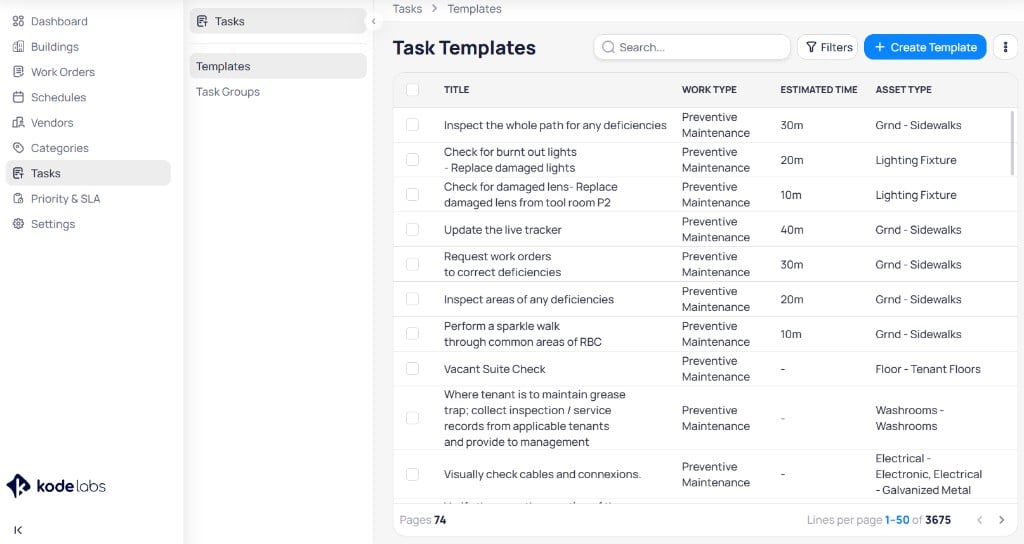 | Column | Description |
| ------------------ | ---------------------------------------------------- |
| **Title** | Task description or instruction shown on work orders |
| **Work type** | Program: preventive maintenance or inspection |
| **Estimated time** | Expected duration in hours and minutes |
| **Asset type** | Equipment or location types the template applies to |
Use **Search** and **Filters** to find templates. Select row checkboxes for bulk edit. Pagination helps you navigate large libraries.
### Template fields
When you create or edit a template, you configure the following fields.
Short name for the task. This text appears in the templates list and on work orders.
Maintenance program for the template. Options include **Preventive Maintenance** and **Inspection**.
Expected duration in hours and minutes. Helps planners estimate labor on schedules and dashboards.
Detailed instructions for the assignee. Supports rich text formatting such as bold, lists, and links.
Additional fields appear based on work type. See [Create templates by work type](#create-templates-by-work-type) below.
### Create templates by work type
Select **+ Create Template** to open the creation dialog.
| Column | Description |
| ------------------ | ---------------------------------------------------- |
| **Title** | Task description or instruction shown on work orders |
| **Work type** | Program: preventive maintenance or inspection |
| **Estimated time** | Expected duration in hours and minutes |
| **Asset type** | Equipment or location types the template applies to |
Use **Search** and **Filters** to find templates. Select row checkboxes for bulk edit. Pagination helps you navigate large libraries.
### Template fields
When you create or edit a template, you configure the following fields.
Short name for the task. This text appears in the templates list and on work orders.
Maintenance program for the template. Options include **Preventive Maintenance** and **Inspection**.
Expected duration in hours and minutes. Helps planners estimate labor on schedules and dashboards.
Detailed instructions for the assignee. Supports rich text formatting such as bold, lists, and links.
Additional fields appear based on work type. See [Create templates by work type](#create-templates-by-work-type) below.
### Create templates by work type
Select **+ Create Template** to open the creation dialog.
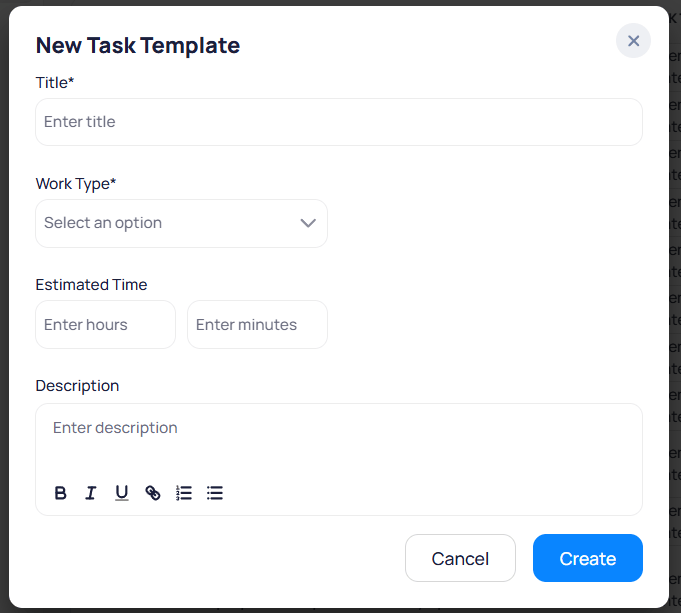 Navigate to **Tasks** and select **Templates**.
Select **+ Create Template**.
Select **Preventive Maintenance** as **Work type**. Choose one or more **Asset types** the template applies to.
Enter **Title**, **Estimated time**, and **Description**.
Select **Create** to save the template.
Navigate to **Tasks** and select **Templates**.
Select **+ Create Template**.
Select **Inspection** as **Work type**, then choose **Inspection type**: **Asset**, **Area**, or **General**.
If you select **Asset** as the inspection type, choose one or more **Asset types**. For **Area** or **General**, asset types are not required.
Enter **Title**, **Estimated time**, and **Description**.
Select **Create** to save the template.
### View and edit a template
Select a template from the list to open its detail page.
Navigate to **Tasks** and select **Templates**.
Select **+ Create Template**.
Select **Preventive Maintenance** as **Work type**. Choose one or more **Asset types** the template applies to.
Enter **Title**, **Estimated time**, and **Description**.
Select **Create** to save the template.
Navigate to **Tasks** and select **Templates**.
Select **+ Create Template**.
Select **Inspection** as **Work type**, then choose **Inspection type**: **Asset**, **Area**, or **General**.
If you select **Asset** as the inspection type, choose one or more **Asset types**. For **Area** or **General**, asset types are not required.
Enter **Title**, **Estimated time**, and **Description**.
Select **Create** to save the template.
### View and edit a template
Select a template from the list to open its detail page.
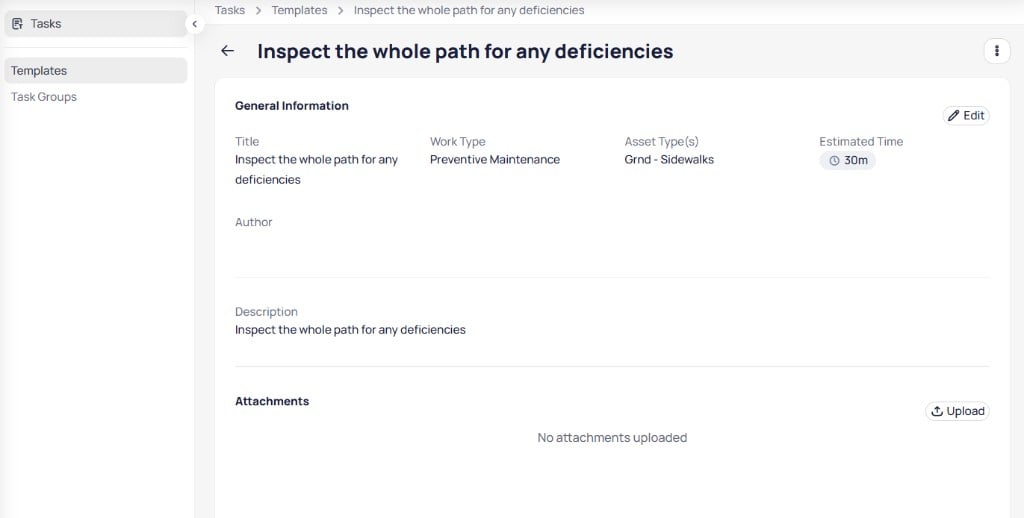 #### General information
| Field | Description |
| ------------------ | ------------------------------------ |
| **Title** | Template name |
| **Work type** | Preventive maintenance or inspection |
| **Asset type(s)** | Applicable asset types |
| **Estimated time** | Duration assigned to the template |
| **Author** | User who created the template |
Select **Edit** in the **General information** section to update these fields.
#### Description
The **Description** section shows the full task instructions, including formatted content from the rich text editor.
#### Attachments
The **Attachments** section stores reference files such as procedures, diagrams, or forms.
* Select **Upload** to add files to the template.
* Attachments copy to work orders that use the template when your organization configures that behavior.
#### Other actions
Use the menu in the upper right corner of the page to delete the template.
From **Templates**, select the template you want to change.
Select **Edit** to update fields, or **Upload** to add attachments.
Save your updates. Existing schedules that reference the template use the updated definition for new work orders according to your configuration.
### Import, export, and bulk update
#### Import and export
Open the menu next to **+ Create Template**.
#### General information
| Field | Description |
| ------------------ | ------------------------------------ |
| **Title** | Template name |
| **Work type** | Preventive maintenance or inspection |
| **Asset type(s)** | Applicable asset types |
| **Estimated time** | Duration assigned to the template |
| **Author** | User who created the template |
Select **Edit** in the **General information** section to update these fields.
#### Description
The **Description** section shows the full task instructions, including formatted content from the rich text editor.
#### Attachments
The **Attachments** section stores reference files such as procedures, diagrams, or forms.
* Select **Upload** to add files to the template.
* Attachments copy to work orders that use the template when your organization configures that behavior.
#### Other actions
Use the menu in the upper right corner of the page to delete the template.
From **Templates**, select the template you want to change.
Select **Edit** to update fields, or **Upload** to add attachments.
Save your updates. Existing schedules that reference the template use the updated definition for new work orders according to your configuration.
### Import, export, and bulk update
#### Import and export
Open the menu next to **+ Create Template**.
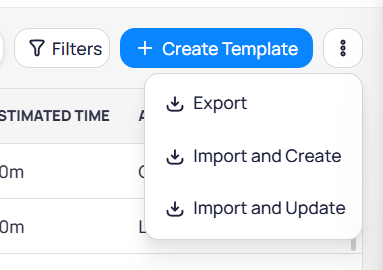 | Action | Purpose |
| --------------------- | ------------------------------------------------------- |
| **Export** | Download existing templates |
| **Import and Create** | Upload a file to add new templates in bulk |
| **Import and Update** | Upload a file to add and update templates in one action |
Download starter files:
* [Task Template Import](/downloads/task-template.xlsx) — Add new templates in bulk
* [Task Template Import and Update](/downloads/task-template-import-update.xlsx) — Add and update templates together
#### Bulk edit
Select one or more templates using row checkboxes, then select **Edit**.
| Action | Purpose |
| --------------------- | ------------------------------------------------------- |
| **Export** | Download existing templates |
| **Import and Create** | Upload a file to add new templates in bulk |
| **Import and Update** | Upload a file to add and update templates in one action |
Download starter files:
* [Task Template Import](/downloads/task-template.xlsx) — Add new templates in bulk
* [Task Template Import and Update](/downloads/task-template-import-update.xlsx) — Add and update templates together
#### Bulk edit
Select one or more templates using row checkboxes, then select **Edit**.
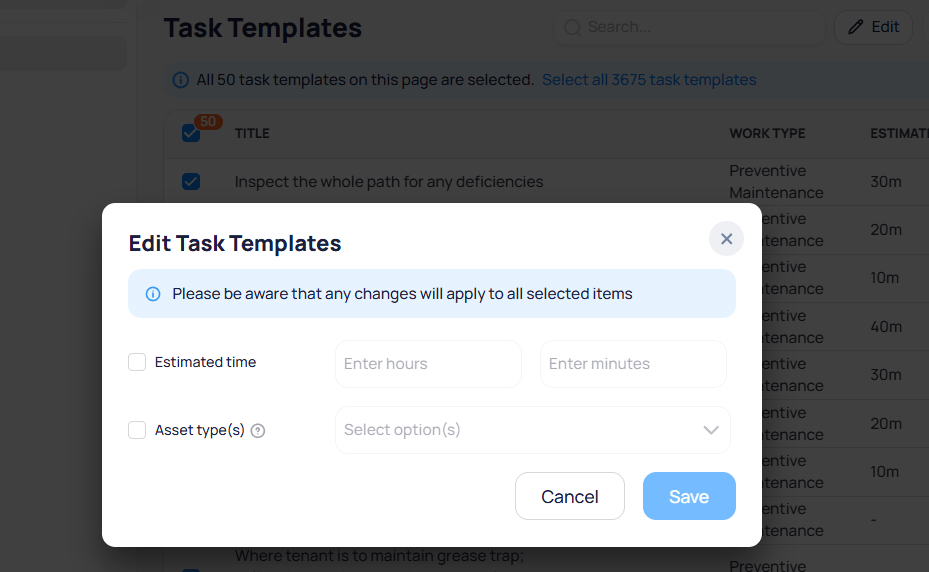 Changes in bulk edit apply to every selected template that passes validation. Review the selection count before you save.
Enable **Estimated time** or **Asset type(s)**, enter the new values, and select **Save**. Bulk updates run as a batch. Failed rows remain available to review and export with failure reasons. A progress popup confirms when processing starts, and the seven-day bulk history records who ran the update and the success and failure counts.
You can select all templates on the current page, then use the banner option to extend the selection to every template in the library.
#### Bulk delete unused templates
Select unused task templates that are not linked to active schedules, then delete them in bulk. Templates that are still used on live schedules are not removed; those rows appear as failures in the batch result and exportable report.
### Use templates on schedules
Assign templates when you create building-level schedules:
* [Building schedules](/products/assetops/schedules/schedules-overview#create-a-schedule)
Each generated work order includes the tasks from the templates you selected. Define templates at the portfolio level first, then reference them during schedule configuration.
***
## Task groups
A **task group** bundles multiple task templates that share a **Work type** and apply to the same asset types. Use a group when scheduled work always requires the same set of tasks, such as a multi-step inspection or preventive maintenance checklist across several asset types.
| Approach | When to use |
| ---------------------- | --------------------------------------------- |
| **Single template** | One repeatable task per schedule |
| **Multiple templates** | Pick individual templates on a schedule |
| **Task group** | Apply a fixed checklist of templates together |
### View the task groups list
Select **Task groups** in the Tasks secondary navigation.
Changes in bulk edit apply to every selected template that passes validation. Review the selection count before you save.
Enable **Estimated time** or **Asset type(s)**, enter the new values, and select **Save**. Bulk updates run as a batch. Failed rows remain available to review and export with failure reasons. A progress popup confirms when processing starts, and the seven-day bulk history records who ran the update and the success and failure counts.
You can select all templates on the current page, then use the banner option to extend the selection to every template in the library.
#### Bulk delete unused templates
Select unused task templates that are not linked to active schedules, then delete them in bulk. Templates that are still used on live schedules are not removed; those rows appear as failures in the batch result and exportable report.
### Use templates on schedules
Assign templates when you create building-level schedules:
* [Building schedules](/products/assetops/schedules/schedules-overview#create-a-schedule)
Each generated work order includes the tasks from the templates you selected. Define templates at the portfolio level first, then reference them during schedule configuration.
***
## Task groups
A **task group** bundles multiple task templates that share a **Work type** and apply to the same asset types. Use a group when scheduled work always requires the same set of tasks, such as a multi-step inspection or preventive maintenance checklist across several asset types.
| Approach | When to use |
| ---------------------- | --------------------------------------------- |
| **Single template** | One repeatable task per schedule |
| **Multiple templates** | Pick individual templates on a schedule |
| **Task group** | Apply a fixed checklist of templates together |
### View the task groups list
Select **Task groups** in the Tasks secondary navigation.
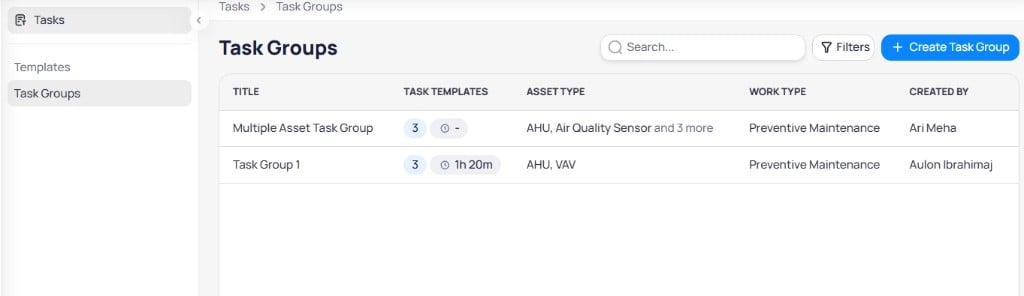 | Column | Description |
| ------------------ | ----------------------------------------------------------- |
| **Title** | Task group name |
| **Task templates** | Count of templates in the group and combined estimated time |
| **Asset type** | Asset types the group applies to |
| **Work type** | Program such as preventive maintenance or inspection |
| **Created by** | User who created the group |
Use **Search** and **Filters** to find groups. Select **+ Create Task Group** to add a new group.
### Task group fields
During creation and on the details page, a task group includes:
Display name for the task group.
Maintenance program for all templates in the group. Templates must align with this work type.
Asset types the group applies to. Derived from the selected templates and general info step.
Shown for inspection groups. Values include **Asset**, **Area**, or **General**.
### Create a task group
Creating a task group uses a three-step wizard: **General info**, **Task templates**, and **Overview**.
#### Step 1: General info
| Column | Description |
| ------------------ | ----------------------------------------------------------- |
| **Title** | Task group name |
| **Task templates** | Count of templates in the group and combined estimated time |
| **Asset type** | Asset types the group applies to |
| **Work type** | Program such as preventive maintenance or inspection |
| **Created by** | User who created the group |
Use **Search** and **Filters** to find groups. Select **+ Create Task Group** to add a new group.
### Task group fields
During creation and on the details page, a task group includes:
Display name for the task group.
Maintenance program for all templates in the group. Templates must align with this work type.
Asset types the group applies to. Derived from the selected templates and general info step.
Shown for inspection groups. Values include **Asset**, **Area**, or **General**.
### Create a task group
Creating a task group uses a three-step wizard: **General info**, **Task templates**, and **Overview**.
#### Step 1: General info
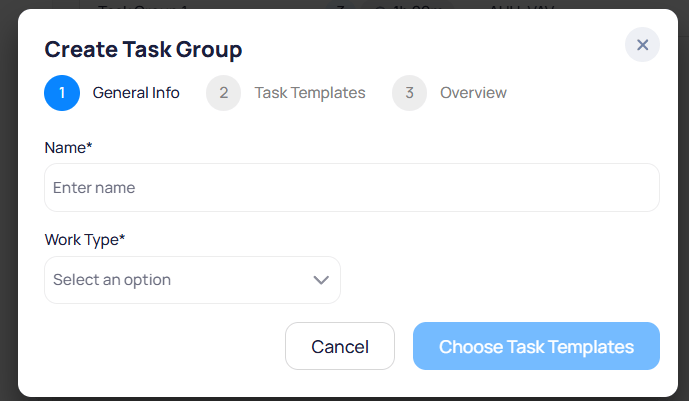 On the **Task groups** page, select **+ Create Task Group**.
Enter **Name** and **Work type**. For inspection groups, set **Inspection type** when prompted.
Select **Choose Task Templates** to go to step 2.
#### Step 2: Task templates
On the **Task groups** page, select **+ Create Task Group**.
Enter **Name** and **Work type**. For inspection groups, set **Inspection type** when prompted.
Select **Choose Task Templates** to go to step 2.
#### Step 2: Task templates
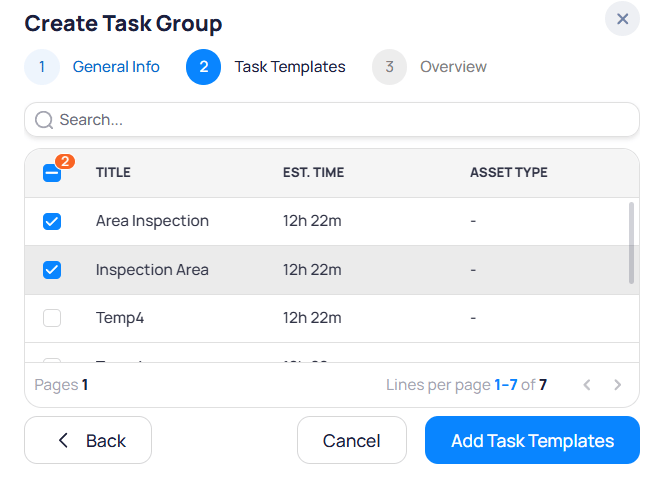 Search for templates, then select checkboxes for each template to include. The header checkbox shows how many templates are selected. Only templates that match the group's work type appear.
Select **Add Task Templates** to continue. Use **Back** to change general info.
#### Step 3: Overview
Search for templates, then select checkboxes for each template to include. The header checkbox shows how many templates are selected. Only templates that match the group's work type appear.
Select **Add Task Templates** to continue. Use **Back** to change general info.
#### Step 3: Overview
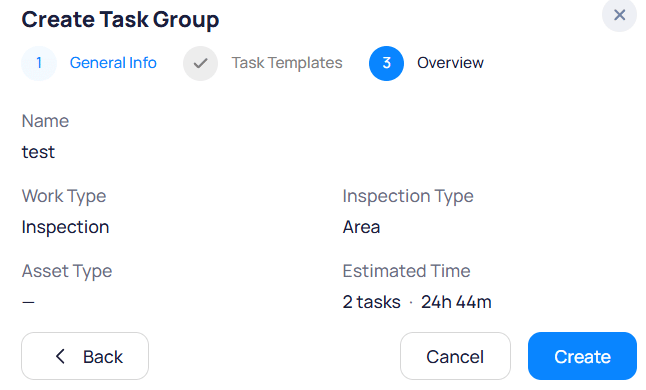 The **Overview** step summarizes:
* **Name** and **Work type**
* **Inspection type** — For inspection groups
* **Asset type** — Asset types linked to the group
* **Estimated time** — Template count and combined duration (for example, `2 tasks · 24h 44m`)
Select **Create** to save the group, or **Back** to change earlier steps.
### View and manage a task group
Select a group from the list to open its details page.
The **Overview** step summarizes:
* **Name** and **Work type**
* **Inspection type** — For inspection groups
* **Asset type** — Asset types linked to the group
* **Estimated time** — Template count and combined duration (for example, `2 tasks · 24h 44m`)
Select **Create** to save the group, or **Back** to change earlier steps.
### View and manage a task group
Select a group from the list to open its details page.
 #### General information
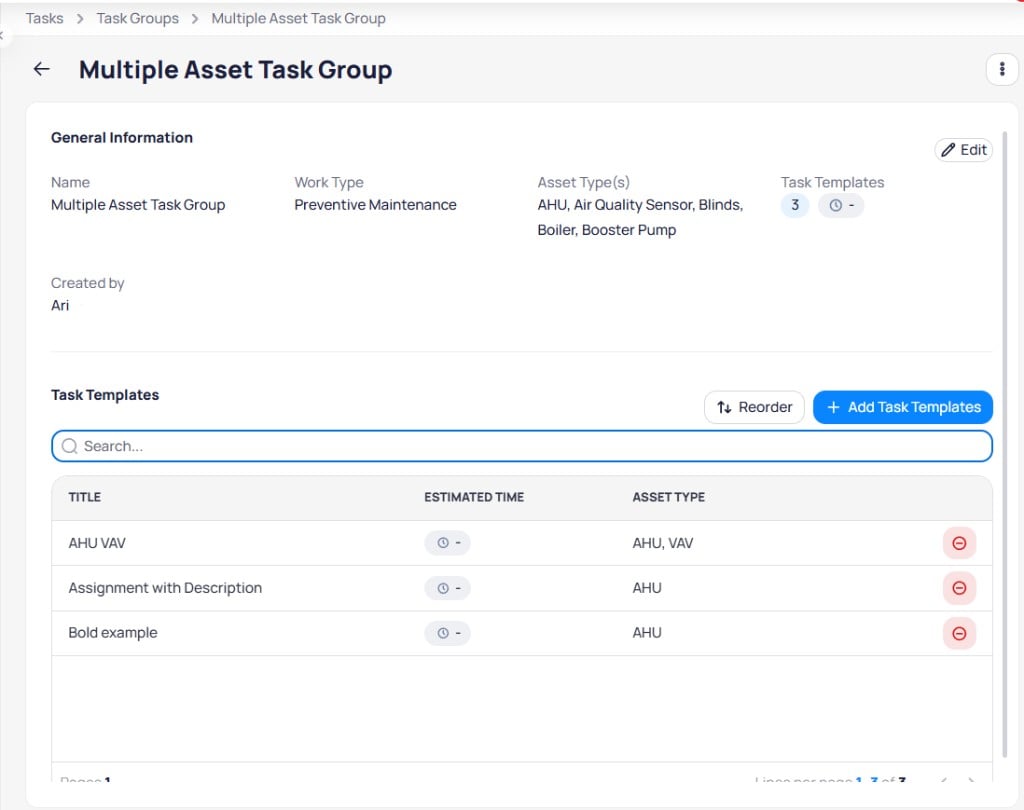
Review **Name**, **Work type**, **Asset type(s)**, **Task templates** count, total estimated time, and **Created by**. Select **Edit** to update the group name or work type.
#### Templates in the group
The **Task templates** table lists each template in execution order.
| Column | Description |
| ------------------ | ---------------------------- |
| **Title** | Template name |
| **Estimated time** | Duration for that task |
| **Asset type** | Asset types for the template |
| Action | Purpose |
| ------------------------ | ------------------------------------------------------------- |
| **Reorder** | Change the sequence tasks appear on work orders |
| **+ Add Task Templates** | Include additional templates in the group |
| **Remove** | Detach a template from the group using the row remove control |
Use search within the section to find templates in large groups.
From **Task groups**, select the group you want to manage.
Select **+ Add Task Templates** to attach templates, or **Reorder** to change task sequence.
Confirm additions or reordering. The group's total estimated time updates based on included templates.
### Edit or delete a task group
* Select **Edit** on the details page to change group metadata.
* Open the menu in the upper right corner to delete the group.
Deleting a task group does not delete the task templates it references. Schedules that already use the group may require updated task assignments.
### Use task groups on schedules
When you [create a schedule](/products/assetops/schedules/schedules-overview#create-a-schedule), you can assign a task group instead of selecting individual templates. The schedule applies every template in the group to generated work orders.
Define templates first, bundle them into groups when needed, then reference the group during schedule setup at the building level.
***
## Related modules
Assign templates and task groups when you schedule recurring work.
Classify work orders that include tasks from templates and groups.
Look up template and task group field definitions.
#### General information
Review **Name**, **Work type**, **Asset type(s)**, **Task templates** count, total estimated time, and **Created by**. Select **Edit** to update the group name or work type.
#### Templates in the group
The **Task templates** table lists each template in execution order.
| Column | Description |
| ------------------ | ---------------------------- |
| **Title** | Template name |
| **Estimated time** | Duration for that task |
| **Asset type** | Asset types for the template |
| Action | Purpose |
| ------------------------ | ------------------------------------------------------------- |
| **Reorder** | Change the sequence tasks appear on work orders |
| **+ Add Task Templates** | Include additional templates in the group |
| **Remove** | Detach a template from the group using the row remove control |
Use search within the section to find templates in large groups.
From **Task groups**, select the group you want to manage.
Select **+ Add Task Templates** to attach templates, or **Reorder** to change task sequence.
Confirm additions or reordering. The group's total estimated time updates based on included templates.
### Edit or delete a task group
* Select **Edit** on the details page to change group metadata.
* Open the menu in the upper right corner to delete the group.
Deleting a task group does not delete the task templates it references. Schedules that already use the group may require updated task assignments.
### Use task groups on schedules
When you [create a schedule](/products/assetops/schedules/schedules-overview#create-a-schedule), you can assign a task group instead of selecting individual templates. The schedule applies every template in the group to generated work orders.
Define templates first, bundle them into groups when needed, then reference the group during schedule setup at the building level.
***
## Related modules
Assign templates and task groups when you schedule recurring work.
Classify work orders that include tasks from templates and groups.
Look up template and task group field definitions.