> ## Documentation Index
> Fetch the complete documentation index at: https://docs.kodelabs.com/llms.txt
> Use this file to discover all available pages before exploring further.
# Teams
> Manage teams and assignees at the building level
In AssetOps, **teams** are created at the [building level](/products/assetops/quickstart/usage-workflow#building-level). A team is a group of users who complete work orders assigned to that team at a specific building.
Teams are organized by purpose, such as HVAC, plumbing, or security. You assign teams when [creating work orders](/products/assetops/work-orders/work-orders-overview#create-a-work-order) or [scheduling](/products/assetops/schedules/schedules-overview) maintenance.
```mermaid actions={false} theme={"theme":{"light":"github-light","dark":"github-dark"}}
---
config:
theme: neutral
---
flowchart LR
subgraph s1["Buildings"]
B1["Building 1"]
B2["Building 2"]
B3["Building 3"]
end
subgraph s2["Building-Specific Teams"]
T1["Plumbing Team"]
T2["Electrical Team"]
T3["Cleaning Team"]
end
A["AssetOps"] --- B["Buildings"]
B -- access --- B1 & B2 & B3
B2 -- access --- T["Teams"]
T -- "building-specific" --- T1 & T2 & T3
B1:::Sky
B2:::Sky
B3:::Sky
T1:::Rose
T2:::Rose
T3:::Rose
classDef Sky stroke-width:1px, stroke-dasharray:none, stroke:#374D7C, fill:#E2EBFF, color:#374D7C
classDef Rose stroke-width:1px, stroke-dasharray:none, stroke:#FF5978, fill:#FFDFE5, color:#8E2236
linkStyle 1 stroke:#00C853,fill:none
linkStyle 2 stroke:#00C853,fill:none
linkStyle 3 stroke:#00C853,fill:none
linkStyle 4 stroke:#00C853,fill:none
linkStyle 5 stroke:#FF6D00,fill:none
linkStyle 6 stroke:#FF6D00,fill:none
linkStyle 7 stroke:#FF6D00,fill:none
```
Open a building from [Buildings](/products/assetops/resources/buildings), then select **Teams** in the building sidebar.
## View the teams list
The **Teams** page lists every team for the selected building.
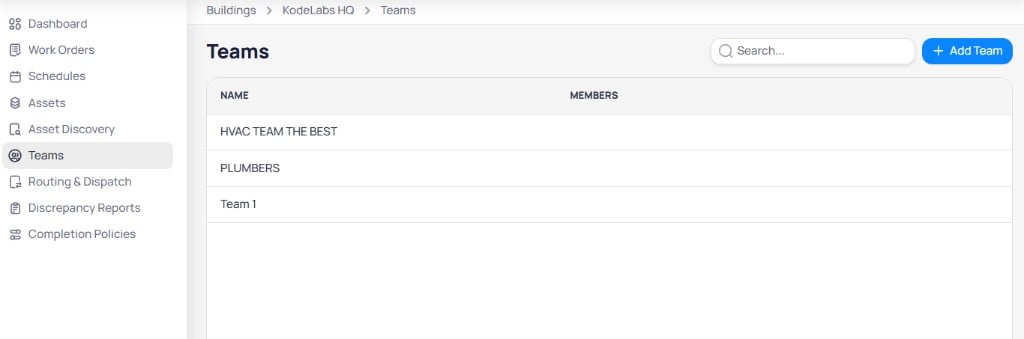 | Column | Description |
| ----------- | ------------------------------------ |
| **Name** | Team display name |
| **Members** | Number of users assigned to the team |
Use the search field to filter teams by name. Select **+ Add Team** to create a new team.
## Create a team
Creating a team uses a two-step flow: **General info** and **Assign members**.
### Step 1: General info
| Column | Description |
| ----------- | ------------------------------------ |
| **Name** | Team display name |
| **Members** | Number of users assigned to the team |
Use the search field to filter teams by name. Select **+ Add Team** to create a new team.
## Create a team
Creating a team uses a two-step flow: **General info** and **Assign members**.
### Step 1: General info
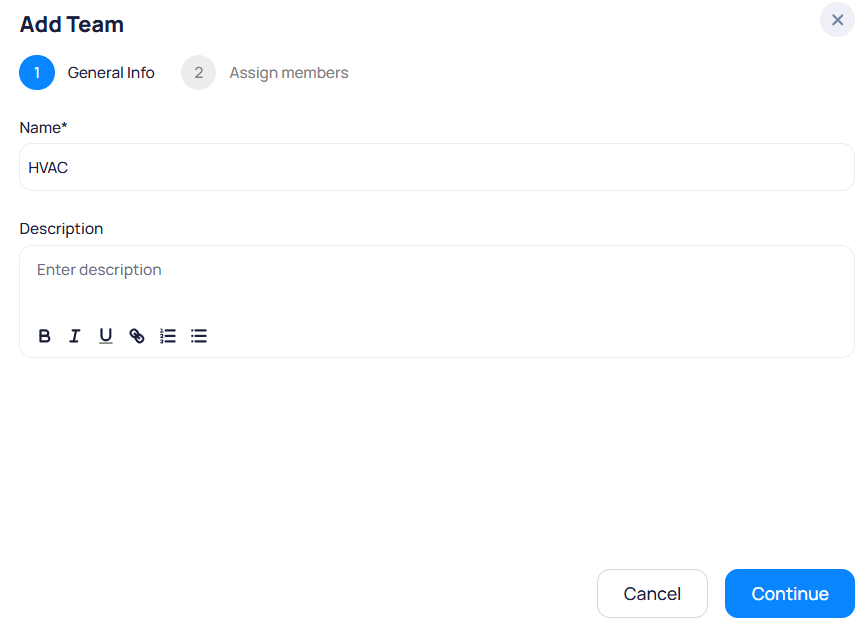 Display name for the team, such as HVAC or Plumbers.
Optional details about the team's responsibilities. Supports rich text formatting.
From the portfolio level, open a [building](/products/assetops/resources/buildings), then select **Teams**.
Select **+ Add Team** in the top right.
Enter **Name** and **Description**, then select **Continue**.
### Step 2: Assign members
Display name for the team, such as HVAC or Plumbers.
Optional details about the team's responsibilities. Supports rich text formatting.
From the portfolio level, open a [building](/products/assetops/resources/buildings), then select **Teams**.
Select **+ Add Team** in the top right.
Enter **Name** and **Description**, then select **Continue**.
### Step 2: Assign members
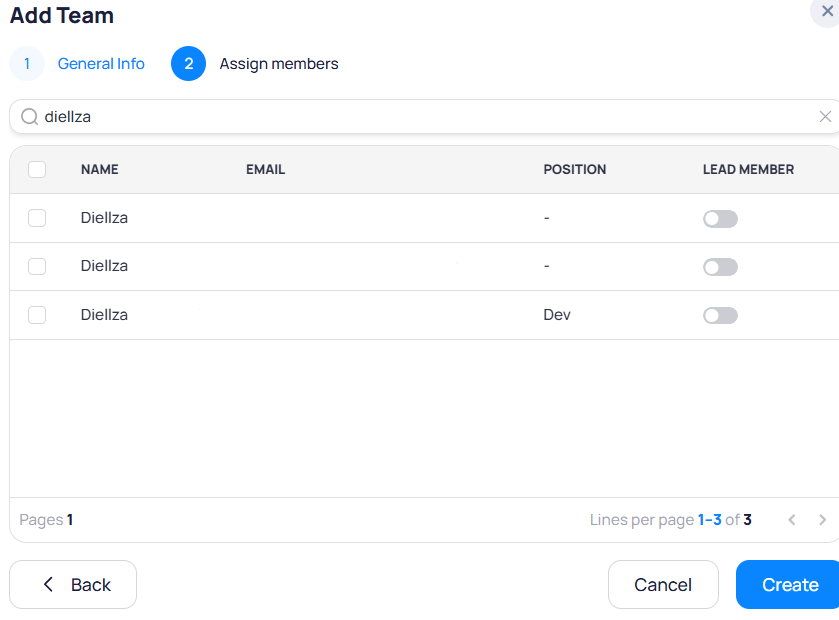 Search for users, then select checkboxes for each member to add. The table includes:
| Column | Description |
| --------------- | --------------------------------- |
| **Name** | User display name |
| **Email** | User email address |
| **Position** | Role or title, if provided |
| **Lead member** | Toggle to designate the team lead |
Enable **Lead member** for one or more users who coordinate work for the team.
Select **Create** to save the team. Use **Back** to change general info, or **Cancel** to exit.
## Team details
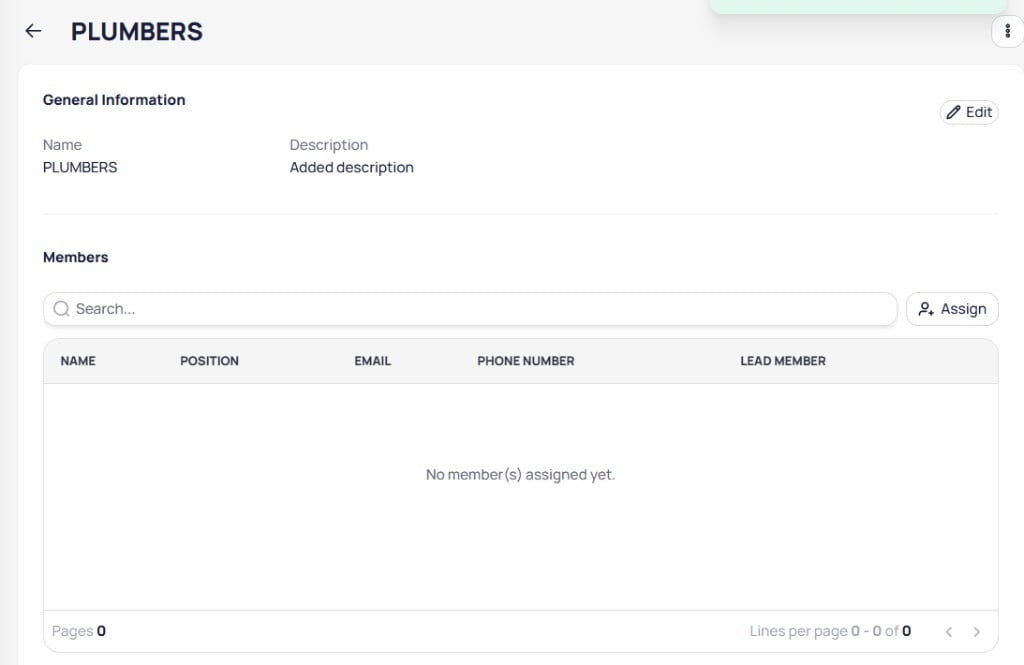
Select a team from the list to open its details page.
Search for users, then select checkboxes for each member to add. The table includes:
| Column | Description |
| --------------- | --------------------------------- |
| **Name** | User display name |
| **Email** | User email address |
| **Position** | Role or title, if provided |
| **Lead member** | Toggle to designate the team lead |
Enable **Lead member** for one or more users who coordinate work for the team.
Select **Create** to save the team. Use **Back** to change general info, or **Cancel** to exit.
## Team details
Select a team from the list to open its details page.
 ### General information
Review **Name** and **Description**. Select **Edit** to update team details. Use the menu in the upper right corner to delete the team.
### Members
The **Members** section lists users assigned to the team.
| Column | Description |
| ---------------- | ------------------------------- |
| **Name** | Member display name |
| **Position** | Role or title |
| **Email** | Contact email |
| **Phone number** | Contact phone, if provided |
| **Lead member** | Whether the user is a team lead |
Select **Assign** to add members after the team is created. Use search to find users in large teams.
### Unassign a member
Open the row menu on a member and select **Unassign** to remove that user from the team.
### General information
Review **Name** and **Description**. Select **Edit** to update team details. Use the menu in the upper right corner to delete the team.
### Members
The **Members** section lists users assigned to the team.
| Column | Description |
| ---------------- | ------------------------------- |
| **Name** | Member display name |
| **Position** | Role or title |
| **Email** | Contact email |
| **Phone number** | Contact phone, if provided |
| **Lead member** | Whether the user is a team lead |
Select **Assign** to add members after the team is created. Use search to find users in large teams.
### Unassign a member
Open the row menu on a member and select **Unassign** to remove that user from the team.
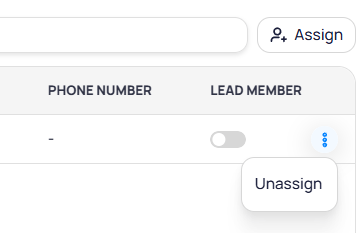 Toggle **Lead member** on or off directly in the table to change team lead designation without unassigning the user.
## Related modules
Assign teams when you create work orders at the building level.
Route work to teams automatically based on category and rules.
Toggle **Lead member** on or off directly in the table to change team lead designation without unassigning the user.
## Related modules
Assign teams when you create work orders at the building level.
Route work to teams automatically based on category and rules.