> ## Documentation Index
> Fetch the complete documentation index at: https://documentation.kodelabs.com/llms.txt
> Use this file to discover all available pages before exploring further.
# Building work orders
> View, filter, create, and manage building-level work orders in AssetOps
At the [building level](/products/assetops/quickstart/usage-workflow#building-level), **Work orders** is the hub for planned and unplanned maintenance. Open a building from [Buildings](/products/assetops/resources/buildings), then select **Work orders** in the sidebar.
When AssetOps is enabled, you can also open **Work orders** from the [KODE OS building sidebar](/products/kode-os/assetops/work-orders) without leaving KODE OS.
Work orders can come from corrective requests, [schedules](/products/assetops/schedules/schedules-overview), or integrations. Learn how work types differ in [Work order basics](/products/assetops/quickstart/work-orders).
***
## Work order list
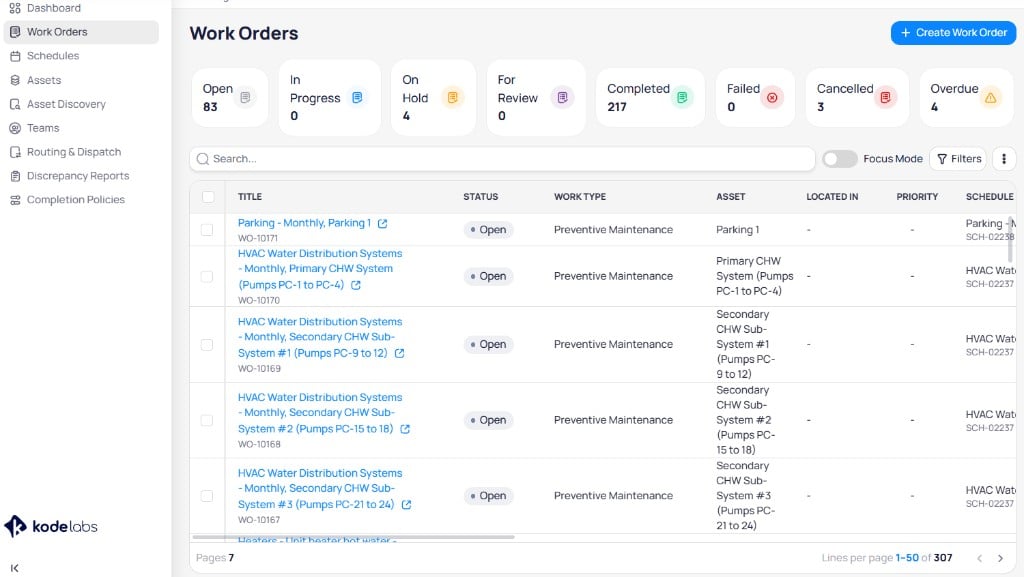
The work orders page shows status summary cards, a searchable table, and actions to create or manage work.
 ### Status summary cards
Select a card to filter the table by that status. Counts update based on your current filters.
| Status | Description |
| --------------- | --------------------------------------- |
| **Open** | Created but not yet started |
| **In progress** | Currently being worked on |
| **On hold** | Paused |
| **For review** | Completed work awaiting review |
| **Completed** | Finished work |
| **Failed** | Work that did not complete successfully |
| **Cancelled** | Cancelled work orders |
| **Overdue** | Past due date and not completed |
### List actions
* **Search** — Filter the table by text across visible fields
* **Focus mode** — Toggle to show only urgent work. See [Focus mode](#focus-mode).
* **Filters** — Open custom filter criteria. See [Custom filters](#custom-filters).
* **+ Create work order** — Start a new work order. See [Create a work order](#create-a-work-order).
* **Edit** and **Delete** — Available when you select one or more rows
* Vertical ellipsis menu — Additional list actions such as **Export**
Select row checkboxes to enable bulk **Edit** or **Delete**. See [Bulk edit work orders](#bulk-edit-work-orders).
### Export
Open the vertical ellipsis menu in the list header and select **Export** to download work order data.
### Status summary cards
Select a card to filter the table by that status. Counts update based on your current filters.
| Status | Description |
| --------------- | --------------------------------------- |
| **Open** | Created but not yet started |
| **In progress** | Currently being worked on |
| **On hold** | Paused |
| **For review** | Completed work awaiting review |
| **Completed** | Finished work |
| **Failed** | Work that did not complete successfully |
| **Cancelled** | Cancelled work orders |
| **Overdue** | Past due date and not completed |
### List actions
* **Search** — Filter the table by text across visible fields
* **Focus mode** — Toggle to show only urgent work. See [Focus mode](#focus-mode).
* **Filters** — Open custom filter criteria. See [Custom filters](#custom-filters).
* **+ Create work order** — Start a new work order. See [Create a work order](#create-a-work-order).
* **Edit** and **Delete** — Available when you select one or more rows
* Vertical ellipsis menu — Additional list actions such as **Export**
Select row checkboxes to enable bulk **Edit** or **Delete**. See [Bulk edit work orders](#bulk-edit-work-orders).
### Export
Open the vertical ellipsis menu in the list header and select **Export** to download work order data.
 Use the column control at the right edge of the header row to show or hide columns. Scroll horizontally to view fields that do not fit on screen.
### Table columns
| Column | Description |
| --------------------- | ------------------------------------------------------------------------------------------------------------------------------------------------------- |
| **Title** | Work order name as a link, with work order ID below (for example, `WO-10171`). An external-link icon opens the linked Cloud BMS device when applicable. |
| **Status** | Current lifecycle status (for example, **Open**, **In progress**) |
| **Work type** | Program type (for example, preventive maintenance, corrective maintenance, inspection) |
| **Asset** | Asset the work applies to |
| **Located in** | Building area or location hierarchy for the work |
| **Priority** | Priority level from [Priority & SLA](/products/assetops/portfolio/priority-sla) |
| **Schedule** | Source schedule name and ID when the work order came from a schedule (for example, `SCH-02238`) |
| **Tasks** | Task count or summary for work on the order |
| **Deficiency** | Linked deficiency or inspection finding when applicable |
| **SLA status** | SLA state (for example, on track, warning, breached) |
| **Created date** | Date the work order was created |
| **Start date & time** | Scheduled or actual start |
| **Due date & time** | Target completion date and time |
| **Logged time** | Total time logged on the [logged time](/products/assetops/work-orders/work-orders-overview#logged-time) section of the detail page |
| **Assignee** | User assigned to the work |
| **Team assigned** | Team assigned to the work |
| **Category & issue** | [Category](/products/assetops/resources/categories) and issue type |
| **Follow up** | Indicates whether follow-up work is required or pending |
Select a **Title** link to open the [work order detail page](#work-order-detail-page).
***
## Focus mode
**Focus mode** is a preset view on the work orders list. It shows work orders that require immediate attention, including:
| Category | Description |
| ----------------- | ------------------------------------------------------------------------------------------------------------ |
| **SLA breached** | Work orders that missed an SLA target defined in [Priority & SLA](/products/assetops/portfolio/priority-sla) |
| **Warnings** | Work orders flagged with SLA or timing warnings before breach |
| **High priority** | Work orders marked as high priority |
Enable the **Focus mode** toggle on the work orders list to limit the table to these items. Turn the toggle off to return to the full list. Combine Focus mode with [status summary cards](#status-summary-cards) or [custom filters](#custom-filters) when you need a narrower view.
***
## Custom filters
Custom filters narrow the list using field-based criteria.
On the work orders list, select **Filters**.
Choose one or more filters.
| Filter | Description |
| --------------- | ------------------------------------------------------- |
| **Category** | Work order category (for example, HVAC, plumbing) |
| **Issue type** | Issue type within a category |
| **Assign team** | Team assigned to the work order |
| **Assignee** | User assigned to the work order |
| **Vendor** | Vendor assigned to the work order |
| **Asset** | Asset associated with the work order |
| **Area** | Area associated with the work order |
| **Due date** | Due date range |
| **Region** | Geographic or organizational grouping (portfolio lists) |
Select **Apply** to update the table.
Combine status cards and custom filters for precise views. For example, filter **In progress** work in the **HVAC** category.
***
## Bulk edit work orders
Update multiple work orders at once from the list at the building or [portfolio](/products/assetops/portfolio/work-orders) level. Bulk updates run as a **batch**: AssetOps processes each selected work order individually. Valid items complete even when some rows fail. Failed rows stay available to review and export with the failure reason (for example, an invalid status transition, a permission restriction, or a field restriction).
When you start a batch, a popup confirms that processing started. If another bulk update is already running, the new job is queued. A badge shows whether the batch finished fully or stopped because of an interruption such as a network error.
Review bulk activity for the last seven days in the building **Bulk History**. Each entry shows who triggered the update, how many items succeeded, and how many failed. Export the failure report from the history view to inspect row-level errors.
Use the column control at the right edge of the header row to show or hide columns. Scroll horizontally to view fields that do not fit on screen.
### Table columns
| Column | Description |
| --------------------- | ------------------------------------------------------------------------------------------------------------------------------------------------------- |
| **Title** | Work order name as a link, with work order ID below (for example, `WO-10171`). An external-link icon opens the linked Cloud BMS device when applicable. |
| **Status** | Current lifecycle status (for example, **Open**, **In progress**) |
| **Work type** | Program type (for example, preventive maintenance, corrective maintenance, inspection) |
| **Asset** | Asset the work applies to |
| **Located in** | Building area or location hierarchy for the work |
| **Priority** | Priority level from [Priority & SLA](/products/assetops/portfolio/priority-sla) |
| **Schedule** | Source schedule name and ID when the work order came from a schedule (for example, `SCH-02238`) |
| **Tasks** | Task count or summary for work on the order |
| **Deficiency** | Linked deficiency or inspection finding when applicable |
| **SLA status** | SLA state (for example, on track, warning, breached) |
| **Created date** | Date the work order was created |
| **Start date & time** | Scheduled or actual start |
| **Due date & time** | Target completion date and time |
| **Logged time** | Total time logged on the [logged time](/products/assetops/work-orders/work-orders-overview#logged-time) section of the detail page |
| **Assignee** | User assigned to the work |
| **Team assigned** | Team assigned to the work |
| **Category & issue** | [Category](/products/assetops/resources/categories) and issue type |
| **Follow up** | Indicates whether follow-up work is required or pending |
Select a **Title** link to open the [work order detail page](#work-order-detail-page).
***
## Focus mode
**Focus mode** is a preset view on the work orders list. It shows work orders that require immediate attention, including:
| Category | Description |
| ----------------- | ------------------------------------------------------------------------------------------------------------ |
| **SLA breached** | Work orders that missed an SLA target defined in [Priority & SLA](/products/assetops/portfolio/priority-sla) |
| **Warnings** | Work orders flagged with SLA or timing warnings before breach |
| **High priority** | Work orders marked as high priority |
Enable the **Focus mode** toggle on the work orders list to limit the table to these items. Turn the toggle off to return to the full list. Combine Focus mode with [status summary cards](#status-summary-cards) or [custom filters](#custom-filters) when you need a narrower view.
***
## Custom filters
Custom filters narrow the list using field-based criteria.
On the work orders list, select **Filters**.
Choose one or more filters.
| Filter | Description |
| --------------- | ------------------------------------------------------- |
| **Category** | Work order category (for example, HVAC, plumbing) |
| **Issue type** | Issue type within a category |
| **Assign team** | Team assigned to the work order |
| **Assignee** | User assigned to the work order |
| **Vendor** | Vendor assigned to the work order |
| **Asset** | Asset associated with the work order |
| **Area** | Area associated with the work order |
| **Due date** | Due date range |
| **Region** | Geographic or organizational grouping (portfolio lists) |
Select **Apply** to update the table.
Combine status cards and custom filters for precise views. For example, filter **In progress** work in the **HVAC** category.
***
## Bulk edit work orders
Update multiple work orders at once from the list at the building or [portfolio](/products/assetops/portfolio/work-orders) level. Bulk updates run as a **batch**: AssetOps processes each selected work order individually. Valid items complete even when some rows fail. Failed rows stay available to review and export with the failure reason (for example, an invalid status transition, a permission restriction, or a field restriction).
When you start a batch, a popup confirms that processing started. If another bulk update is already running, the new job is queued. A badge shows whether the batch finished fully or stopped because of an interruption such as a network error.
Review bulk activity for the last seven days in the building **Bulk History**. Each entry shows who triggered the update, how many items succeeded, and how many failed. Export the failure report from the history view to inspect row-level errors.
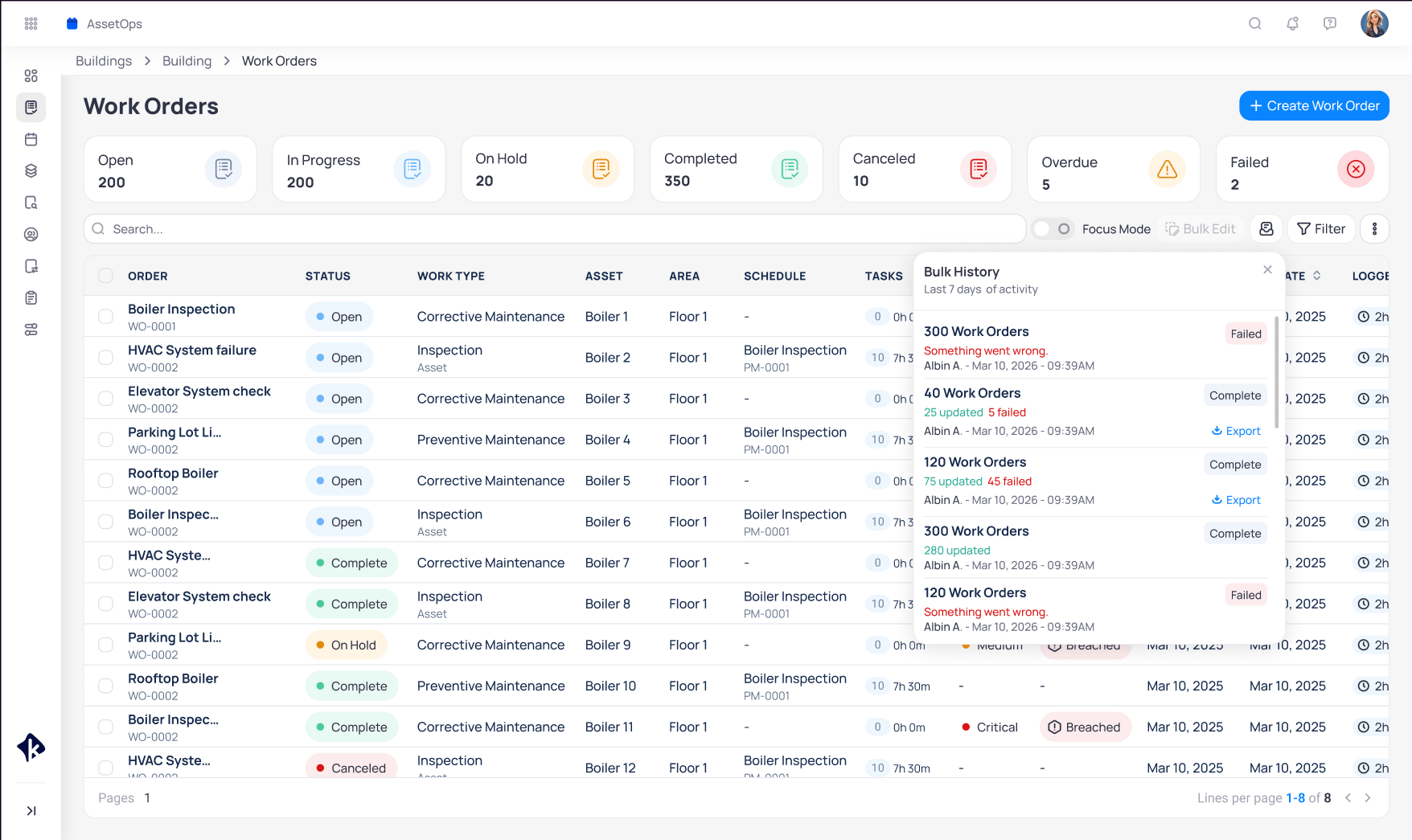 Use row checkboxes or the header checkbox to select work orders. **Edit** and **Delete** appear in the toolbar.
Select **Edit** to open the **Edit Work Orders** modal.
Use row checkboxes or the header checkbox to select work orders. **Edit** and **Delete** appear in the toolbar.
Select **Edit** to open the **Edit Work Orders** modal.
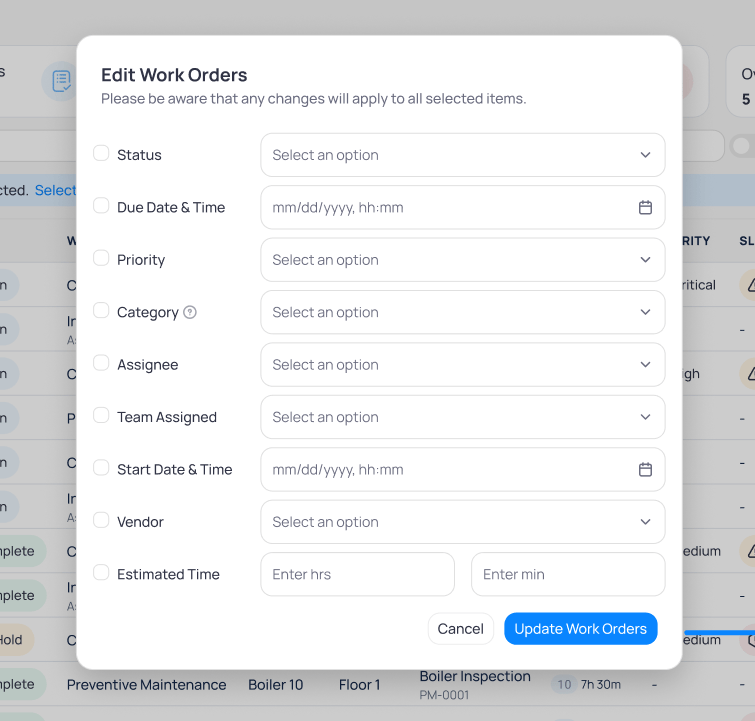 Enable the checkbox for each field you want to change, enter values, then select **Update Work Orders**. The batch applies checked fields to each selected work order that passes validation.
Confirm the batch status in the progress popup. Open the seven-day **Bulk History** to export failed items and read failure reasons.
Bulk **Delete** permanently removes selected work orders and cannot be undone. Review your selection before you delete.
Lifecycle status for selected work orders. Supports bulk completion when the status transition is valid.
Target due date and time for selected work orders.
Priority level for selected work orders.
User assigned to the selected work orders.
Team assigned to the selected work orders.
Completion date for selected work orders. Use when completing work in bulk, including HSSE workflows.
Optional note recorded with a status change.
***
## Create a work order
Create corrective and other generic work orders for **assets** or **areas**. [Routing and dispatch](/products/assetops/resources/routing-dispatch) can assign teams automatically when you select a category and issue type.
On the work orders list, select **+ Create work order**.
Complete required fields.
Enable the checkbox for each field you want to change, enter values, then select **Update Work Orders**. The batch applies checked fields to each selected work order that passes validation.
Confirm the batch status in the progress popup. Open the seven-day **Bulk History** to export failed items and read failure reasons.
Bulk **Delete** permanently removes selected work orders and cannot be undone. Review your selection before you delete.
Lifecycle status for selected work orders. Supports bulk completion when the status transition is valid.
Target due date and time for selected work orders.
Priority level for selected work orders.
User assigned to the selected work orders.
Team assigned to the selected work orders.
Completion date for selected work orders. Use when completing work in bulk, including HSSE workflows.
Optional note recorded with a status change.
***
## Create a work order
Create corrective and other generic work orders for **assets** or **areas**. [Routing and dispatch](/products/assetops/resources/routing-dispatch) can assign teams automatically when you select a category and issue type.
On the work orders list, select **+ Create work order**.
Complete required fields.
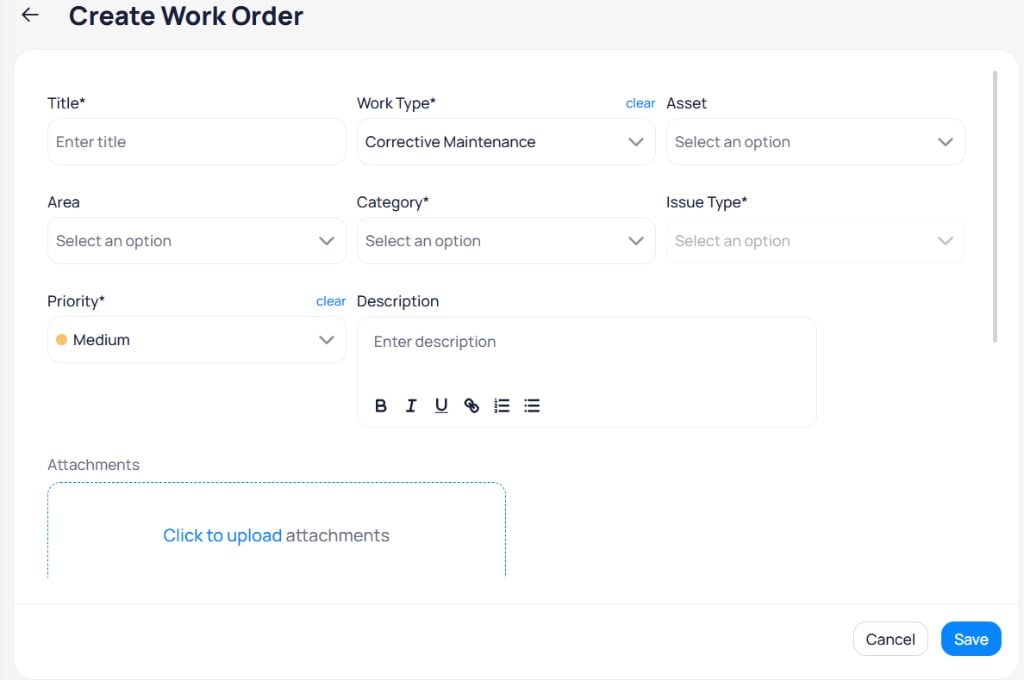 Work order name.
Program type (for example, corrective maintenance).
Asset the work applies to. Leave blank to target an area only.
Building area for the work.
[Category](/products/assetops/resources/categories) for the work.
Issue type within the category.
Priority level for SLA tracking.
Rich text description with formatting options.
Upload supporting files.
If you select an asset, the area is assigned automatically. To create work for an area only, leave **Asset** blank.
Set assignment and dates.
Work order name.
Program type (for example, corrective maintenance).
Asset the work applies to. Leave blank to target an area only.
Building area for the work.
[Category](/products/assetops/resources/categories) for the work.
Issue type within the category.
Priority level for SLA tracking.
Rich text description with formatting options.
Upload supporting files.
If you select an asset, the area is assigned automatically. To create work for an area only, leave **Asset** blank.
Set assignment and dates.
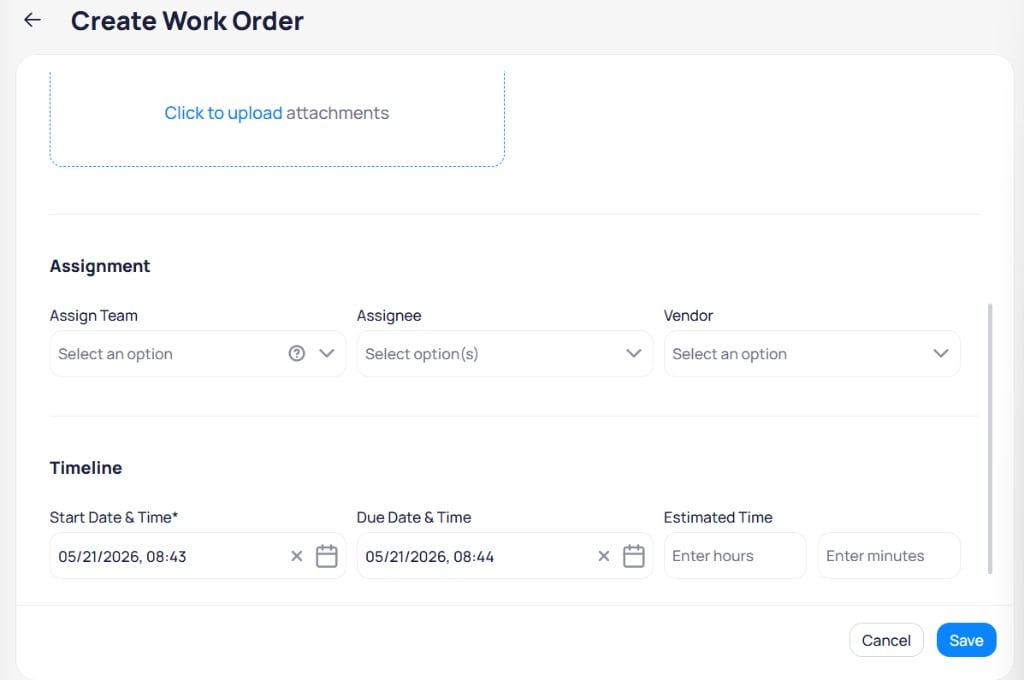 Team for the work order. Routing rules may prefill this field.
One or more users assigned to the work.
External vendor for the work.
When work is scheduled to start.
Target completion date and time.
Planned duration in hours and minutes.
Select **Save** to create the work order.
When you create work orders from the [portfolio level](/products/assetops/portfolio/work-orders), you must select the target building manually. The form fields match the building-level flow.
***
## Work order detail page
Select a work order **Title** from the building list to open its detail page. From the [portfolio work orders](/products/assetops/portfolio/work-orders) list or the [KODE OS Work orders](/products/kode-os/assetops/work-orders) module, select the **Title** link or the external-link icon beside the title to open the same detail page in building context. The header shows the work order name, ID badge (for example, `WO-10203`), and actions for comments and more options.
Three tabs organize the page:
| Tab | Purpose |
| --------------- | ---------------------------------------------------- |
| **Details** | General information, task checklist, and logged time |
| **Attachments** | Files linked to the work order |
| **Follow-ups** | Related and external follow-up work orders |
### Header actions
#### Comments
Select the comment icon in the header to open the **Comments** panel. A badge shows how many comments exist on the work order.
The panel lists comments in chronological order. Each entry shows the author, date, and message text. The system can add automated comments when status changes occur (for example, when a task moves to **Not applicable** and the work order status updates to **In progress**).
To add a comment:
1. Enter text in **Add comment**.
2. Use the formatting toolbar for bold, italic, underline, links, and lists as needed.
3. Select **Comment** to post.
Close the panel to return to the work order detail view.
#### More actions
Open the vertical ellipsis menu in the header for additional actions.
| Action | Description |
| ------------------------ | -------------------------------------------------------------------- |
| **Status history** | Timeline of status changes for this work order |
| **Schedule run history** | Work orders generated from the linked schedule run (when applicable) |
| **Delete** | Remove the work order |
##### Status history
The **Status history** modal lists changes from newest to oldest. The current status is marked **Current**. Each entry includes:
* **Status** name (for example, **Open**, **In progress**)
* **Date and time** of the change
* **User** who made the change, when applicable
* **Note** explaining the change, including automated notes when a task status triggers a work order status update
Select **Close** to return to the work order page.
##### Schedule run history
For work orders created from a schedule, **Schedule run history** lists related work orders from the same schedule run.
| Column | Description |
| --------------------- | --------------------------------------- |
| **Number** | Work order ID (for example, `WO-04385`) |
| **Status** | Current status of that work order |
| **Start date & time** | Start date and time for the run |
| **Due date & time** | Due date and time for the run |
Use **Search** to find entries. Select the external-link icon on a row to open that work order. Select **Close** when finished.
### Details tab
Team for the work order. Routing rules may prefill this field.
One or more users assigned to the work.
External vendor for the work.
When work is scheduled to start.
Target completion date and time.
Planned duration in hours and minutes.
Select **Save** to create the work order.
When you create work orders from the [portfolio level](/products/assetops/portfolio/work-orders), you must select the target building manually. The form fields match the building-level flow.
***
## Work order detail page
Select a work order **Title** from the building list to open its detail page. From the [portfolio work orders](/products/assetops/portfolio/work-orders) list or the [KODE OS Work orders](/products/kode-os/assetops/work-orders) module, select the **Title** link or the external-link icon beside the title to open the same detail page in building context. The header shows the work order name, ID badge (for example, `WO-10203`), and actions for comments and more options.
Three tabs organize the page:
| Tab | Purpose |
| --------------- | ---------------------------------------------------- |
| **Details** | General information, task checklist, and logged time |
| **Attachments** | Files linked to the work order |
| **Follow-ups** | Related and external follow-up work orders |
### Header actions
#### Comments
Select the comment icon in the header to open the **Comments** panel. A badge shows how many comments exist on the work order.
The panel lists comments in chronological order. Each entry shows the author, date, and message text. The system can add automated comments when status changes occur (for example, when a task moves to **Not applicable** and the work order status updates to **In progress**).
To add a comment:
1. Enter text in **Add comment**.
2. Use the formatting toolbar for bold, italic, underline, links, and lists as needed.
3. Select **Comment** to post.
Close the panel to return to the work order detail view.
#### More actions
Open the vertical ellipsis menu in the header for additional actions.
| Action | Description |
| ------------------------ | -------------------------------------------------------------------- |
| **Status history** | Timeline of status changes for this work order |
| **Schedule run history** | Work orders generated from the linked schedule run (when applicable) |
| **Delete** | Remove the work order |
##### Status history
The **Status history** modal lists changes from newest to oldest. The current status is marked **Current**. Each entry includes:
* **Status** name (for example, **Open**, **In progress**)
* **Date and time** of the change
* **User** who made the change, when applicable
* **Note** explaining the change, including automated notes when a task status triggers a work order status update
Select **Close** to return to the work order page.
##### Schedule run history
For work orders created from a schedule, **Schedule run history** lists related work orders from the same schedule run.
| Column | Description |
| --------------------- | --------------------------------------- |
| **Number** | Work order ID (for example, `WO-04385`) |
| **Status** | Current status of that work order |
| **Start date & time** | Start date and time for the run |
| **Due date & time** | Due date and time for the run |
Use **Search** to find entries. Select the external-link icon on a row to open that work order. Select **Close** when finished.
### Details tab
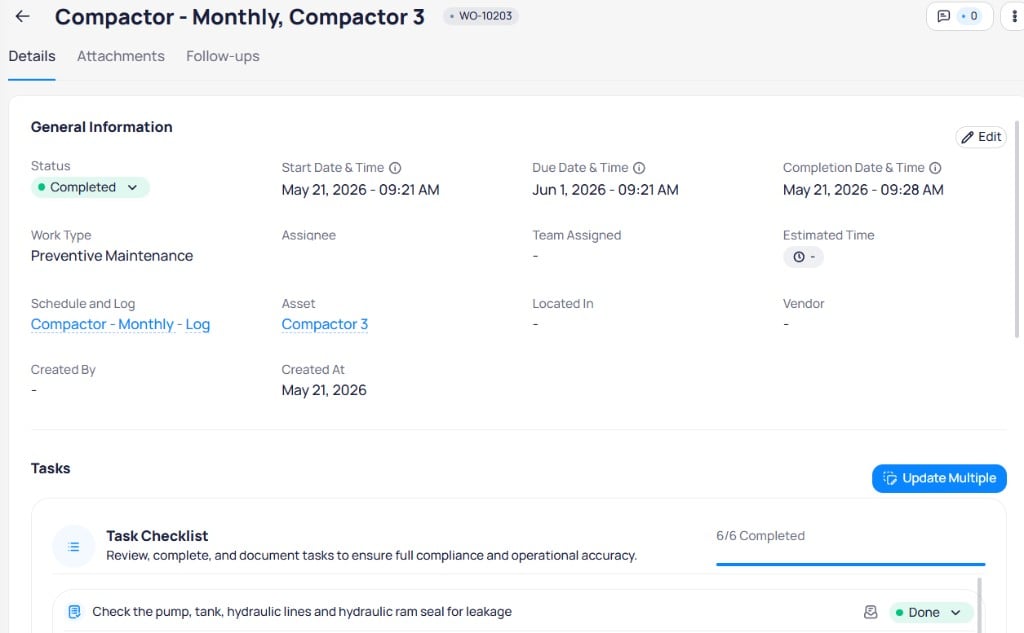 #### General information
Select the icon to edit general fields.
| Field | Description |
| -------------------------- | ------------------------------------------------------------------------------------------------------------------------------------------------ |
| **Status** | Lifecycle status (for example, **Open**, **In progress**, **Completed**) |
| **Start date & time** | When work is scheduled or started |
| **Due date & time** | Target completion date and time |
| **Completion date & time** | When the work order was completed |
| **Work type** | Program type (for example, preventive maintenance, corrective maintenance) |
| **Assignee** | User assigned to the work |
| **Team assigned** | Team assigned to the work |
| **Estimated time** | Planned duration for the work order |
| **Schedule and log** | Link to the source [schedule](/products/assetops/schedules/schedules-overview#schedule-detail-page) log when the work order came from a schedule |
| **Asset** | Link to the linked [asset](/products/assetops/assets/assets) record |
| **Located in** | Building area for the work |
| **Vendor** | Assigned vendor |
| **Created by** | User who created the work order |
| **Created at** | Creation date |
#### Tasks
The **Tasks** section lists checklist items from [task templates](/products/assetops/resources/task-templates) or custom tasks. A progress bar and counter show how many tasks are complete (for example, `6/6 Completed`).
#### General information
Select the icon to edit general fields.
| Field | Description |
| -------------------------- | ------------------------------------------------------------------------------------------------------------------------------------------------ |
| **Status** | Lifecycle status (for example, **Open**, **In progress**, **Completed**) |
| **Start date & time** | When work is scheduled or started |
| **Due date & time** | Target completion date and time |
| **Completion date & time** | When the work order was completed |
| **Work type** | Program type (for example, preventive maintenance, corrective maintenance) |
| **Assignee** | User assigned to the work |
| **Team assigned** | Team assigned to the work |
| **Estimated time** | Planned duration for the work order |
| **Schedule and log** | Link to the source [schedule](/products/assetops/schedules/schedules-overview#schedule-detail-page) log when the work order came from a schedule |
| **Asset** | Link to the linked [asset](/products/assetops/assets/assets) record |
| **Located in** | Building area for the work |
| **Vendor** | Assigned vendor |
| **Created by** | User who created the work order |
| **Created at** | Creation date |
#### Tasks
The **Tasks** section lists checklist items from [task templates](/products/assetops/resources/task-templates) or custom tasks. A progress bar and counter show how many tasks are complete (for example, `6/6 Completed`).
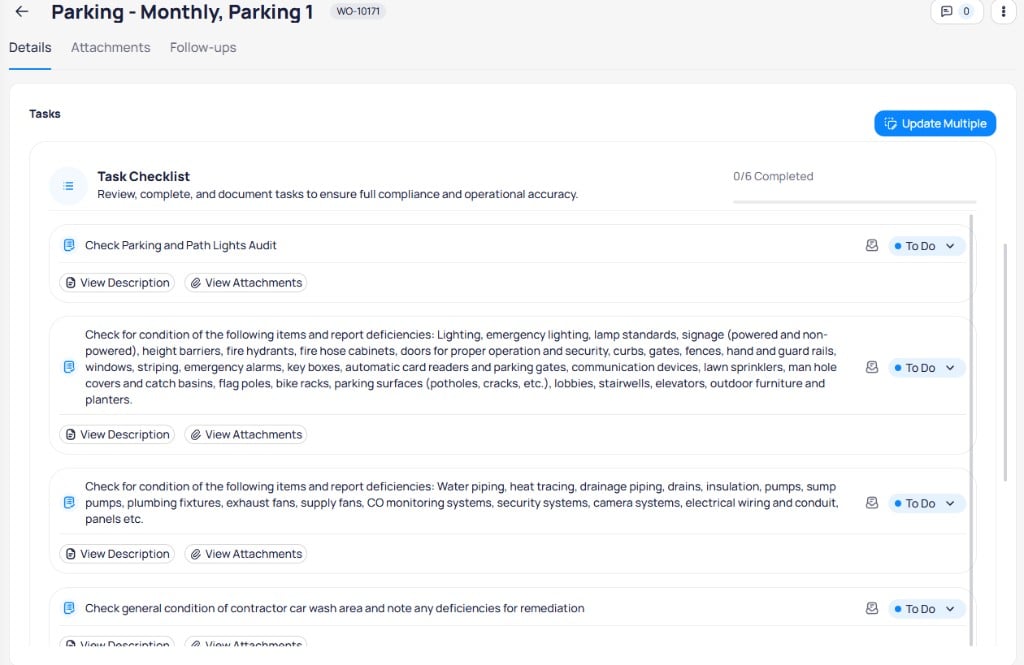 * Select **Update multiple** to change status and compliance for several tasks at once
* Use each task **Status** dropdown to set **To do**, **Done**, or **Not applicable**
* Select **View description** or **View attachments** for task-level details
##### Set task to done
When you mark a task **Done**, complete the compliance form.
* Select **Update multiple** to change status and compliance for several tasks at once
* Use each task **Status** dropdown to set **To do**, **Done**, or **Not applicable**
* Select **View description** or **View attachments** for task-level details
##### Set task to done
When you mark a task **Done**, complete the compliance form.
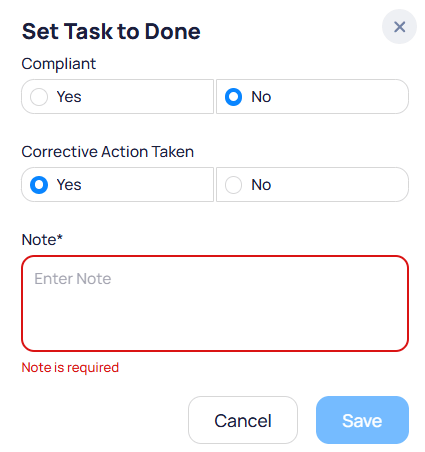 | Field | Description |
| --------------------------- | ----------------------------------------------------------------- |
| **Compliant** | Whether the item inspected meets requirements (**Yes** or **No**) |
| **Corrective action taken** | Whether corrective work was performed when not compliant |
| **Note** | Required notes about the result |
##### Set task to not applicable
| Field | Description |
| --------------------------- | ----------------------------------------------------------------- |
| **Compliant** | Whether the item inspected meets requirements (**Yes** or **No**) |
| **Corrective action taken** | Whether corrective work was performed when not compliant |
| **Note** | Required notes about the result |
##### Set task to not applicable
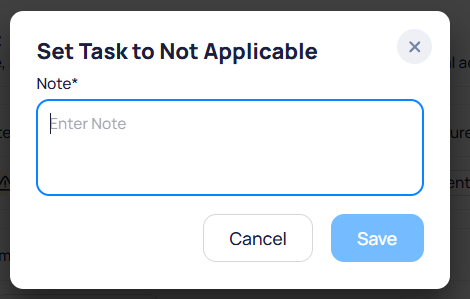 Enter a required **Note** explaining why the task does not apply, then select **Save**.
##### Update multiple tasks
Enter a required **Note** explaining why the task does not apply, then select **Save**.
##### Update multiple tasks
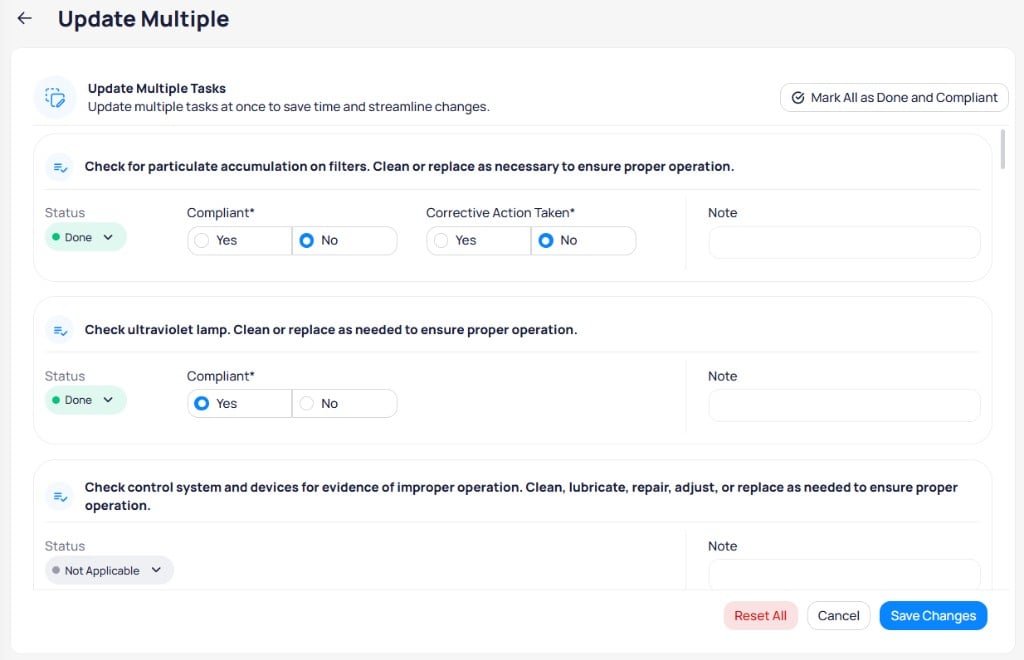 Select **Update multiple** from the **Tasks** section. For each task, set **Status**, **Compliant**, **Corrective action taken** (when required), and **Note**. Use **Mark all as done and compliant** for a quick pass, **Reset all** to clear changes, or **Save changes** to apply.
#### Logged time
The **Logged time** section tracks hours spent on the work order.
When no time is recorded, the section shows:
* **No time logged yet**
* *Start tracking your work hours to monitor progress.*
Start a timer or add time entries from this section to log work against the order. Logged time rolls up to the **Logged time** column on the [work order list](#table-columns) and supports labor reporting on the [building dashboard](/products/assetops/building/dashboard).
### Attachments tab
Select **Update multiple** from the **Tasks** section. For each task, set **Status**, **Compliant**, **Corrective action taken** (when required), and **Note**. Use **Mark all as done and compliant** for a quick pass, **Reset all** to clear changes, or **Save changes** to apply.
#### Logged time
The **Logged time** section tracks hours spent on the work order.
When no time is recorded, the section shows:
* **No time logged yet**
* *Start tracking your work hours to monitor progress.*
Start a timer or add time entries from this section to log work against the order. Logged time rolls up to the **Logged time** column on the [work order list](#table-columns) and supports labor reporting on the [building dashboard](/products/assetops/building/dashboard).
### Attachments tab
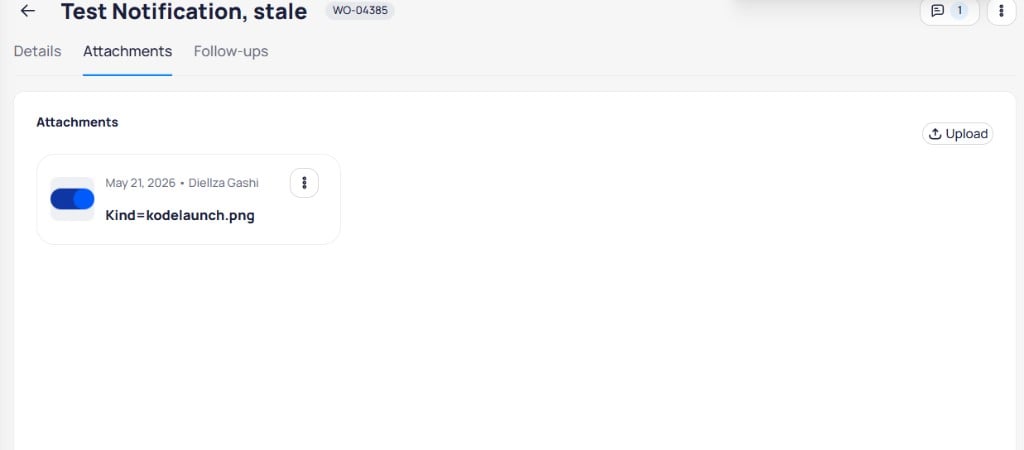 * Select **Upload** to add files
* Each card shows upload date, uploader, and file name
* Use the row menu for file actions
### Follow-ups tab
* Select **Upload** to add files
* Each card shows upload date, uploader, and file name
* Use the row menu for file actions
### Follow-ups tab
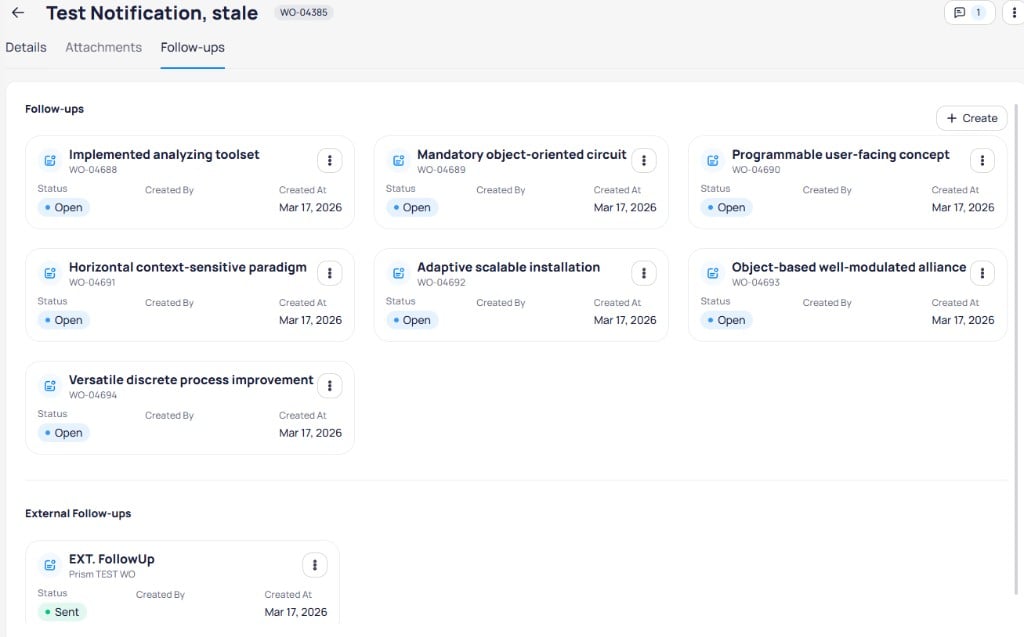 **Follow-ups** shows child work orders that continue work from the parent order. Select **+ Create** to add a follow-up. Each card shows title, work order ID, **Status**, **Created by**, and **Created at**.
**External follow-ups** lists follow-up work pushed to external systems (for example, a CMMS), with statuses such as **Sent**.
Follow-up work orders inherit the same asset or area as the parent work order when the parent was created for a specific target.
***
## Related modules
View schedules that generate preventive and inspection work orders.
Open assets linked to work orders.
Configure categories and issue types for corrective work.
Assign teams to work orders and schedules.
Look up statuses, columns, and field definitions in one place.
**Follow-ups** shows child work orders that continue work from the parent order. Select **+ Create** to add a follow-up. Each card shows title, work order ID, **Status**, **Created by**, and **Created at**.
**External follow-ups** lists follow-up work pushed to external systems (for example, a CMMS), with statuses such as **Sent**.
Follow-up work orders inherit the same asset or area as the parent work order when the parent was created for a specific target.
***
## Related modules
View schedules that generate preventive and inspection work orders.
Open assets linked to work orders.
Configure categories and issue types for corrective work.
Assign teams to work orders and schedules.
Look up statuses, columns, and field definitions in one place.