> ## Documentation Index
> Fetch the complete documentation index at: https://docs.kodelabs.com/llms.txt
> Use this file to discover all available pages before exploring further.
# Channel Partners
> Manage client organizations and enable KODE OS products
A channel partner is a reseller that provides KODE OS products to client organizations. In Launchpad, channel partners are primarily responsible for:
* Creating and managing client organizations
* Activating applications for client organizations (KODE OS)
* Enabling KODE OS products for the buildings under those clients
* Controlling which products each client can use and for which buildings
* Adding new internal users
* Configuring security settings
* Setting up SSO
* Managing the company profile
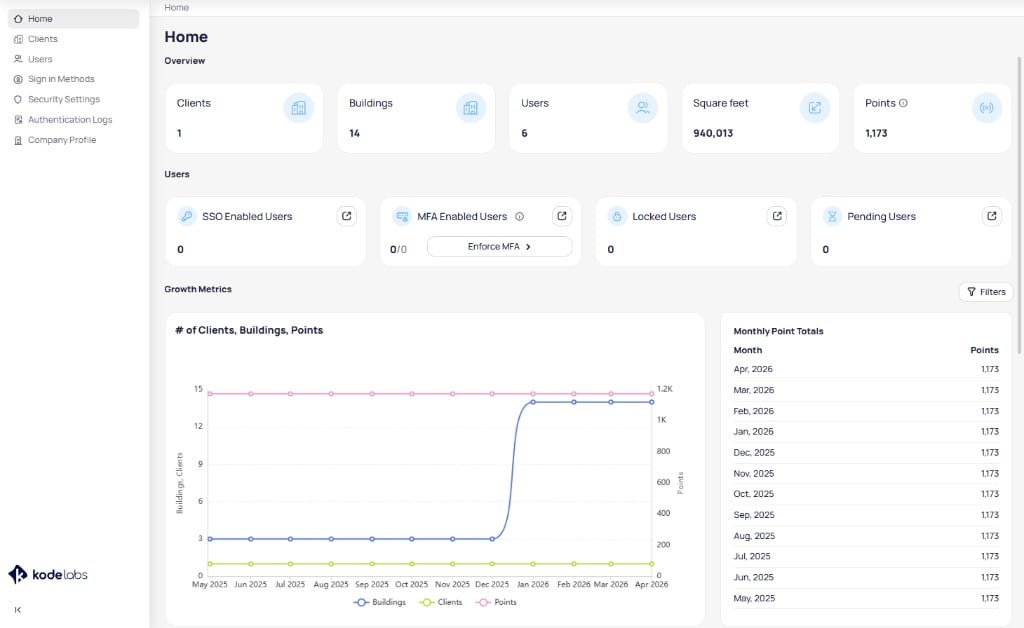
The Home page provides an overview of your portfolio, including client count, building count, user count, total square footage, and total points. It also displays user security metrics and growth trends over time.
 As a channel partner, you access Launchpad via your dedicated workspace address:
```
yourorganizationname.kodelabs.com
```
For workspace sign-in and activation, see [Workspaces and sign-in](/products/launchpad/get-started/workspaces-and-sign-in).
## Authentication logs
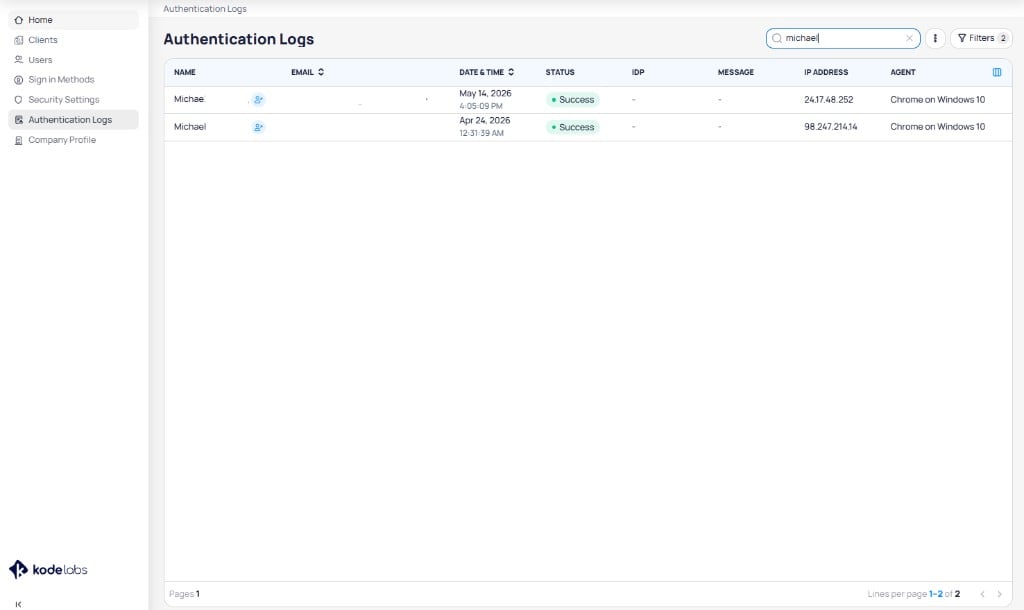
The **Authentication Logs** page records all sign-in events across your organization. Each log entry shows the user name, email, date and time, status, identity provider, message, IP address, and browser agent. You can search and filter logs to investigate specific sign-in activity.
As a channel partner, you access Launchpad via your dedicated workspace address:
```
yourorganizationname.kodelabs.com
```
For workspace sign-in and activation, see [Workspaces and sign-in](/products/launchpad/get-started/workspaces-and-sign-in).
## Authentication logs
The **Authentication Logs** page records all sign-in events across your organization. Each log entry shows the user name, email, date and time, status, identity provider, message, IP address, and browser agent. You can search and filter logs to investigate specific sign-in activity.
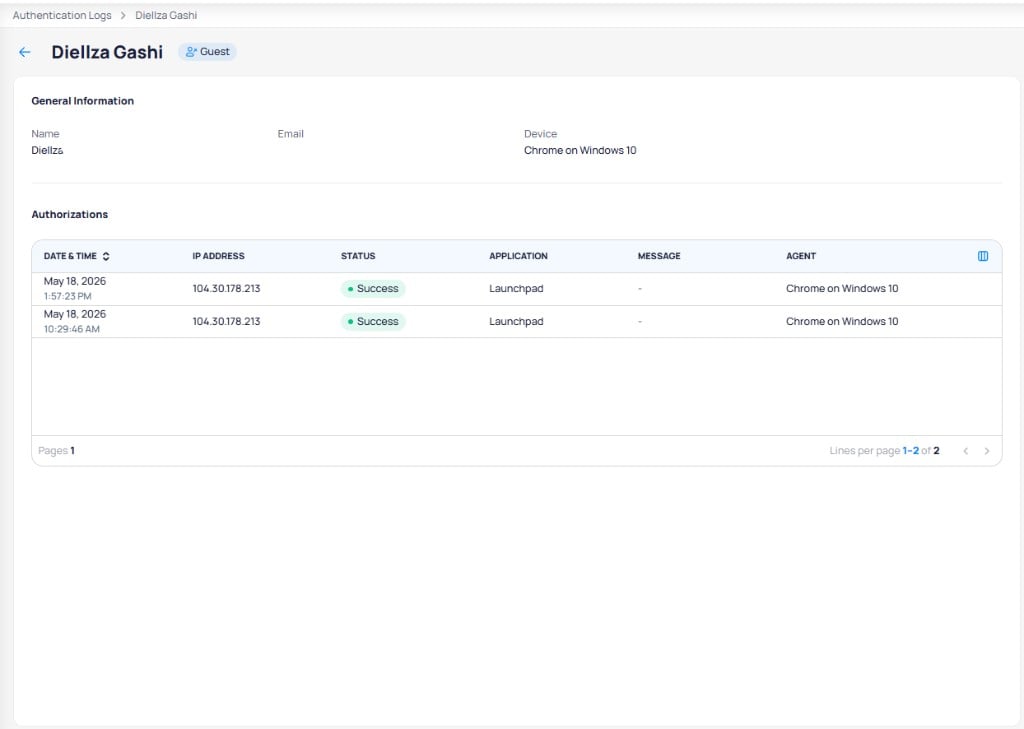
 Select a log entry to view the user's general information and full authorization history, including timestamps, IP addresses, applications accessed, and browser details.
 ## Company profile
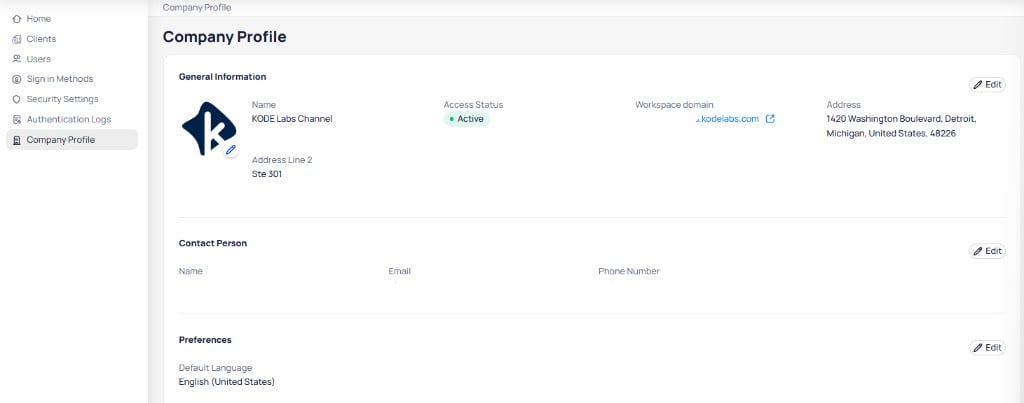
The **Company Profile** page displays your organization's general information, contact person, and preferences. You can edit each section using the `Edit` button.
## Company profile
The **Company Profile** page displays your organization's general information, contact person, and preferences. You can edit each section using the `Edit` button.
 ## Next Steps
Learn how to create and manage clients and users as a channel partner.
Navigate the Clients page and manage client details, buildings, and users.
Create and manage Channel Partner users in Launchpad.
Enable KODE OS products for clients and their buildings.
## Next Steps
Learn how to create and manage clients and users as a channel partner.
Navigate the Clients page and manage client details, buildings, and users.
Create and manage Channel Partner users in Launchpad.
Enable KODE OS products for clients and their buildings.