> ## Documentation Index
> Fetch the complete documentation index at: https://documentation.kodelabs.com/llms.txt
> Use this file to discover all available pages before exploring further.
# Client Organizations
> Manage buildings, users, and service accounts
A client organization is a client that and receives KODE OS products through its channel partner. In Launchpad, client organizations are primarily responsible for:
* Adding and managing buildings in their portfolio
* Adding and managing users who work on behalf of their organization
* Managing applications and assigning users to KODE OS roles
* Adding and managing service accounts
* Configuring security settings
* Setting up SSO
* Managing the company profile
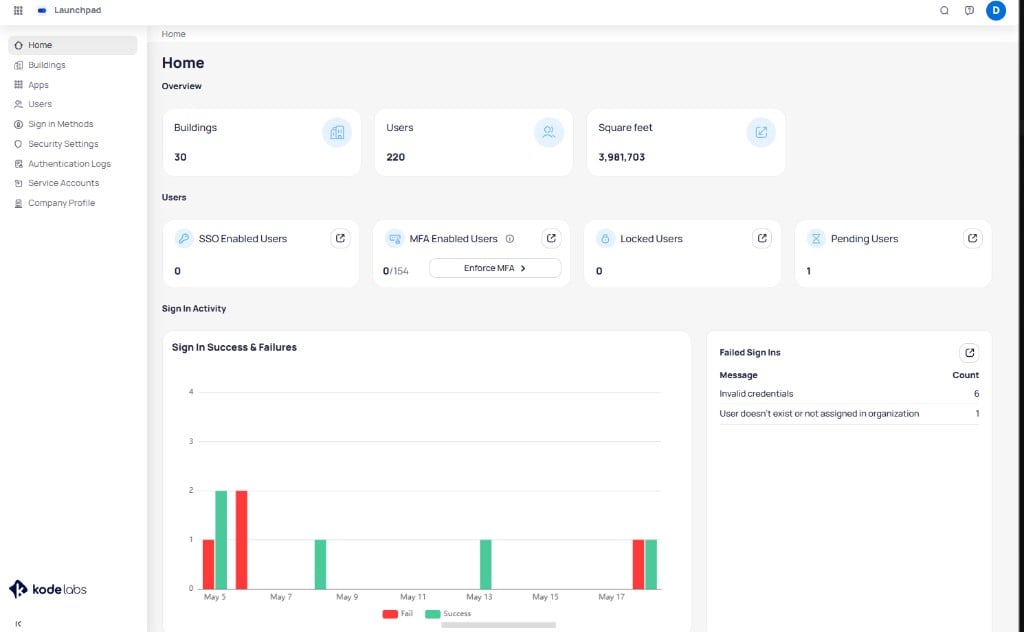
The Home page provides an overview of your organization, including building count, user count, and total square footage. It also displays user security metrics, sign-in activity trends, and failed sign-in details.
 As a client organization, you access Launchpad via your dedicated workspace address in this format:
```
yourorganizationname.kodelabs.com
```
For workspace sign-in and activation, see [Workspaces and sign-in](/products/launchpad/get-started/workspaces-and-sign-in).
## Authentication logs
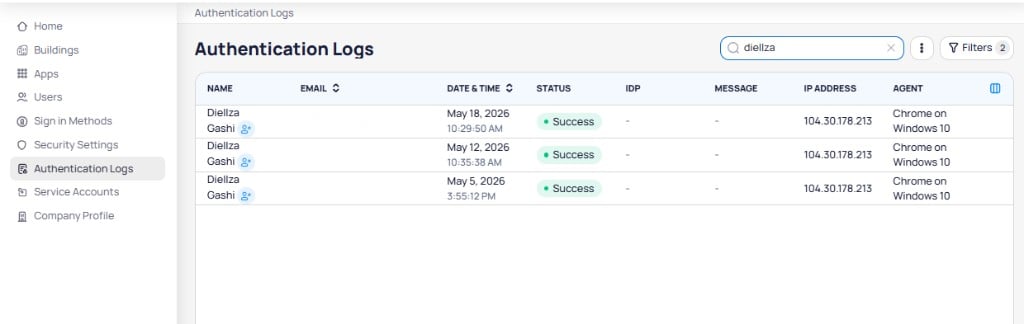
The **Authentication Logs** page, accessible from the left-hand sidebar, records all sign-in activity for your organization. Each row in the table displays the user name, email, date and time, status, identity provider, message, IP address, and browser agent.
As a client organization, you access Launchpad via your dedicated workspace address in this format:
```
yourorganizationname.kodelabs.com
```
For workspace sign-in and activation, see [Workspaces and sign-in](/products/launchpad/get-started/workspaces-and-sign-in).
## Authentication logs
The **Authentication Logs** page, accessible from the left-hand sidebar, records all sign-in activity for your organization. Each row in the table displays the user name, email, date and time, status, identity provider, message, IP address, and browser agent.
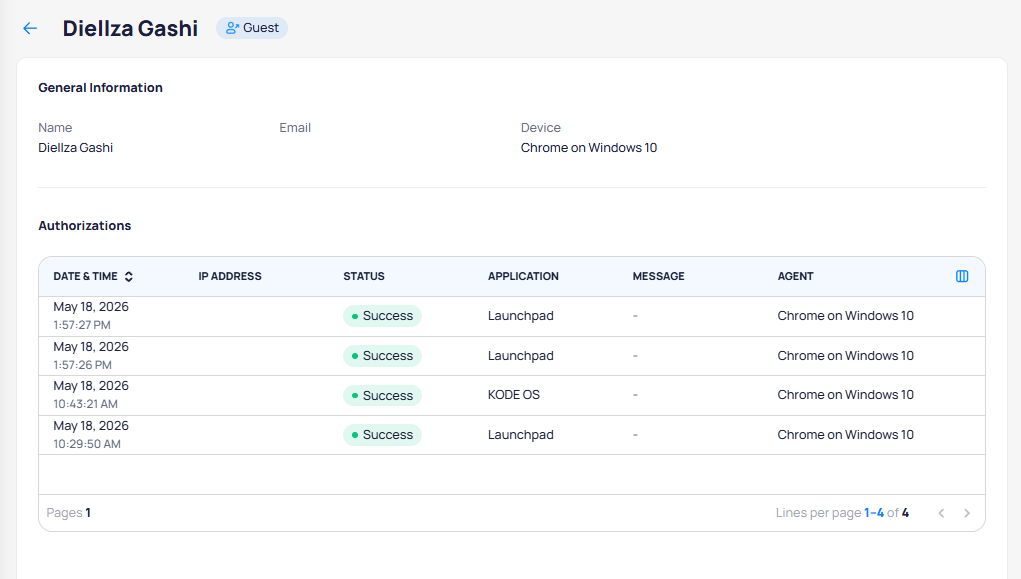
 Select a user from the table to view their individual authorization history. The detail page shows general information and a list of all authentication events for that user, including date, IP address, status, application, and agent.
 ## Company profile
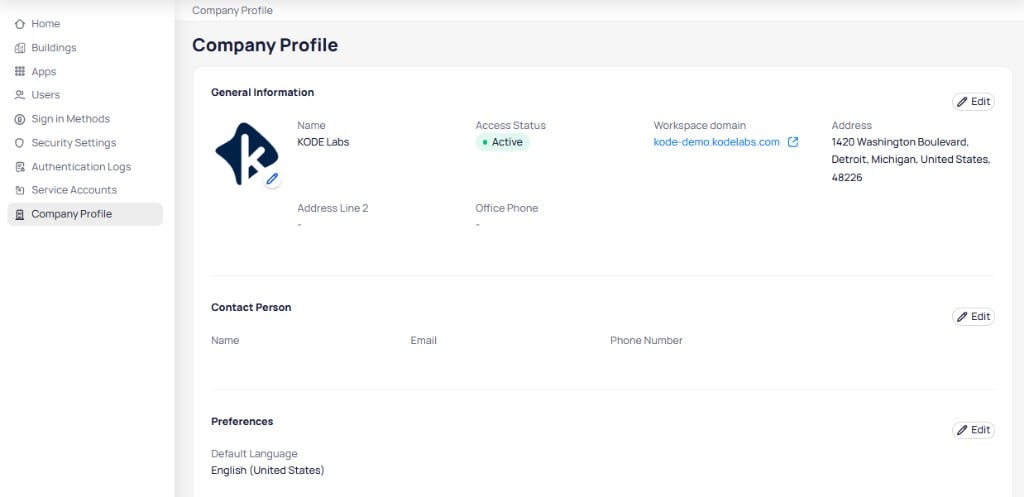
The **Company Profile** page, accessible from the left-hand sidebar, displays your organization's core details. It includes three sections: General Information, Contact Person, and Preferences. Use the `Edit` button on each section to update the respective details.
## Company profile
The **Company Profile** page, accessible from the left-hand sidebar, displays your organization's core details. It includes three sections: General Information, Contact Person, and Preferences. Use the `Edit` button on each section to update the respective details.
 ## Next steps
Add and manage buildings, users, and service accounts for your organization.
Add users, invite from trusted organizations, and manage user details and app assignments.
Define custom roles with per-product permissions and assign roles to users in your organization.
Add buildings to your portfolio, update building details, and manage publish status.
Create a service account for integrations and API access.
## Next steps
Add and manage buildings, users, and service accounts for your organization.
Add users, invite from trusted organizations, and manage user details and app assignments.
Define custom roles with per-product permissions and assign roles to users in your organization.
Add buildings to your portfolio, update building details, and manage publish status.
Create a service account for integrations and API access.