

Models need enough historical usage and weather data in the reference period. Confirm meter completeness on Building meters before you train.
Open Model Configuration
1
Select a building
From Portfolio Home, open a building in the building view.
2
Open Model Configuration
In the left sidebar, expand Budget, then click Model Configuration.
Manage configurations
The Model Configuration page lists prediction models for the building. Click + Create Configuration to start the five-step wizard. Click a Name to open the summary drawer, or use Actions to edit or delete a row.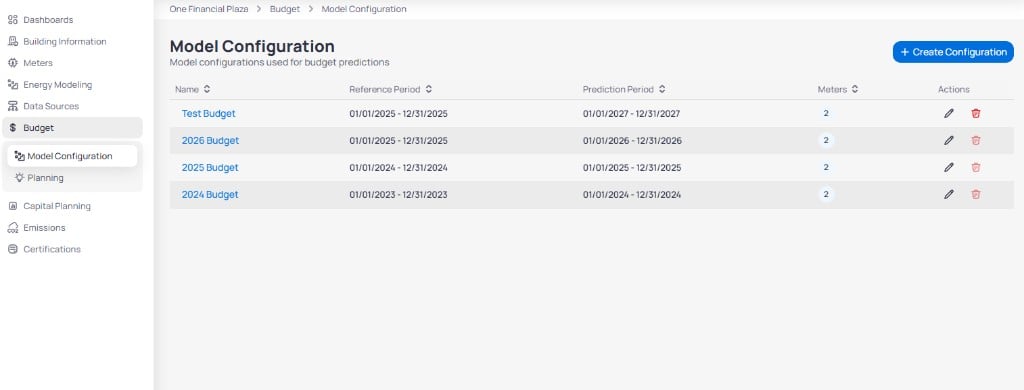
Model Configuration list with reference and prediction periods
Review the summary drawer
Click a configuration Name to open Summary without entering the wizard.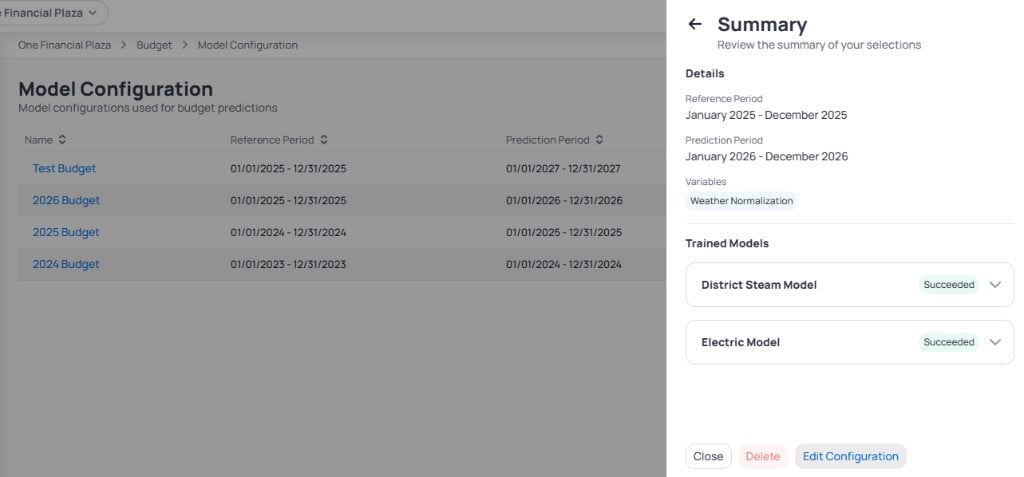
Model Configuration Summary drawer with trained models
Click Edit Configuration to change settings or Delete to remove the model.
Create a model configuration
Click + Create Configuration to open the wizard. Progress appears in the left sidebar across five steps: Basic Setup, Historical Usage, Historical Weather, Variables, and Summary.Step 1: Basic setup
Define the model name, prediction period, and meters by service type.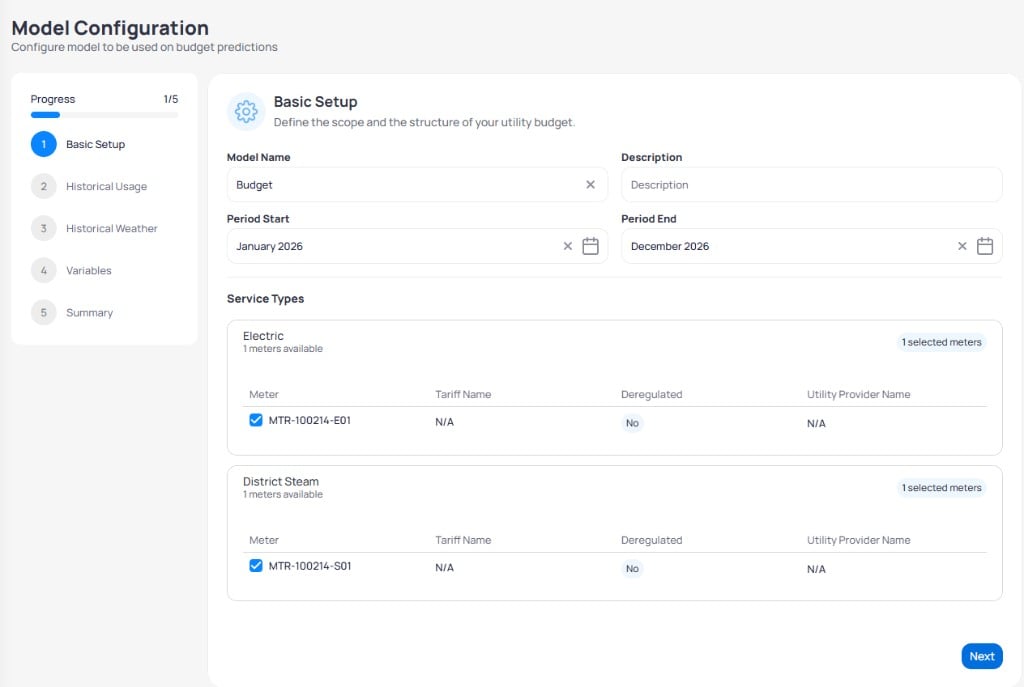
Model Configuration wizard step 1 Basic Setup with meter selection
Click Next to continue.
Step 2: Historical usage
Choose a reference year and review usage or cost trends that inform the model.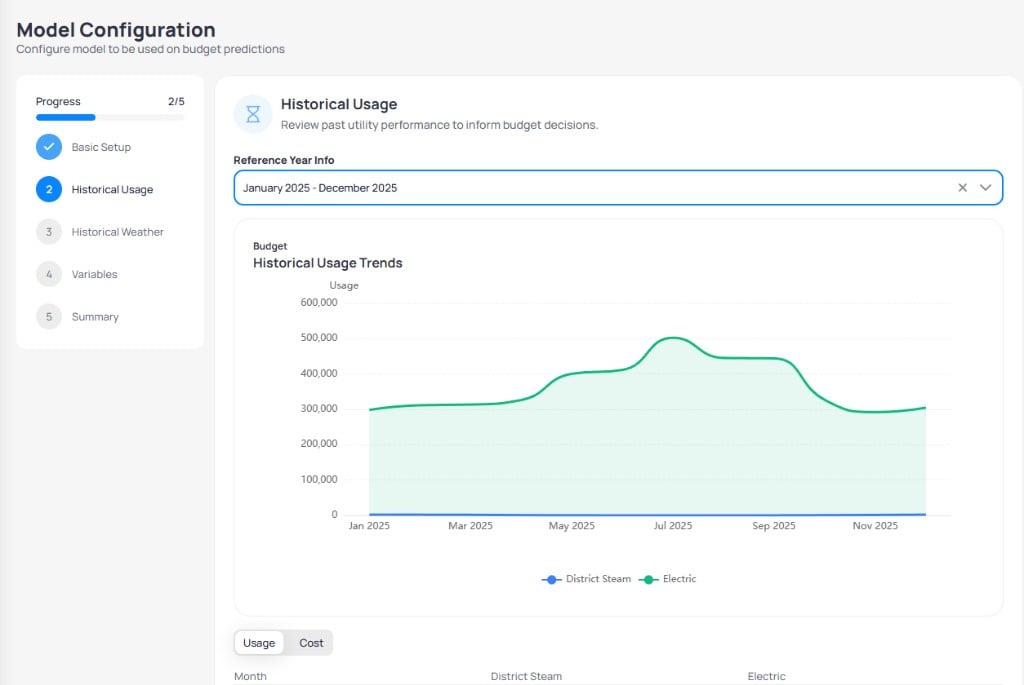
Model Configuration wizard step 2 Historical Usage chart
Scroll below the chart for a monthly table.
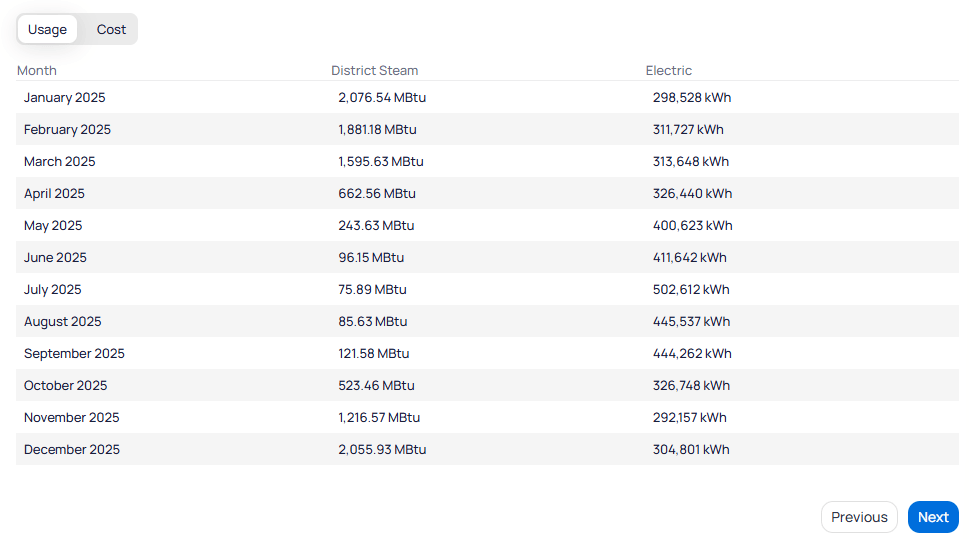
Historical Usage monthly table in Usage view
Step 3: Historical weather
Review temperature and degree-day patterns for the reference period.YOY comparison
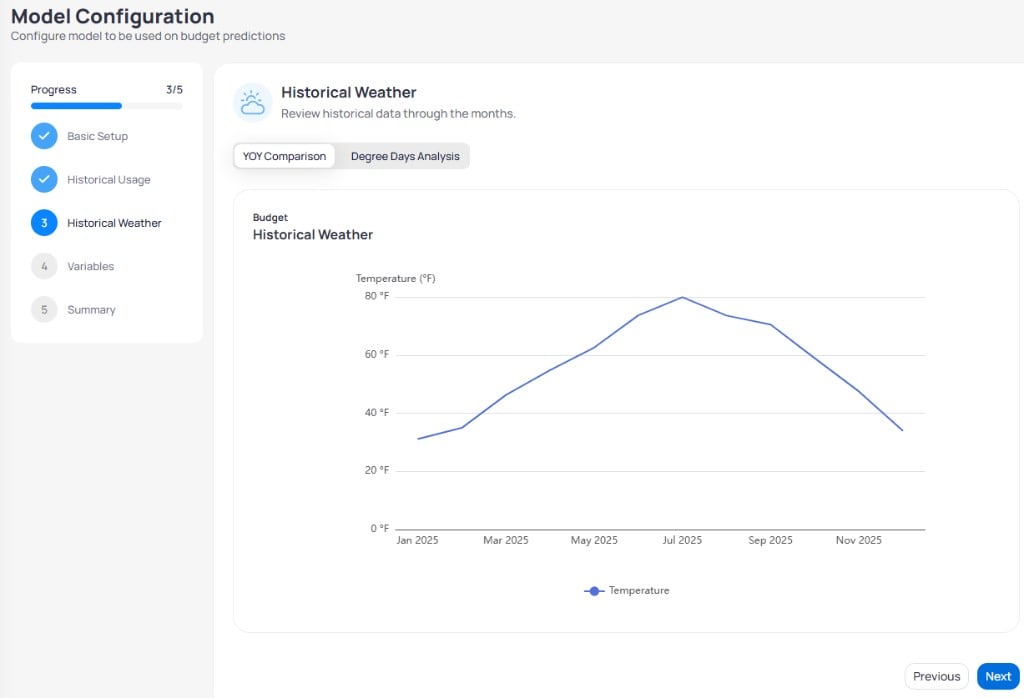
Model Configuration wizard step 3 Historical Weather temperature chart
Degree days analysis
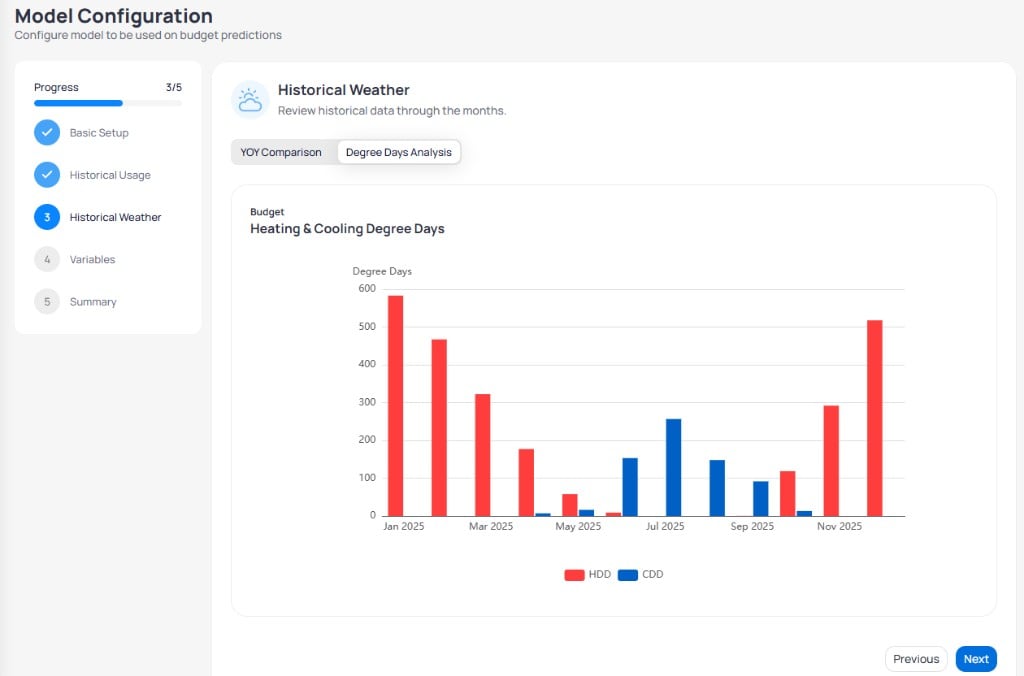
Historical Weather Heating and Cooling Degree Days chart
Step 4: Variables
Select independent variables for the linear regression model.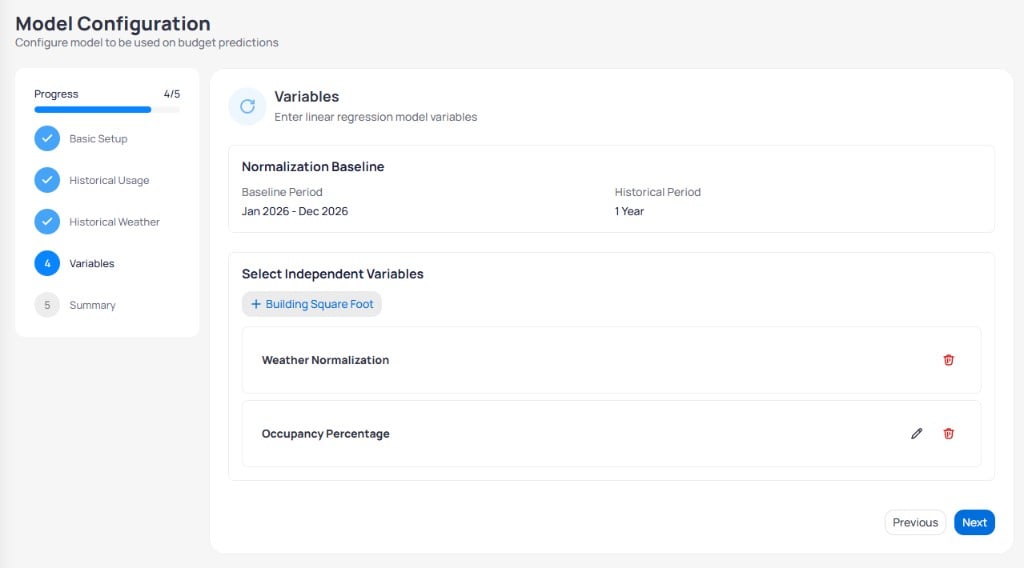
Model Configuration wizard step 4 Variables
Use the pencil icon to edit a variable or the trash icon to remove one.
Step 5: Summary
Submit the configuration to train models for each service type. EnerG trains one model per service type you selected in Basic Setup.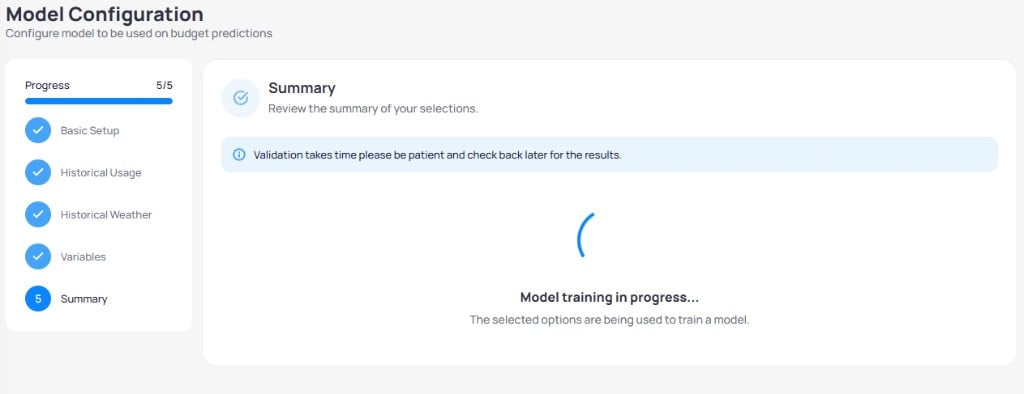
Model Configuration Summary with training in progress
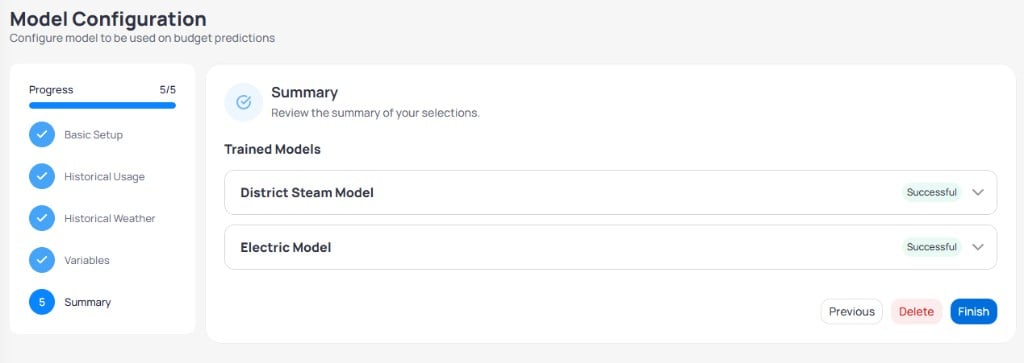
Model Configuration Summary with successful trained models
Click Finish to save the configuration. Use Delete only when you want to discard the draft before finishing. Failed models show an error state instead of Successful; widen the reference period or adjust Variables before you retry.
Use models in Budget planning
When you create a budget in Budget planning, choose Smart Generation or Reference Year and select the trained Model from the dropdown in Basic Setup. EnerG applies predicted values from the configuration you completed here.Next steps
Budget planning
Build Draft, Active, or Completed budgets using trained models.
Building budget overview
Compare actual spend to your active budget.
Building information
Confirm occupancy, area, and envelope inputs that affect variables.
Building meters
Verify billing completeness before you set reference periods.