


October 13, 2026
KODE 3.19 introduces parameters in and Event Triage Rules in . We’ve also shipped a ZenControl lighting connector, a Smart Meter Texas connector, spreadsheet schedule import in , and a faster connector setup flow.Parameters in Building BI
Name a value once on a . Reference it as@name in calculated columns, calculated metrics, and virtual data source SQL.Each dashboard stores its own values. Open Parameters beside Filters and change a target, rate, or baseline. The widgets that use it recalculate.A viewer’s change stays on that screen until refresh. The data source and other dashboards stay as saved.Choose a display name, a type, and a default. You can add an allowed-values list, require the value, block dashboard overrides, or lock it for viewers.Shared dashboards, mobile view, and PDF export show the saved values.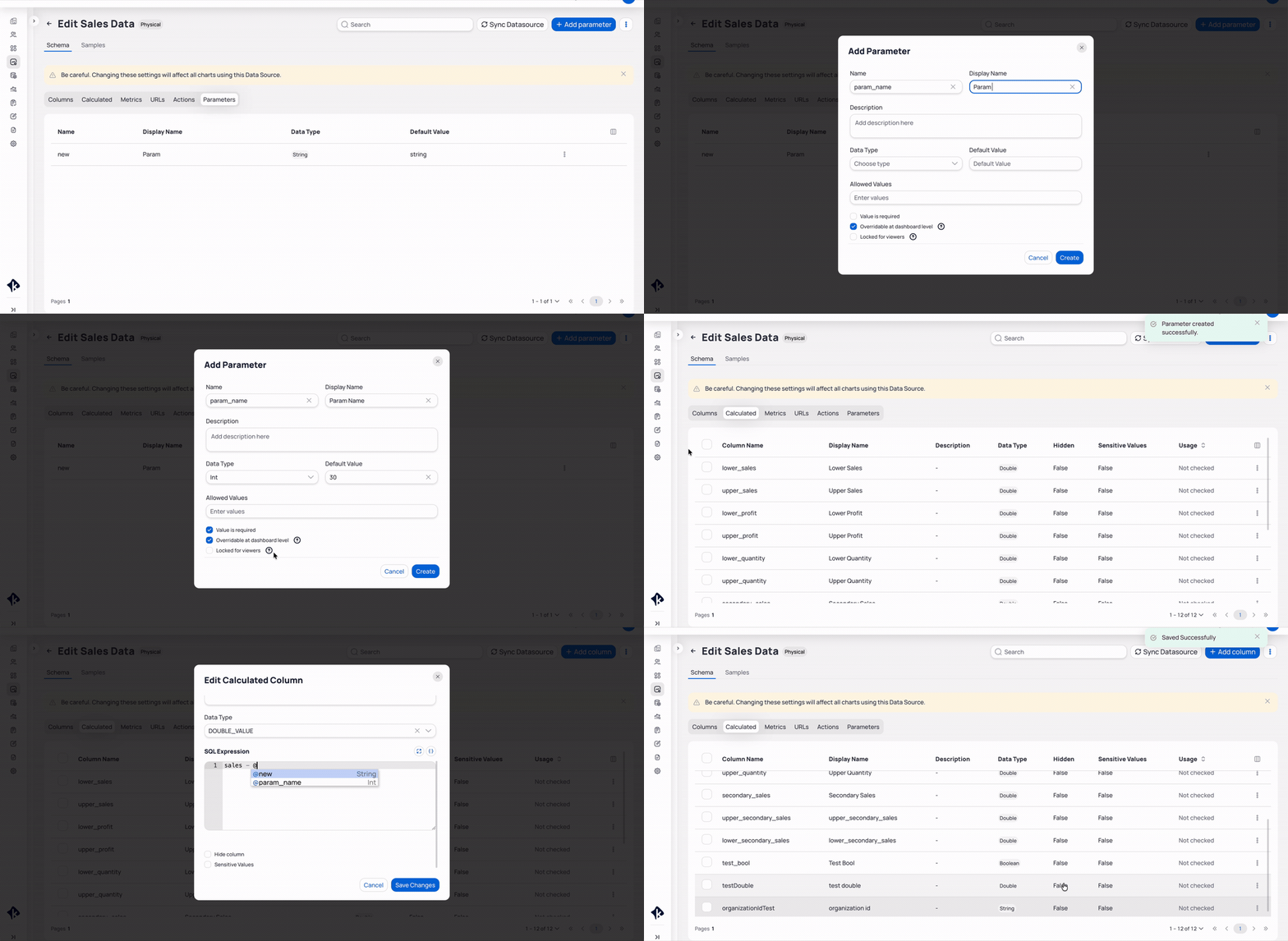
Add a parameter, then reference it as @name in a calculated column
Event Triage Rules in FDD
Event Triage Rules decide what happens to a after raises an . The rules follow the status your sends back, so the work order stays aligned with the alarm.Five rules run on their own:- Bad closure reopens a work order the CMMS closed while the alarm is still active.
- Recurrence reopen brings the original work order back when the same alarm returns.
- Hold and release holds lower-priority work until a high-priority event fires at the same building.
- Carry forward keeps the open work order when a new alarm hits the same device.
- Self-resolving cancellation cancels the work order after the alarm stays quiet.
Settings, then Triage Rules. A work order connector is required.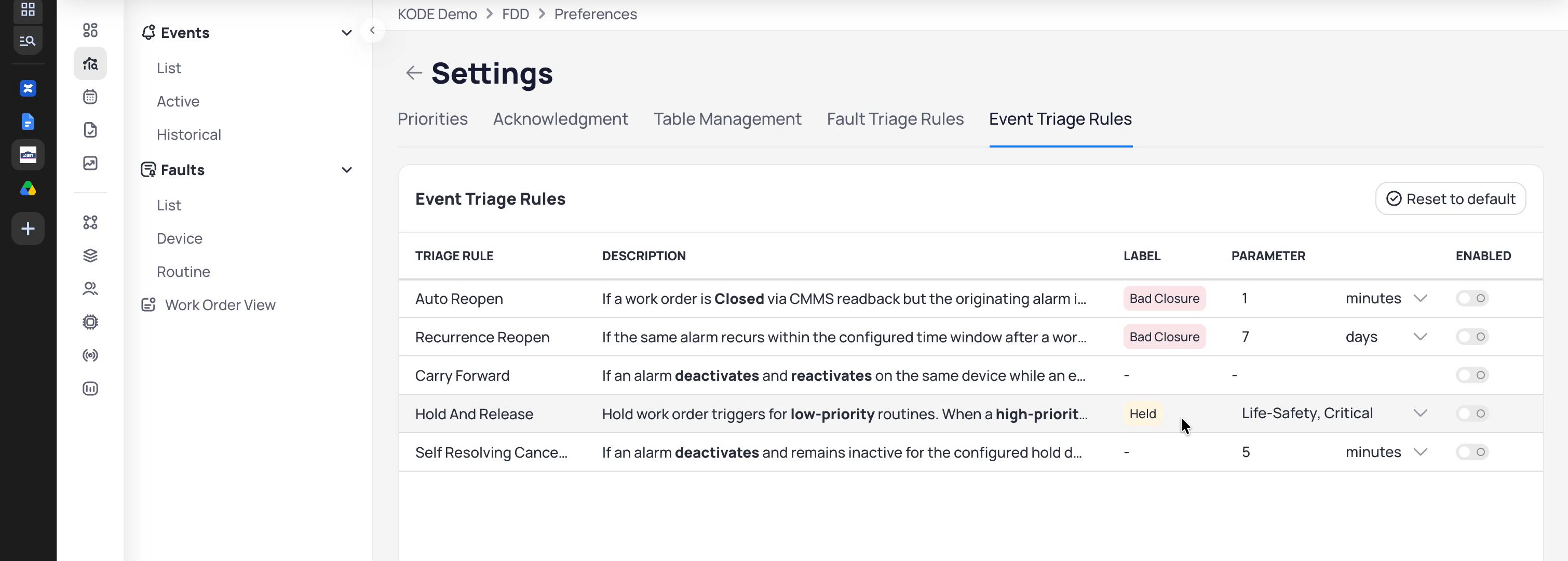
Turn each rule on, set the window, and choose which priorities release held work
Full release notes
User-facing product updates in 3.19. Integration items include the September 29 patch on 3.18.Building BI — Dashboards and data sources
- Parameters — Declare a typed value on a data source and reference it as
@namein calculated columns, calculated metrics, and virtual data source SQL. Dashboards store their own values. Viewers can run a private what-if that clears on refresh. Shared links, mobile view, and PDF export keep the saved values. See Parameters.
FDD — Fault Detection and Diagnostics
- Event Triage Rules — Five rules keep work orders aligned with live alarms: bad closure, recurrence reopen, hold and release, carry forward, and self-resolving cancellation. You can also group two or more active events at one building into one work order. Configure them under
Settings>Triage Rules. A work order connector is required. See Event triage rules.
Integrations (API)
- ZenControl — Lighting connector for ZenControl sites. REST polling plus Live API events for dim level, scene, colour temperature, override, and gateway connection. Writable points cover dim level, scene, colour temperature, and override. See ZenControl.
- Smart Meter Texas — Read-only REST connector for Texas electric meters. Discover meters by ESIID and meter number. Collect 15-minute consumption and generation interval reads, plus meter status, disconnect, phases, multiplier, and reverse-flow handling. See Smart Meter Texas.
- Service Channel (Lowes) work orders — The Create Work Order action sends the asset tag and FDD event details in
Description, mapsAssetIdfrom the linked device, loadsProblemTypeandAssetTypefrom Service Channel, and setsScheduledDatefrom the priority turnaround. See Service Channel (Lowes). - Connector setup —
Validate Credentialsloads vendor fields in the background and shows progress. Errors name the cause, and you can retry. When a multi-select vendor field has no options, type comma-separated IDs. See Managing connectors. - Discovery metadata — Discovered devices include manufacturer, model, firmware version, OS version, MAC address, and IP address when the connector provides them. See Discovery.
- Connector details date column — Non-sensor data tables show which date column the selected range applies to, such as
Created At (Local)orCollected At. See Managing connectors. - AssetOps work orders — Collected work orders map
category.nametocategoryandissueType.nametosubCategory. See AssetOps connector. - Lutron Athena — Collection skips a device Lutron has removed and continues for the rest. The connector stays up. See Lutron Athena.
- Wattics — Point history collection skips a device or point that Wattics has removed. The job continues for every remaining device, and the connector stays up. See Wattics.
- Kastle — Access Log collection redacts credential holder name, email, and phone by default. Each character is replaced with
*. Alarm collection is not redacted. See Kastle. - Service Channel —
Store IDandSubscriber IDare drop-downs when the store list loads. If the list is empty, both fields are text boxes. See Service Channel.
AssetOps
- Import schedules from a spreadsheet — Upload a spreadsheet based on the schedule template to create schedules in bulk. KODE OS checks the data and reports success or the rows to fix. See Import schedules.
- Dashboard date range — The
Created daterange you pick on the AssetOps dashboard stays in place for your session. You can return to the default range at any time. See Building dashboard.
Document Management
- Section field — The CSI specification field under a division is labeled
Sectionin document details, filters, upload, and bulk edit. See CSI divisions.
Improvements and bug fixes
AssetOps
- Schedules — The task template picker shows an
Asset Typecolumn, andSelect Allhonors your search and any templates you cleared. Start dates must fall between 1970 and 2099, with inline validation. Calendar event titles fit inside their blocks, and schedule type validation runs when you selectContinue. - Assets — Asset dates display on the correct day in every building time zone. The asset list shows
ActiveandOut of serviceassets. Bulk edit offersAdd Newfor manufacturer, and the unit field on technical specifications is required. Opening a deleted asset returns you to your last location. - Dashboards and layout — The maintenance forecast dashboard shows charts without a paginated table. Checkbox sizes, dashboard fonts, and asset name headers are consistent. Floor plan, system, and device graphics use the updated design.
- Work orders — On the portfolio work order form, the
Areadropdown waits for a building selection.
KODE OS
- Text display — Clamped text without spaces wraps cleanly across KODE OS, Launchpad, and Client Admin.