

Acknowledgment
The Acknowledgment tab controls comment requirements when users acknowledge events. It does not control who can acknowledge. Administrators manage access through the Acknowledge FDD events Write permission in Launchpad. ItsAssignedInEvent constraint limits acknowledgment to assigned users by default. Disabling the constraint lets that role acknowledge any accessible FDD event.
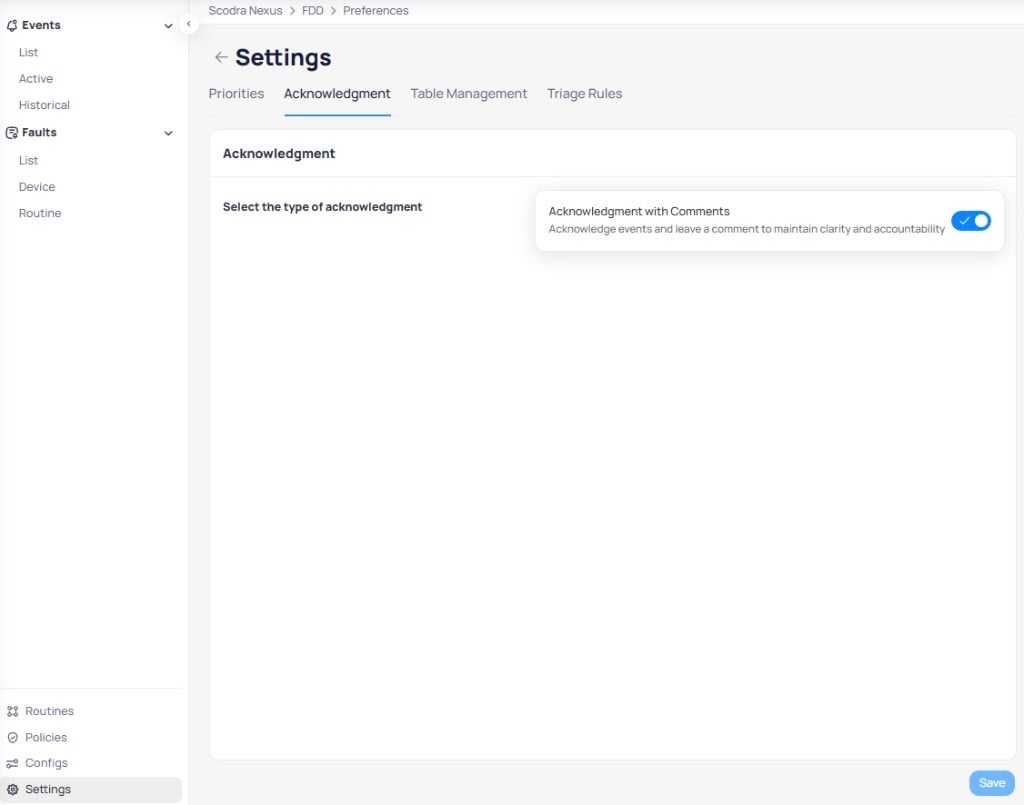
The Acknowledgment tab lets you require comments when acknowledging events
When enabled, users must leave a comment when acknowledging an event. This maintains clarity and accountability by requiring documentation of the acknowledgment action.
Save to apply changes.
Table Management
The Table Management tab controls column visibility and ordering across Events, Incidents, and Faults tables throughout your portfolio. Each table type maintains independent column settings.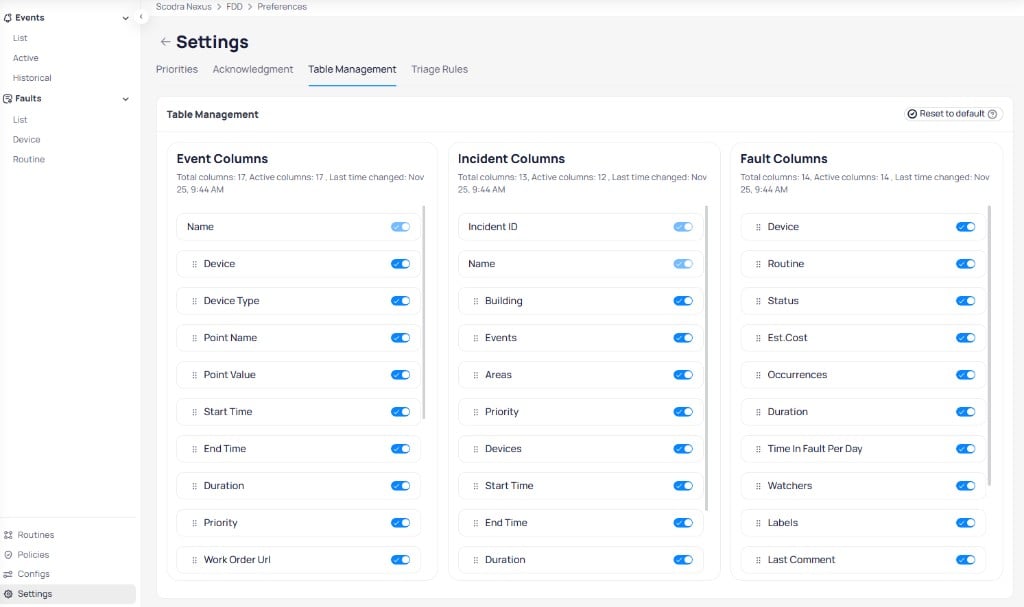
Table Management shows column toggles for Event, Incident, and Fault tables side by side
Configure columns
- Toggle visibility — use the switch next to each column name to show (blue) or hide (gray) the column
- Reorder columns — click and hold the drag handle next to any column name, drag to the desired position, and release
Apply changes
When you select
Apply changes, a confirmation dialog appears.
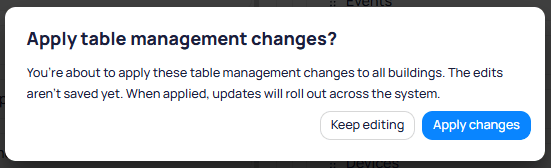
The confirmation dialog warns that changes will roll out across the system
Individual users can customize their own column preferences per building. User preferences override the organization’s portfolio or building-level settings.
Column reference
Event columns (17 total)
Event columns (17 total)
Incident columns (13 total)
Incident columns (13 total)
Fault columns (14 total)
Fault columns (14 total)
Triage Rules
The Triage Rules tab includes fault rules and event triage rules. Fault rules manage fault statuses and labels based on time-based conditions. Each fault rule has a description, an optional label, a configurable time parameter, and an enabled toggle.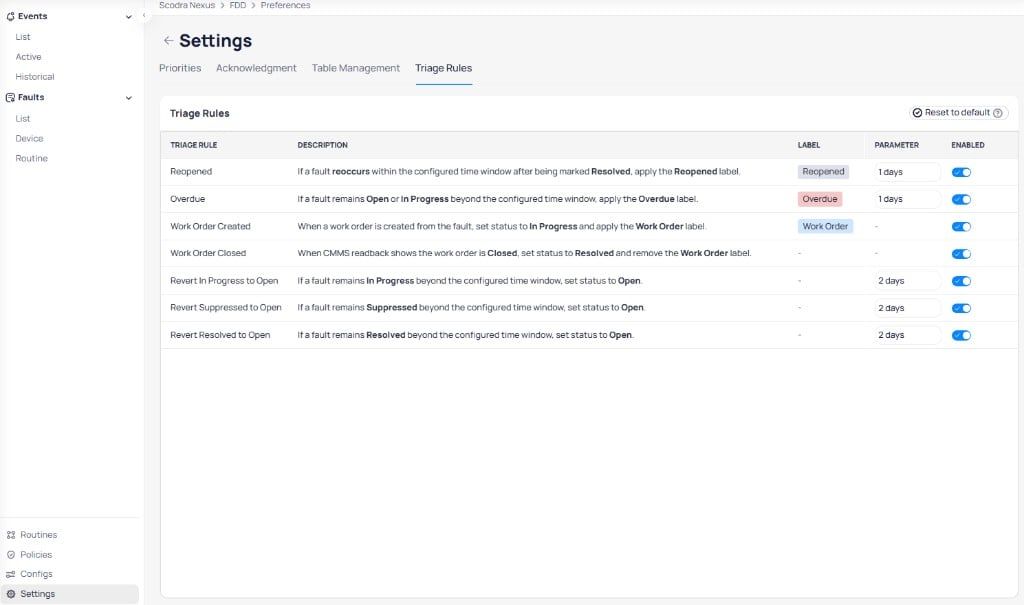
Triage Rules automate fault status changes and label assignments based on configurable time windows
Use the toggle in the
Enabled column to activate or deactivate individual rules. Select Reset to default to restore the original fault triage rule configuration.
Event triage rules
Event triage rules compare a live event with the work order status your CMMS sends back. They apply when the building uses a work order connector. OpenFDD > Settings > Triage Rules, then the Event Triage Rules section.
To place several active events on one work order yourself, see Group events into one work order.
Next steps
Events
Monitor and investigate real-time fault events across your building equipment.
Notification policies
Control how FDD delivers alerts through email, SMS, push, and phone calls.
Handling FDD updates
Understand how configuration changes affect active events and incidents.