

Read blocks
Read blocks bring point data into your FDD routine. Each Read block has three inputs (Name, Main/Secondary, Field) and two outputs (Status, Value).Configuration fields
Click inside the
Field input box to open a selection dialog. Available points are scoped based on the entities defined in the routine. If you do not see a required point, verify that the routine’s entities include the field you need.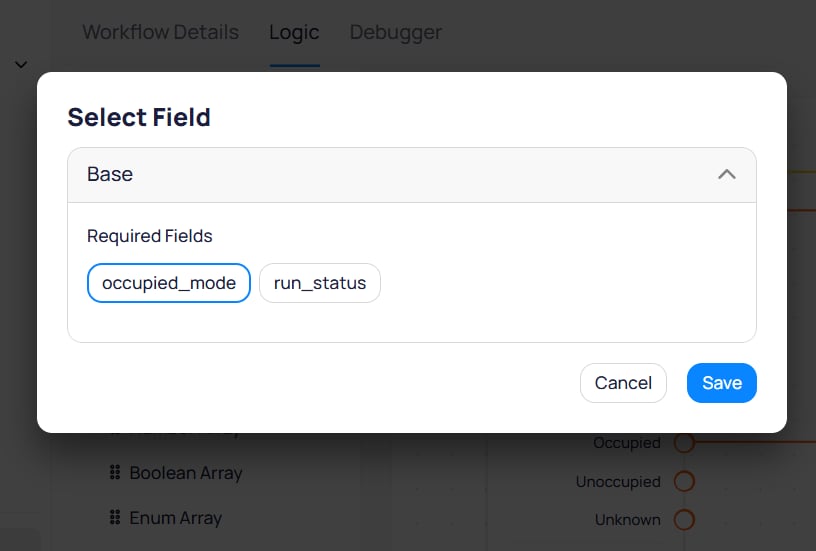
The Select Field dialog shows required fields scoped by the entities defined in the routine
A free-form input where you assign a label to the block. Use a name that matches or closely resembles the point name for easy reference during debugging and reporting.
Designate whether the point is the main reference point or a supporting point. Every routine must have exactly one main Read block (set to
Main). When an event is generated, the system uses the main point as the reference to other modules in Cloud BMS. All other Read blocks are supporting points (Secondary).Point types
Each Read block type outputs a different data type.String Point
Outputs the current string reading from the selected point.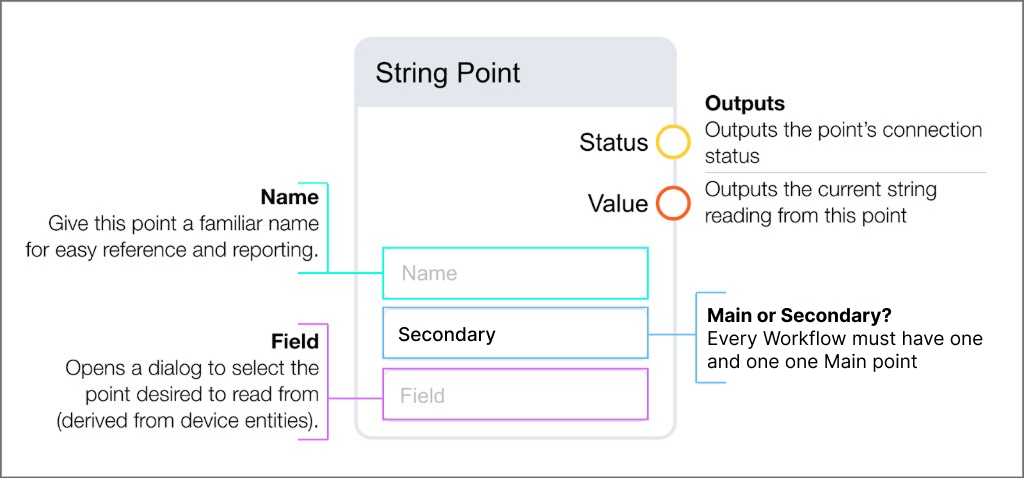
Number Point
Outputs the current number values from the selected point.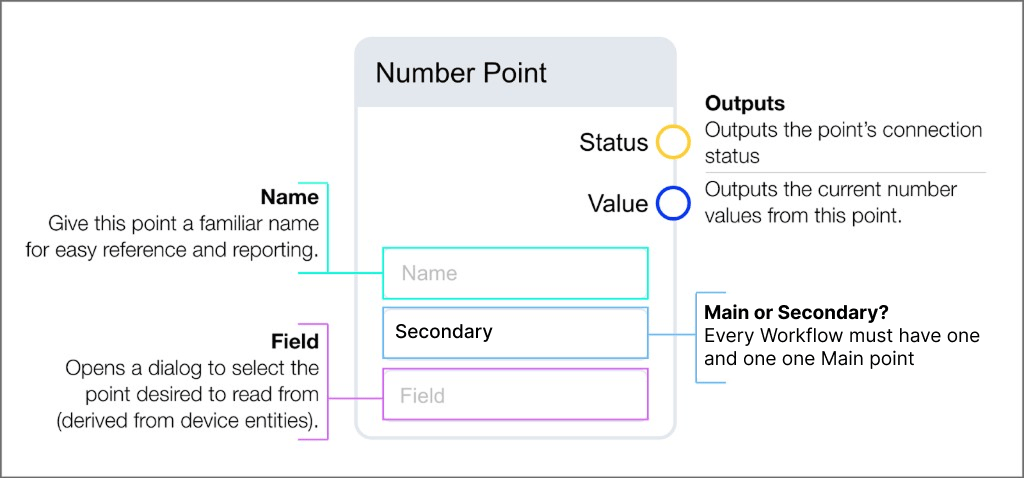
Boolean Point
Outputs the current boolean values from the selected point.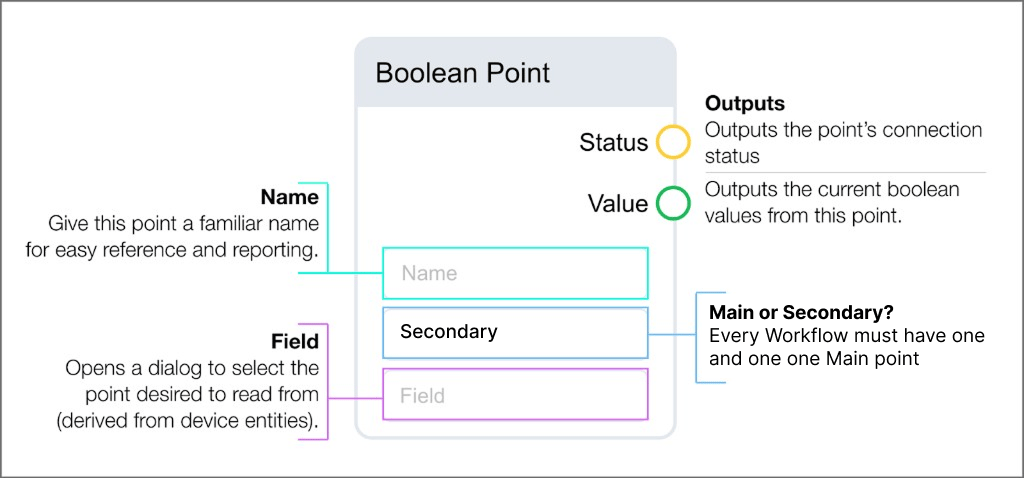
Enum Point
Outputs the current enum-mapped values from the selected point. The Field input is derived from device entities and enum mapping.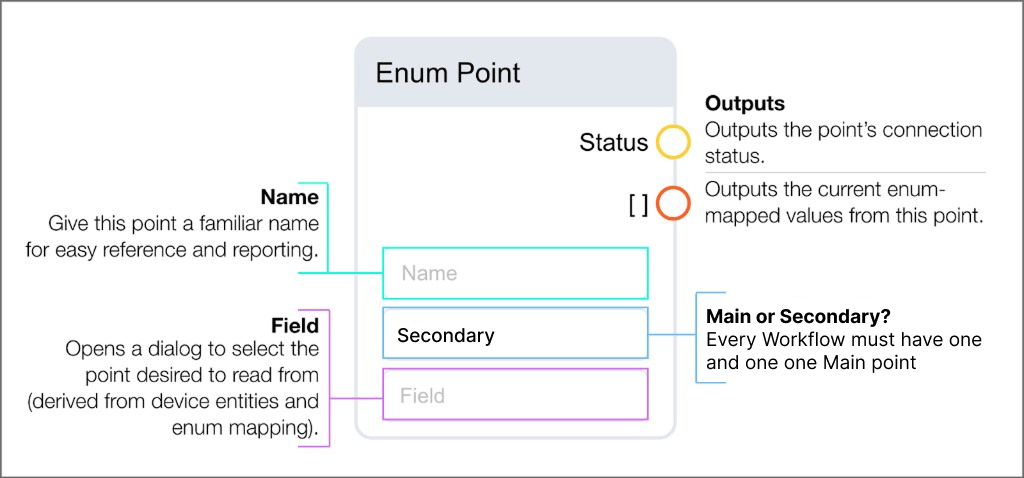
Read arrays
Within a device, it is possible to have two distinct fields that share the same name. In these cases, the field is appended with an identifying number, and the status of that field is an aggregate of the numbered variants. FDD identifies the array potential of these fields and allows you to select an array Read block. For example, if a device has two compressor stages, determining whether the compressor is running requires checking both stage points. With a Read Array block, you bring in a single block instead of separate Read blocks for each stage. This simplifies the routine logic and covers all variations of multi-stage equipment within a single routine. Array blocks have Name and Field inputs and output lists where each item represents a point in the array.String Array
Outputs a list of string values from points in the array.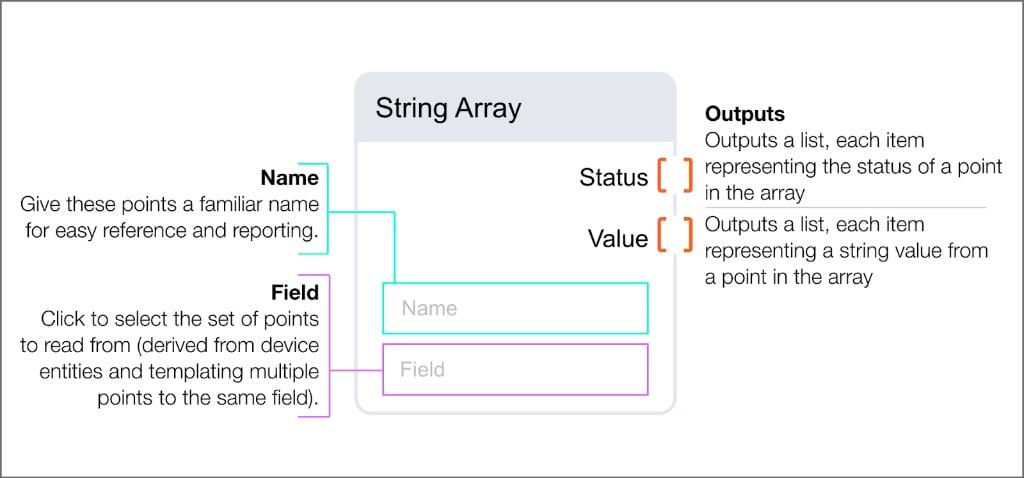
Number Array
Outputs a list of number values from points in the array.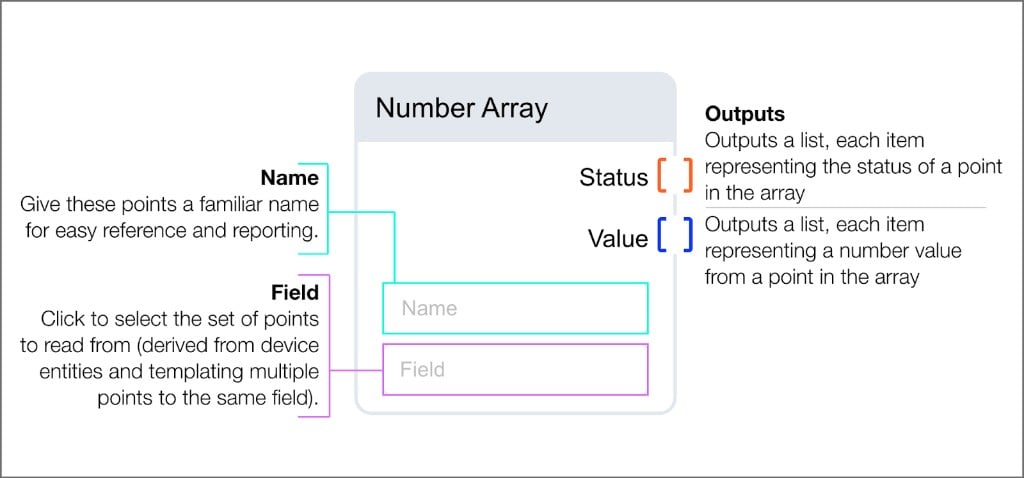
Boolean Array
Outputs a list of boolean values from points in the array.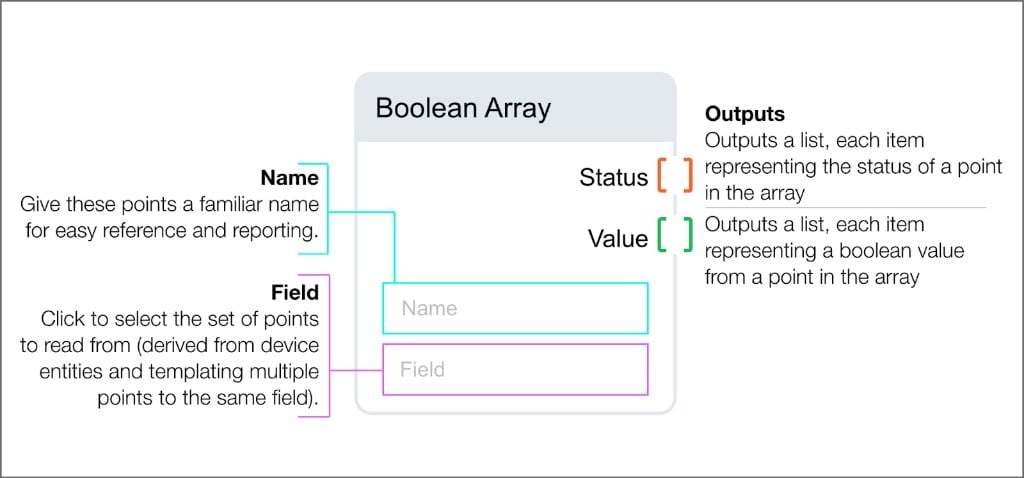
Enum Array
Outputs a list of enum values from points in the array.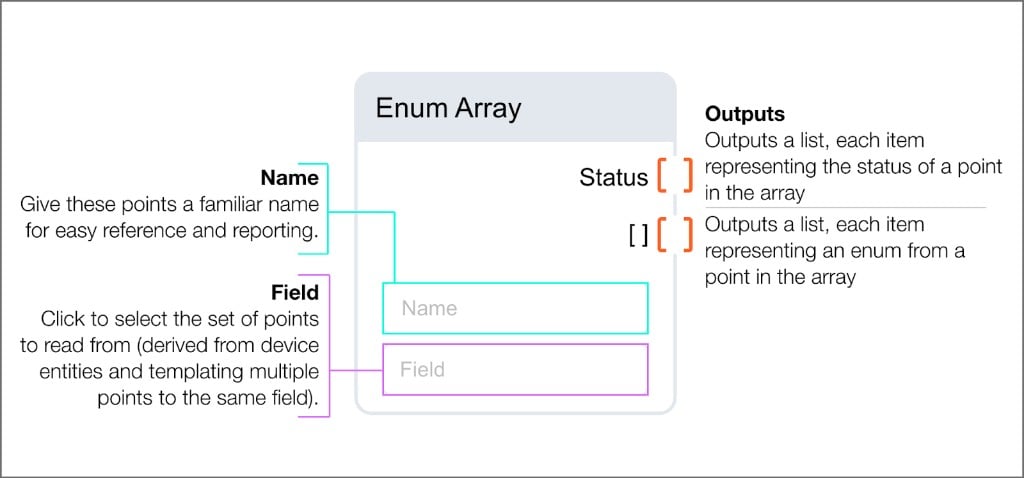
Parameter blocks
Parameter blocks let you define adjustable values that can be customized per project without modifying the routine logic. Values set in parameter blocks become available when configuring a routine on theConfigs page. Each parameter block has three inputs (Name, Hint, Value) and one Output.
A human-readable label for the parameter. Use a descriptive name that can be understood by anyone reviewing the routine. Clear naming minimizes confusion when troubleshooting or understanding the parameter’s intent later.
A string input that appears when hovering over the information icon during configuration. Use as many words as necessary to communicate the parameter’s intent, expected range, and purpose.
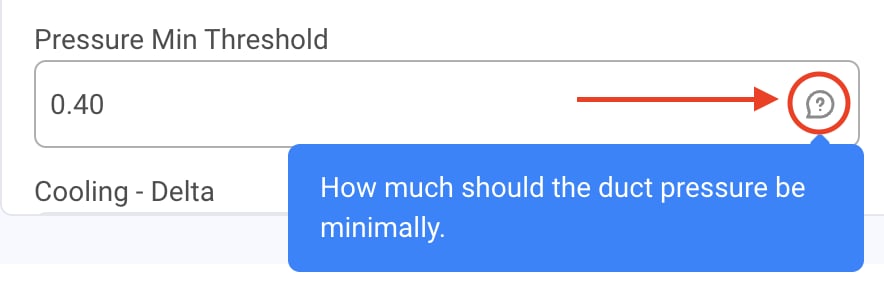
The Hint text appears as a tooltip when hovering over the info icon during configuration
The default value for the parameter. When you configure the routine on the
Configs page, you alter this input to the algorithm. Most parameters require a default value.Parameter types
Number
Outputs the number specified in the value field. Values are available for customization during configuration.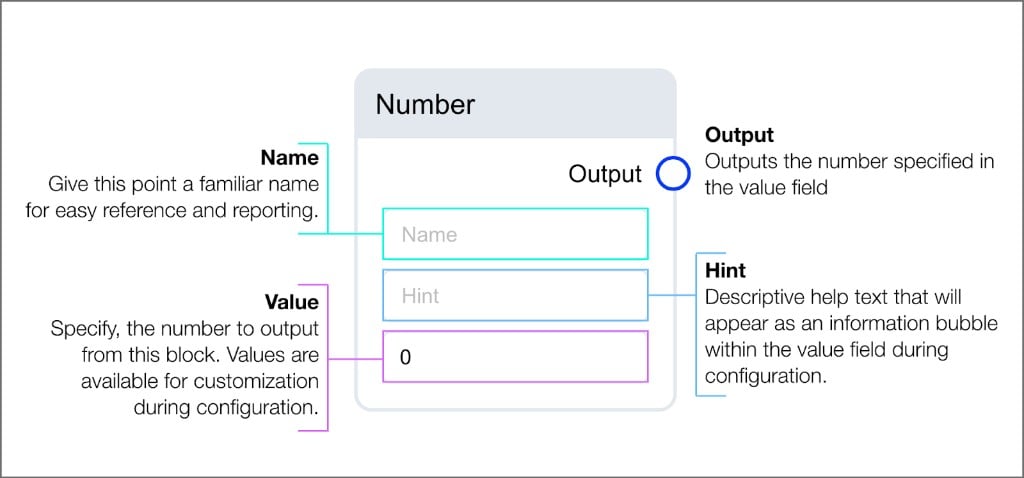
Boolean
Outputs the boolean specified in the value field. Values are available for customization during configuration.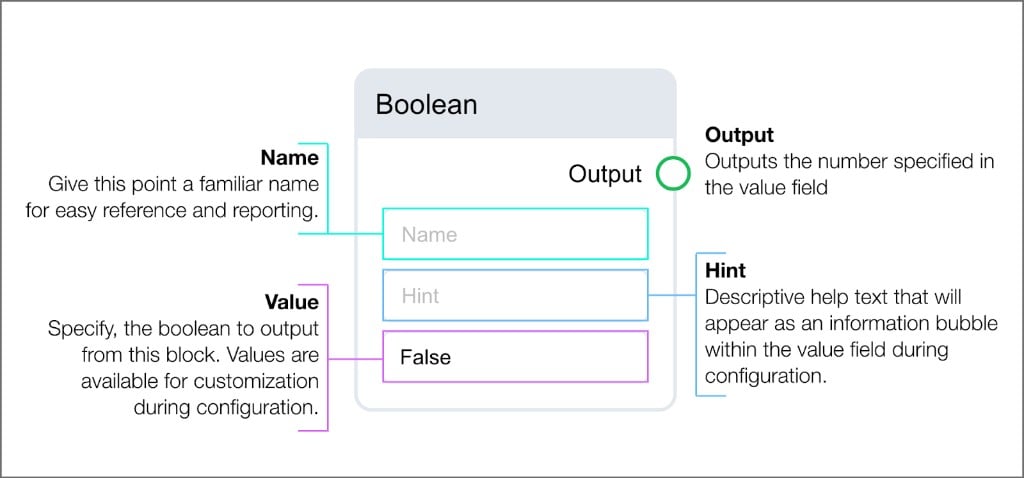
String
Outputs the string specified in the value field. Values are available for customization during configuration.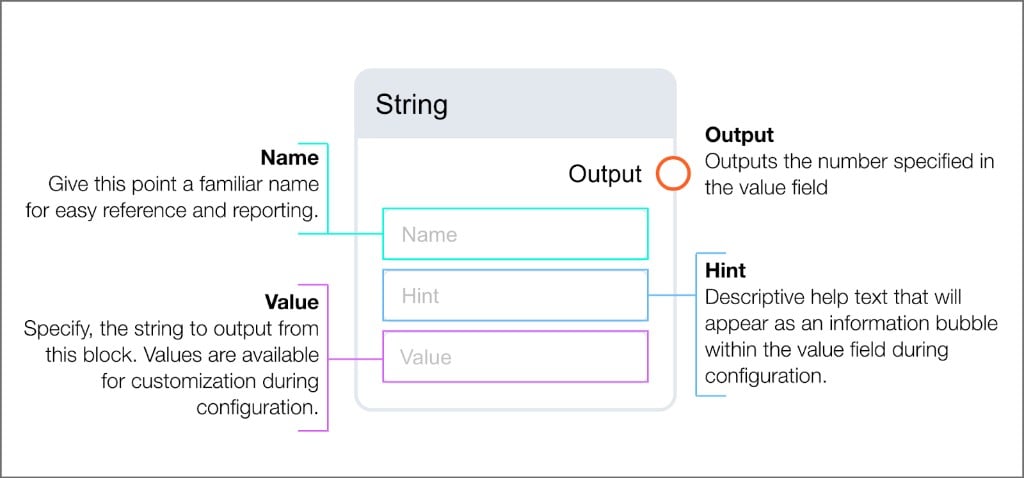
Organize blocks
Organize blocks help you structure complex routines on the canvas.Folder
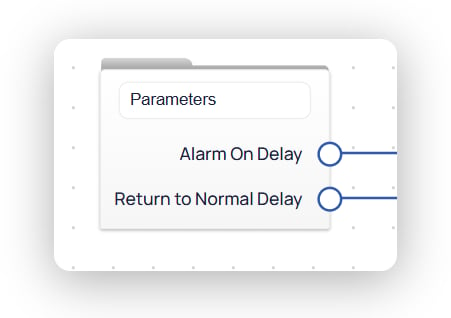
Folds a group of blocks into a single block on the main canvas. Use a folder to hide detail and reuse the same sub-logic across routines. On the main canvas, the folder shows its name and the inputs and outputs you define inside it. In this example, a folder namedParameters exposes Alarm On Delay and Return to Normal Delay outputs.
Folder IO blocks
Folder IO blocks appear only inside a folder. They define how values pass into and out of the folder.Input
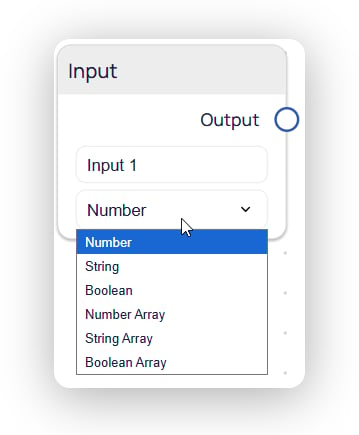
Defines one value that enters the folder from the main canvas. Give the input a name and select its data type. The type list includesNumber, String, Boolean, Number Array, String Array, and Boolean Array. Wire the value into your folder logic from the block Output.
Output
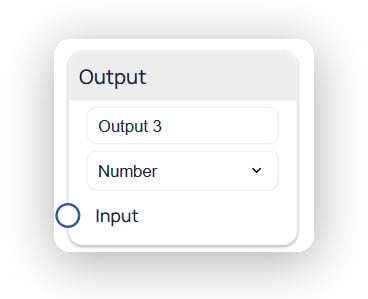
Defines one value that leaves the folder to the main canvas. It works in reverse of an Input block. Give the output a name and select its data type. Wire your folder logic into the blockInput.
Constants blocks
Constants blocks supply fixed values and mapped labels for use in comparisons and switches.Result
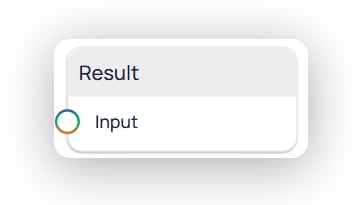
Accepts a value through its singleInput. The block has no output and no fields to configure.
Status
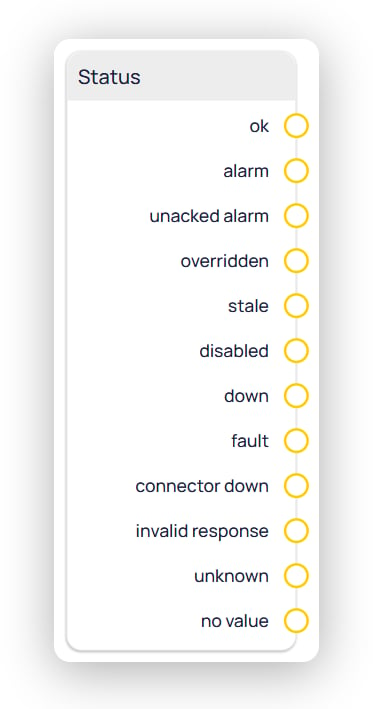
Provides one output for each system status value. Wire the output that matches the status you want to use in your logic. Outputs areok, alarm, unacked alarm, overridden, stale, disabled, down, fault, connector down, invalid response, unknown, and no value.
String Builder
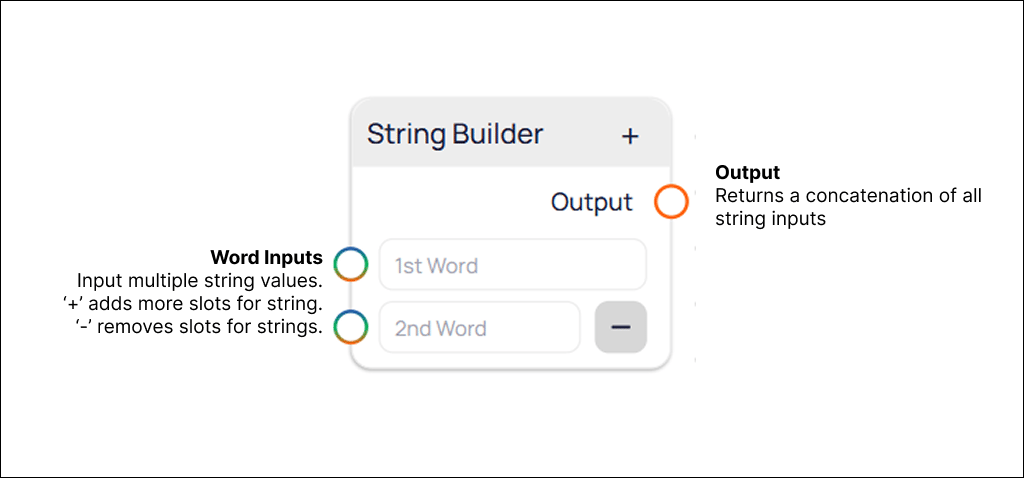
Returns a concatenation of all string inputs. Use this block to join multiple string values into one output.Enter or wire a string value into each word slot, such as
1st Word and 2nd Word. Select + in the block header to add more slots. Select - on a slot to remove it.Output returns the combined string.
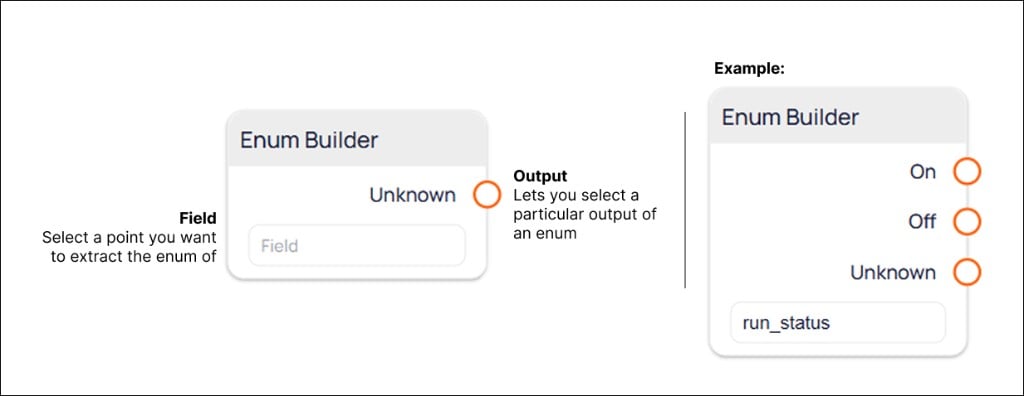
Enum Builder
Lets you select a particular output of an enum. Use this block to work with one enum value at a time, such asOn, Off, or Unknown.
Select
Field to open the Select Field dialog. Choose the point whose enum you want to extract, then select Save.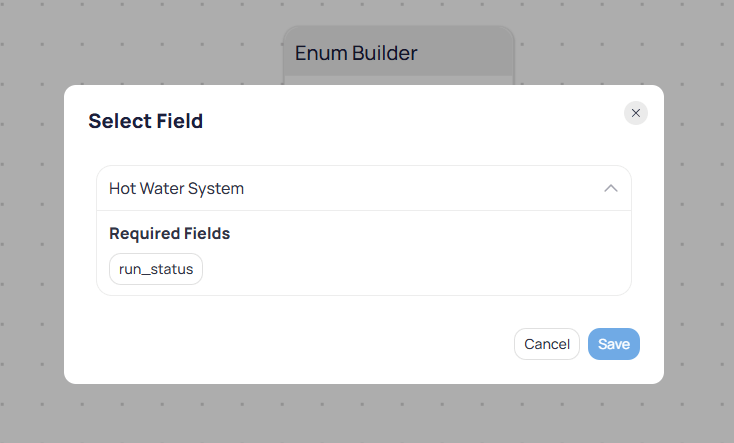
The Select Field dialog for Enum Builder, showing a device with its required fields
Arithmetical blocks
Arithmetical blocks perform mathematical operations on number inputs. Use these blocks to calculate differences, ratios, and derived values from your point data. Arithmetical blocks come in two forms: Single-input blocks accept one number input (or a static value) and produce one result.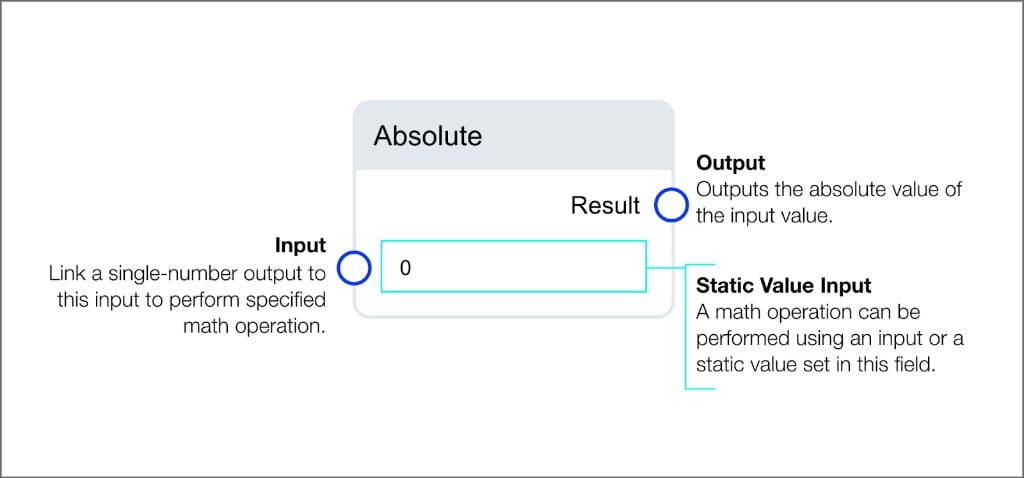
Absolute block: outputs the absolute value of the input
+ button to add additional input fields.
Available operations
Absolute
Outputs the absolute value of the input value.Sum
Outputs the post-calculated value from adding all inputs.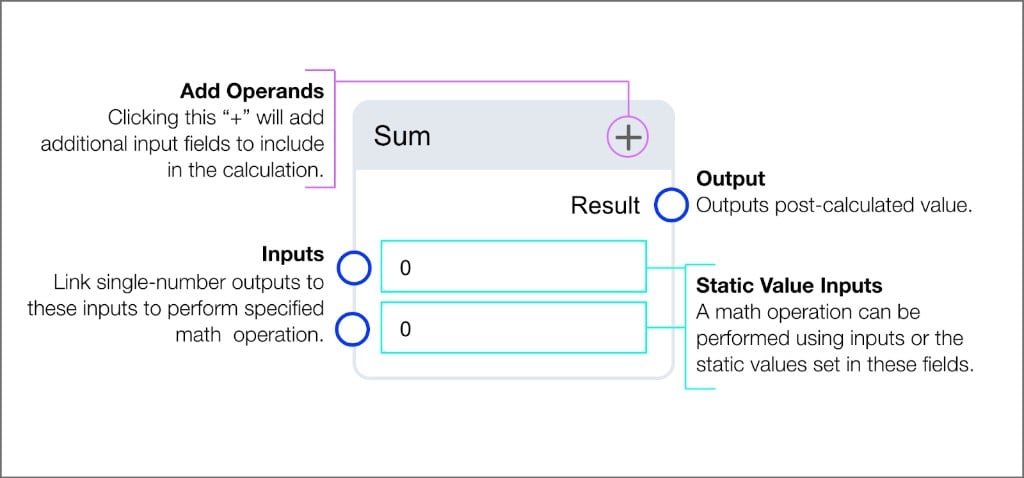
Difference
Outputs the post-calculated value from subtracting inputs.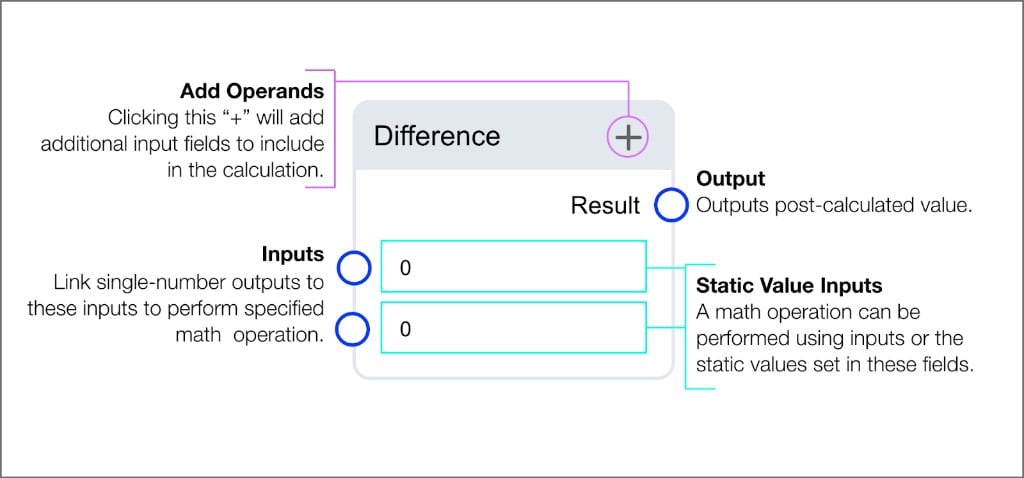
Product
Outputs the post-calculated value from multiplying inputs.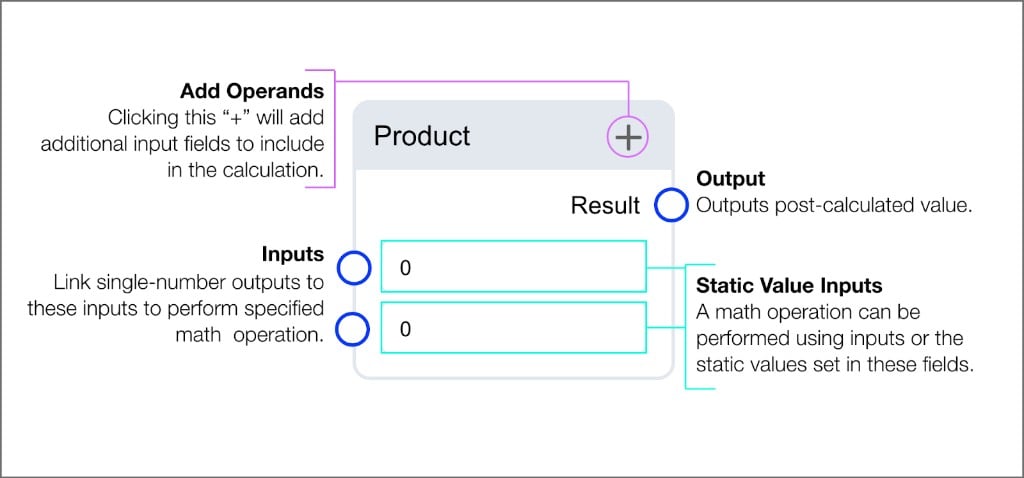
Quotient
Outputs the post-calculated value from dividing inputs.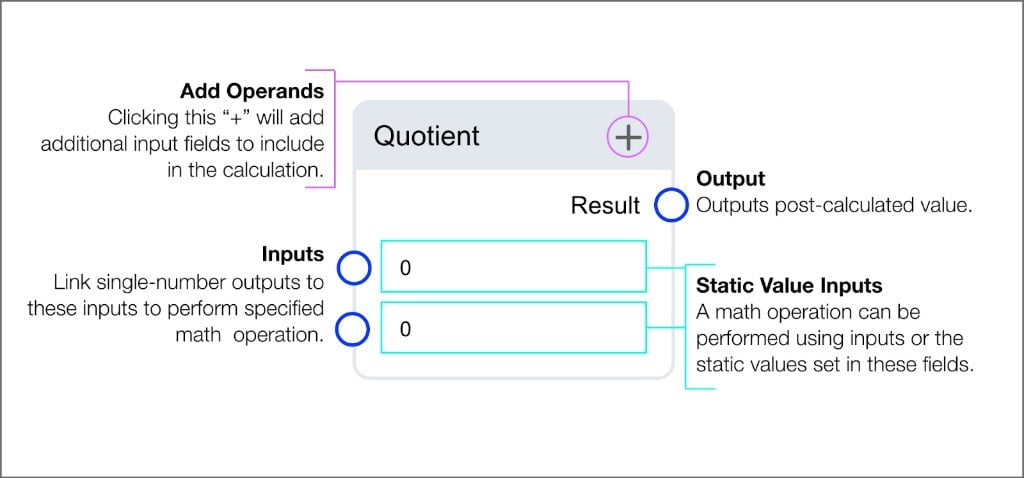
Mean
Outputs the average of input values.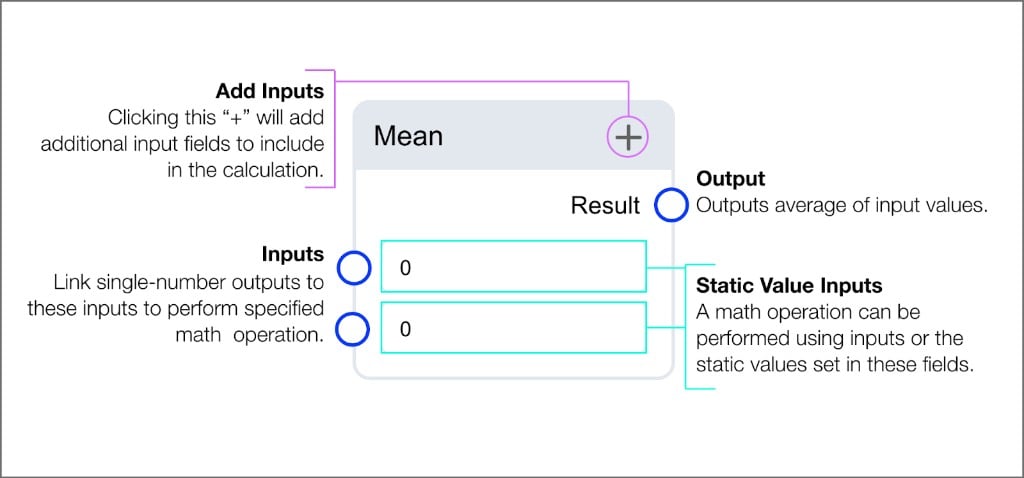
Max
Outputs the largest input value.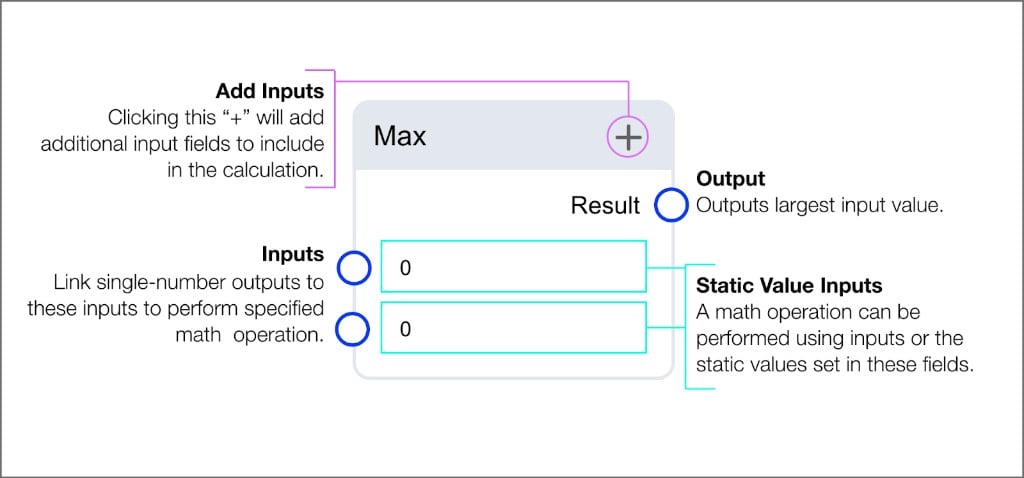
Min
Outputs the smallest input value.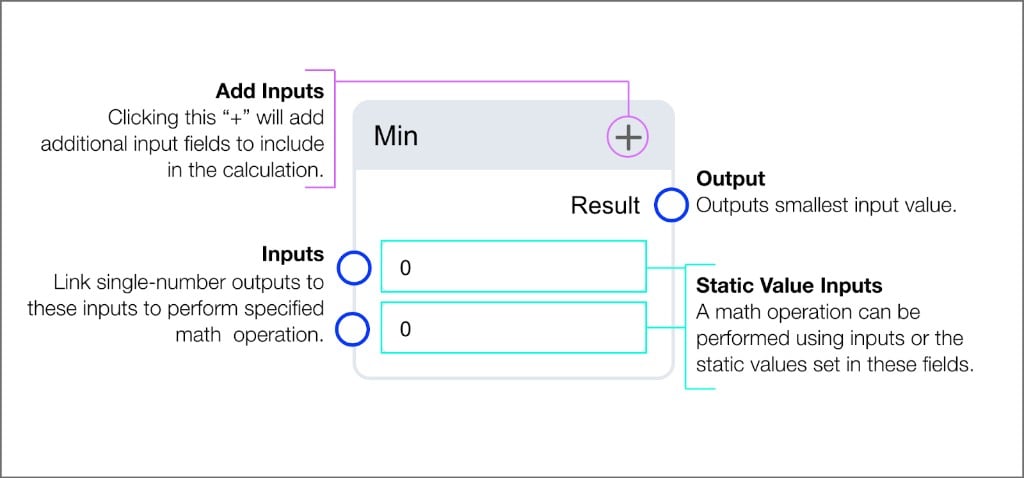
Round
Rounds a number and outputs the result. The block takes two number inputs.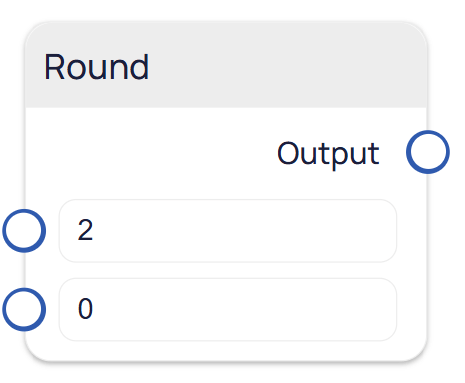
Modulo
Outputs the remainder from calculating the quotient of the inputs.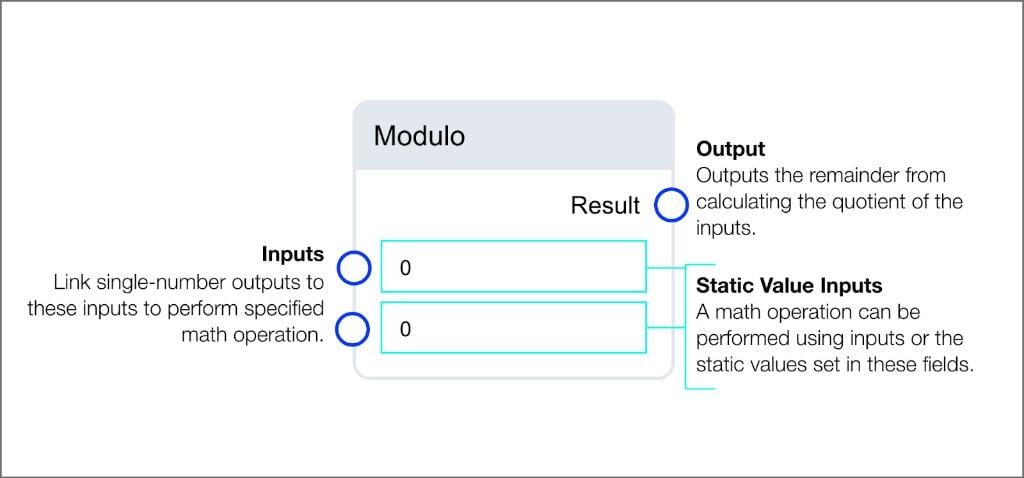
Power
Raises a number to a power and outputs the result. The block takes two number inputs.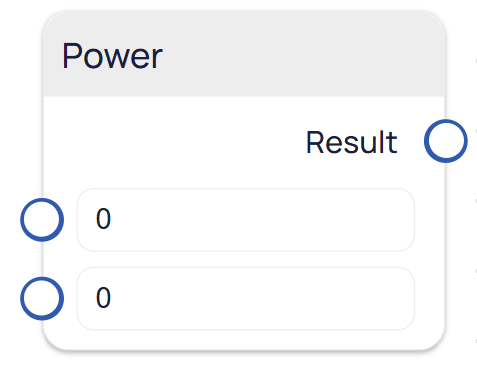
Square Root
Outputs the square root of a number input.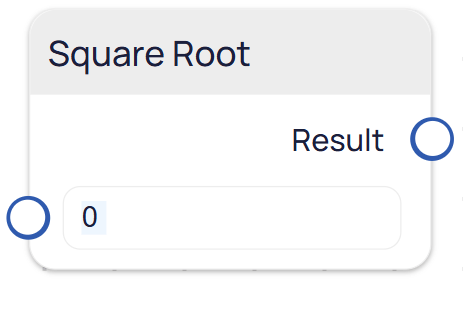
Arrays blocks
Arrays blocks process a series of data points collected from the same source over time. Use these blocks to analyze trends, find patterns, and compute statistics. Each block accepts a list input and returns a single result. In the Logic palette, these blocks appear underArrays with short names such as Max, Mean, Min, Sort, and Sum.
Available operations
Delta
Returns the difference between the minimum value and the maximum value in the list.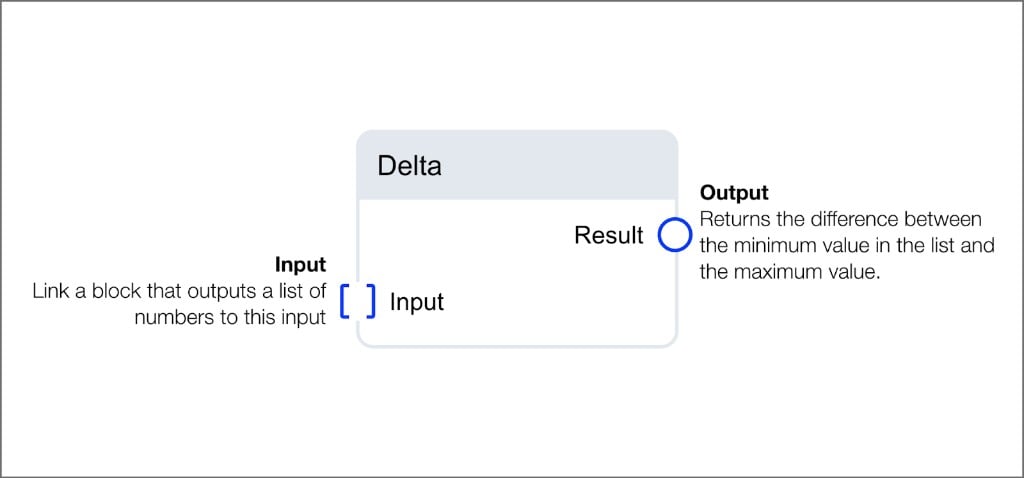
Length
Returns the count of items in the provided list. Accepts lists of numbers, booleans, or strings.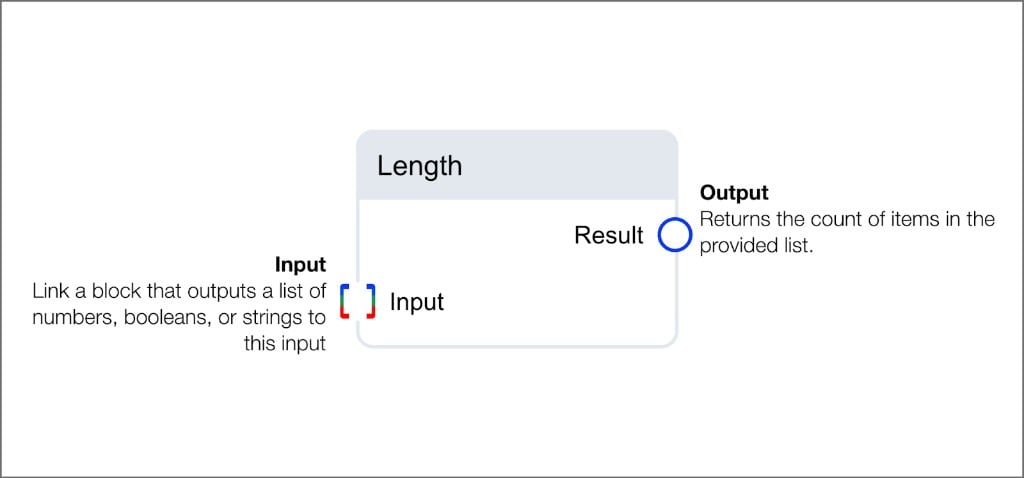
Max Array
Returns the largest number in the list.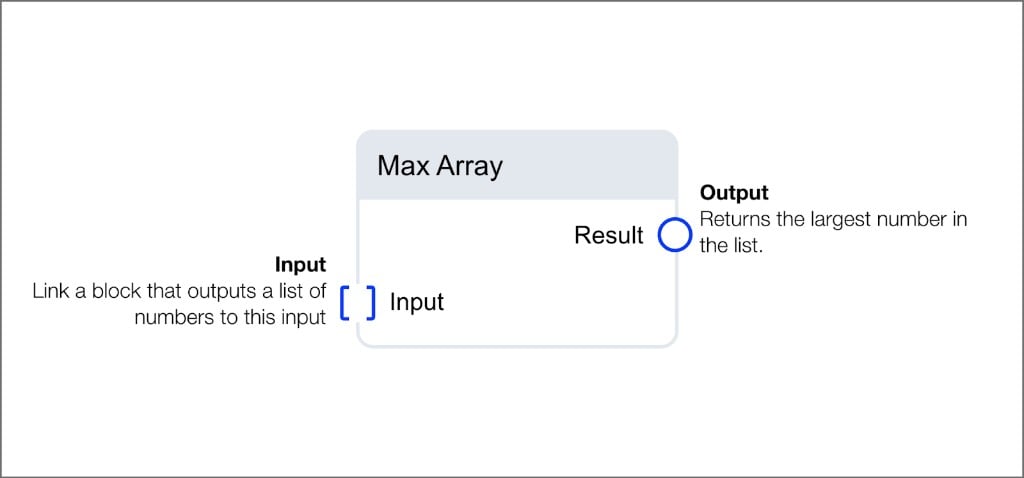
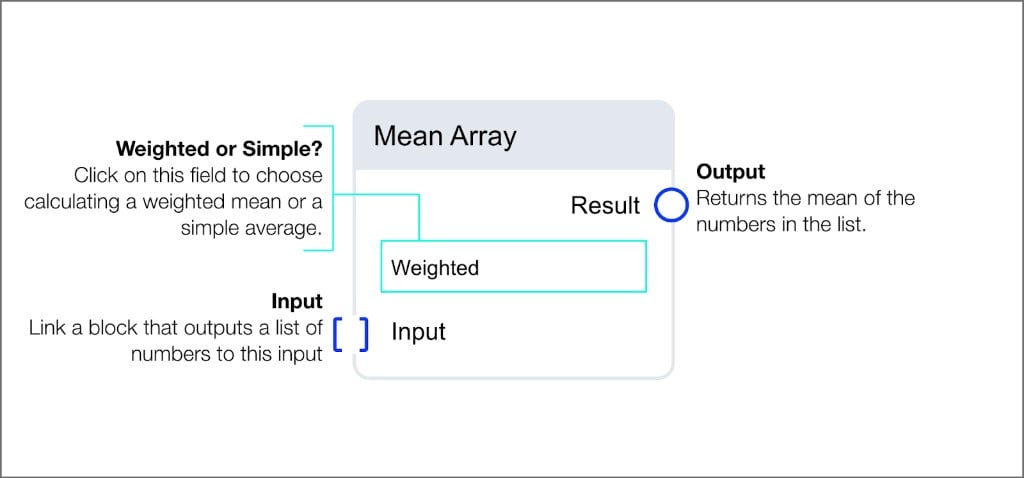
Mean Array
Returns the mean of the numbers in the list. Select betweenWeighted or Simple calculation mode.
Min Array
Returns the smallest number in the list.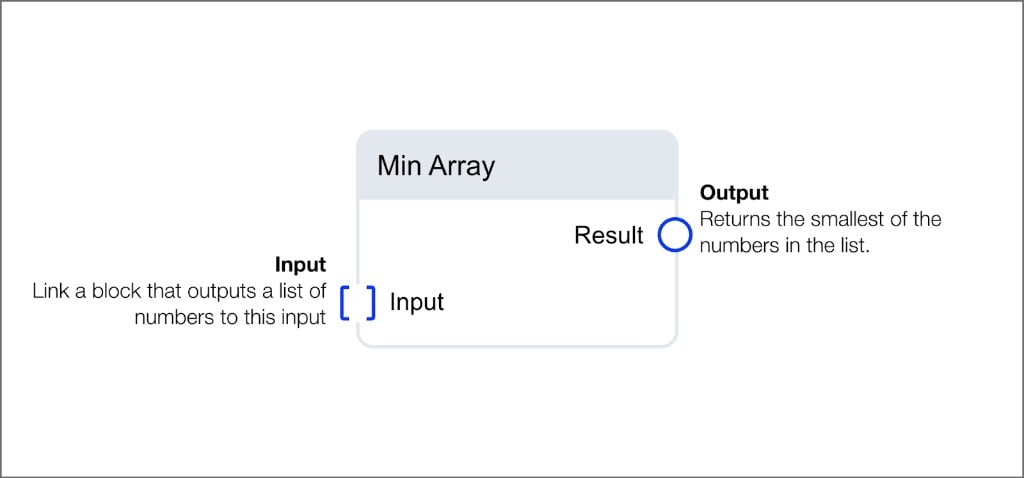
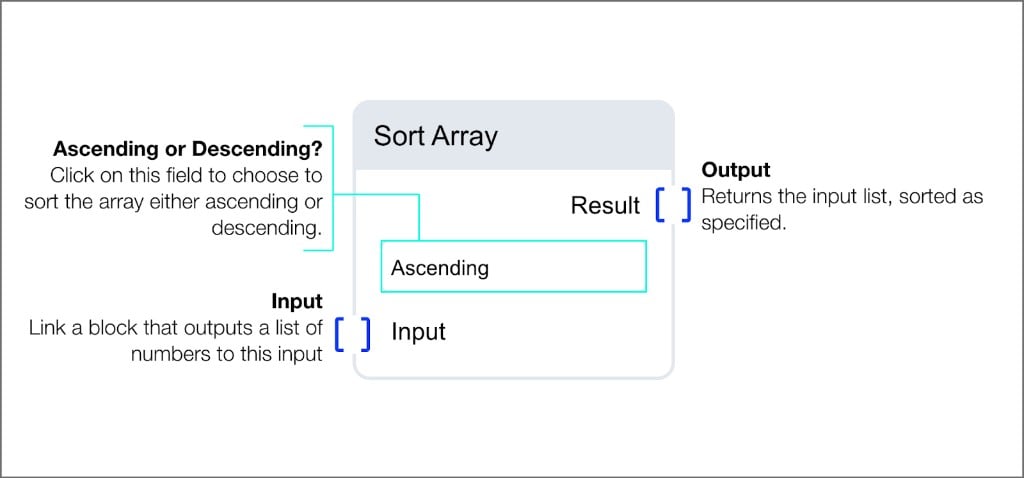
Sort Array
Returns the input list sorted in the specified order. Select betweenAscending or Descending.
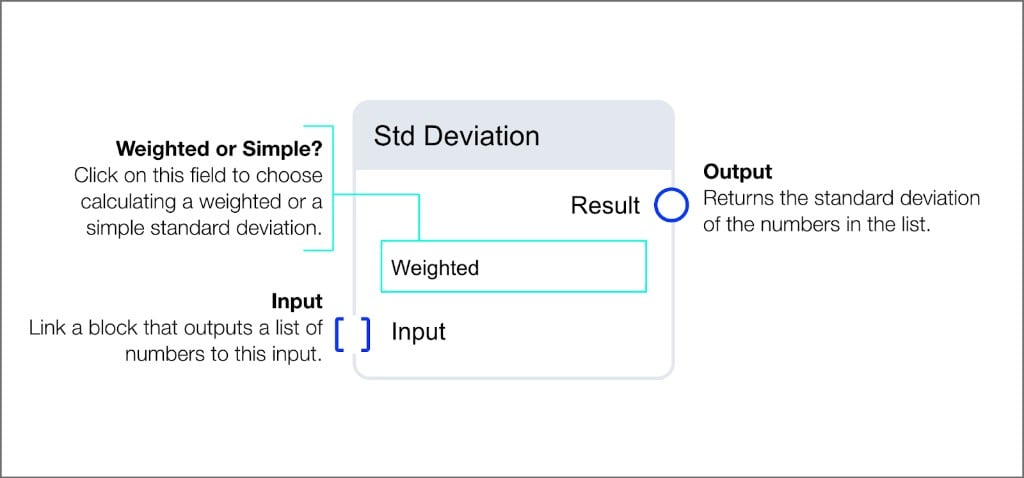
Std Deviation
Returns the standard deviation of the numbers in the list. Select betweenWeighted or Simple calculation mode.
Sum Array
Returns the sum of all the numbers in the list.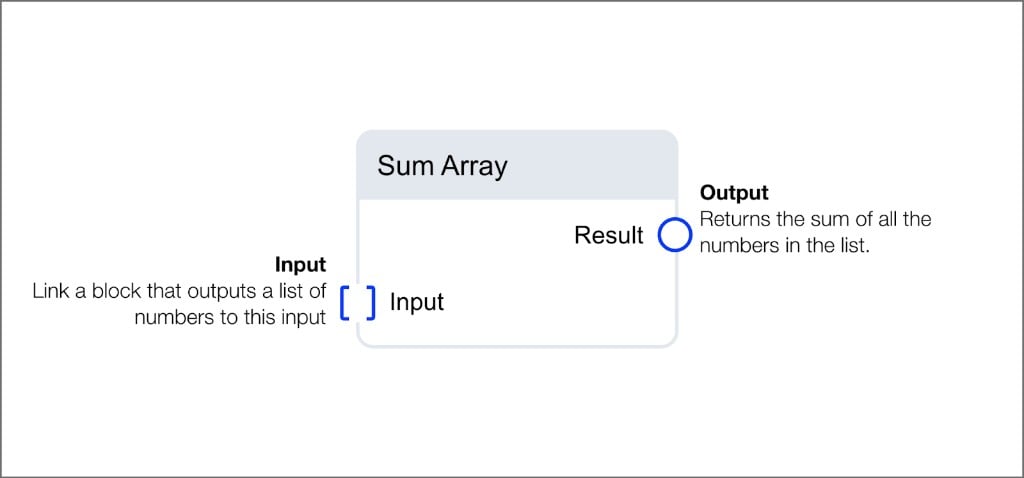
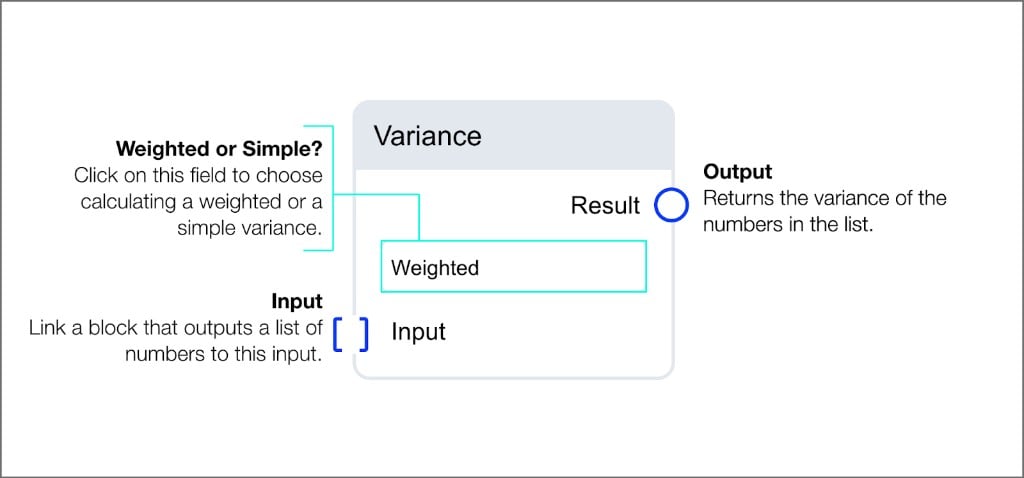
Variance
Returns the variance of the numbers in the list. Select betweenWeighted or Simple calculation mode.
Example workflows
Difference between highest and lowest values over five minutes: Read Number > Buffer Time (5 min) > Array Sort (Ascending) > Array Delta This workflow captures five minutes of data, sorts the values, and calculates the difference between the highest and lowest readings. 15-minute rolling average: Read Number > Buffer Time (15 min) > Array Mean This workflow buffers 15 minutes of readings and outputs the running average.Conditional blocks
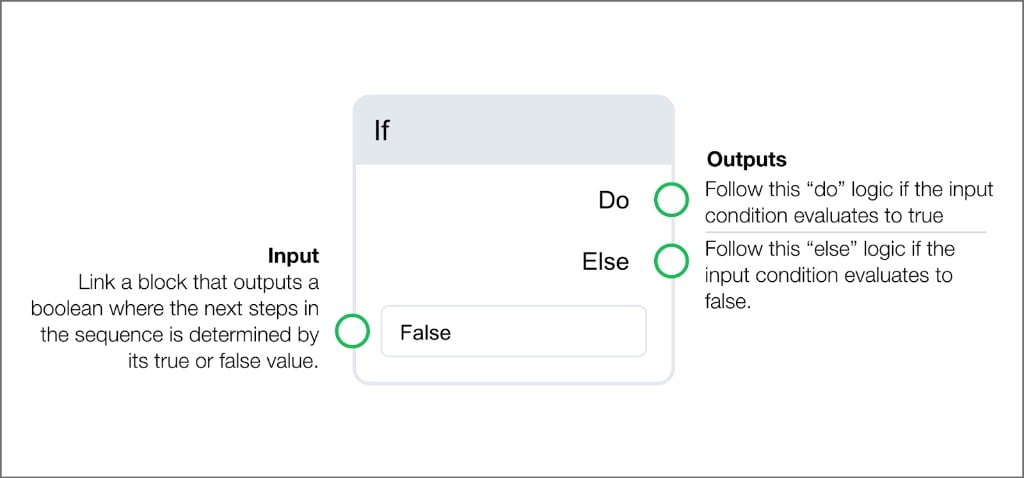
Conditional blocks direct the routine’s execution path based on input data.If
The If block evaluates a boolean input and routes to one of two outputs. TheDo output fires when the condition is true, and the Else output fires when the condition is false.
Switch blocks
Switch blocks evaluate a conditional input and output the corresponding value based on whether the condition is true or false. Each switch type outputs a different data type. In the Logic palette, these blocks appear underSwitches.
Numeric Switch
Outputs the corresponding number associated to the evaluated true or false condition.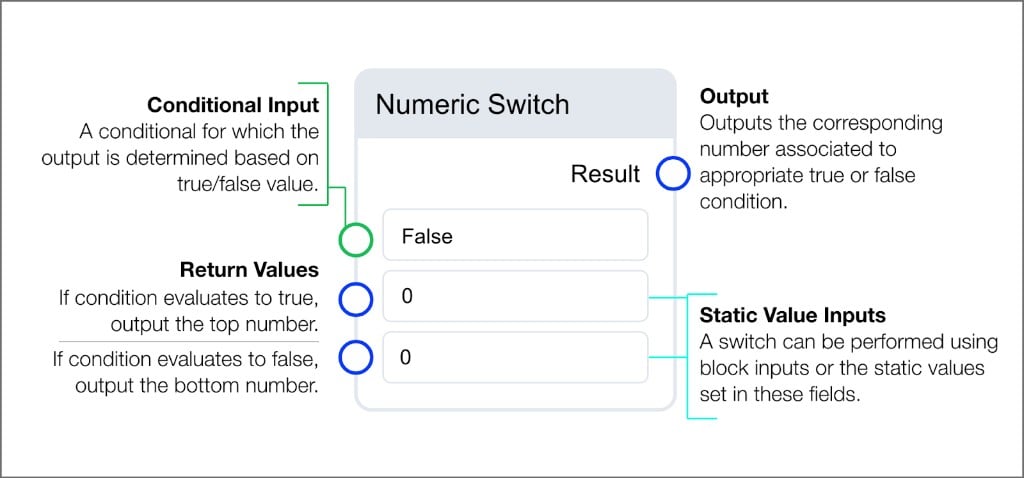
Boolean Switch
Outputs the boolean associated to the evaluated true or false condition.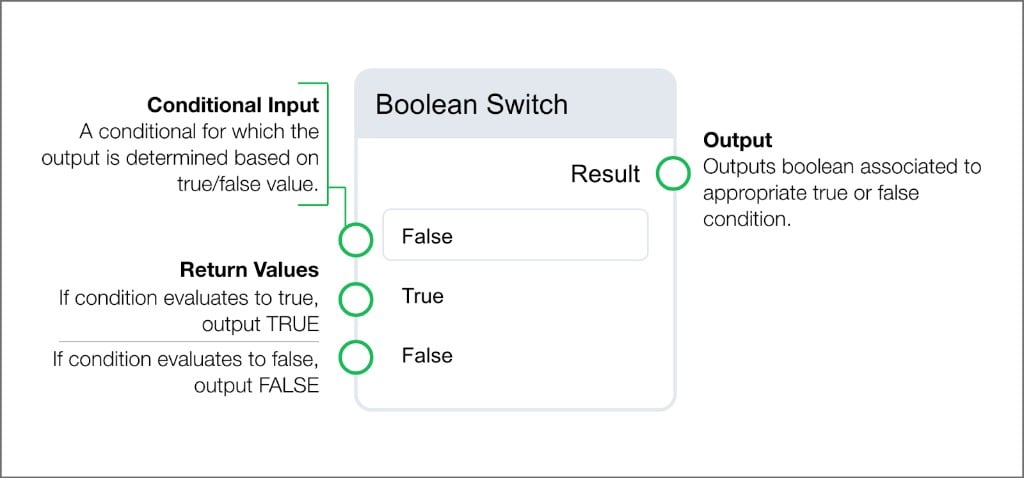
String Switch
Outputs the corresponding string associated to the evaluated true or false condition.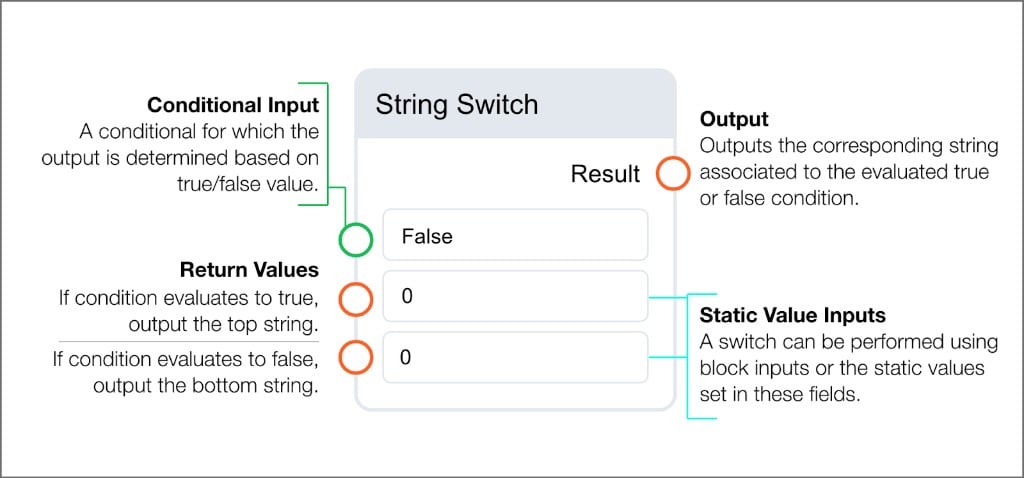
Logical blocks
Logical blocks perform boolean operations on inputs. Select the+ button on multi-input blocks to add additional conditionals.
Or
Outputs true if any input value is true.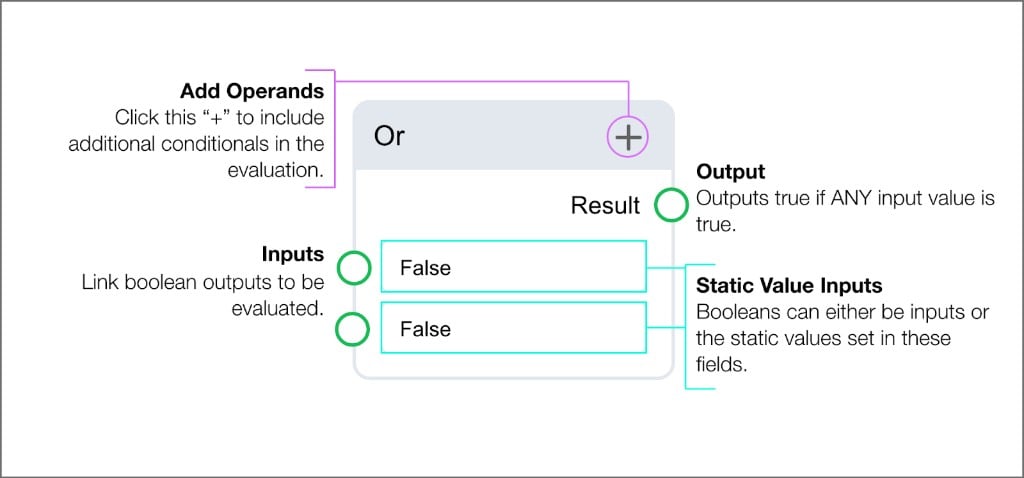
Not
Returns the opposite boolean from the input.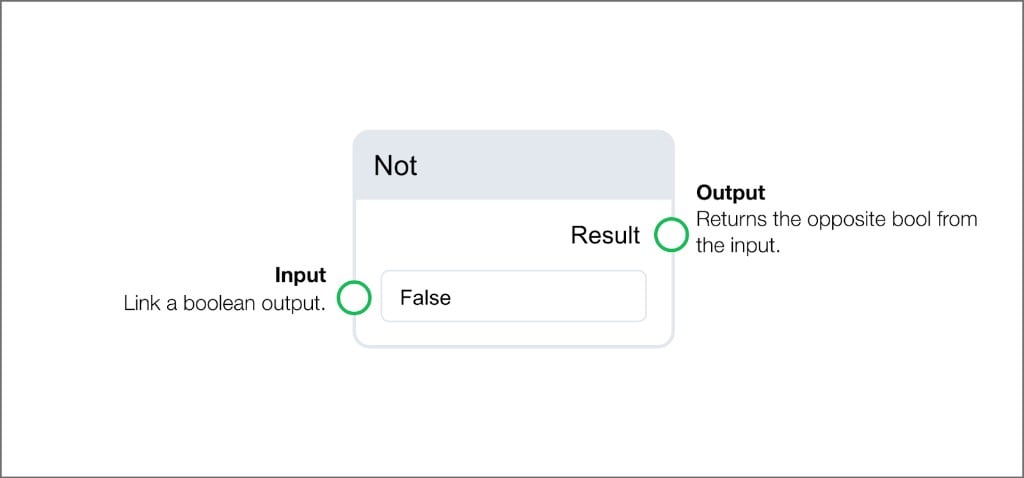
And
Outputs true if all input values are true.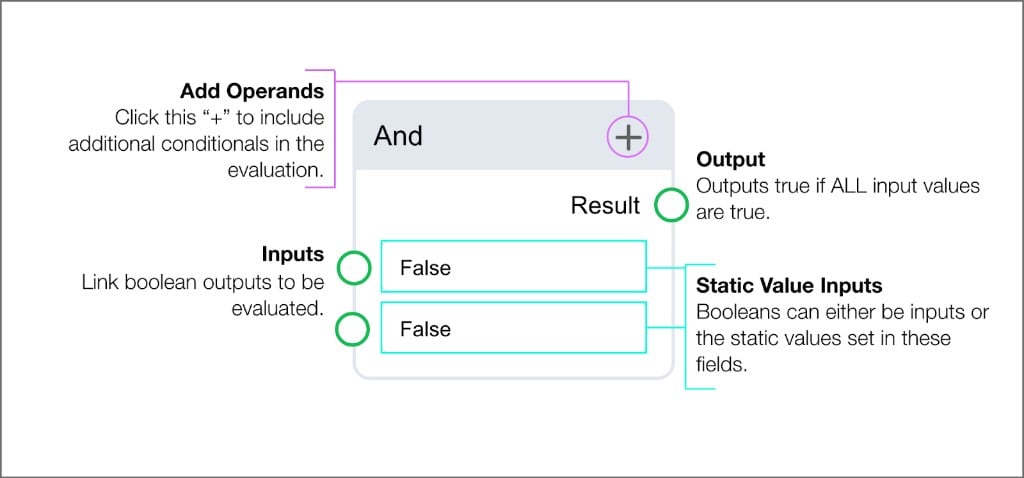
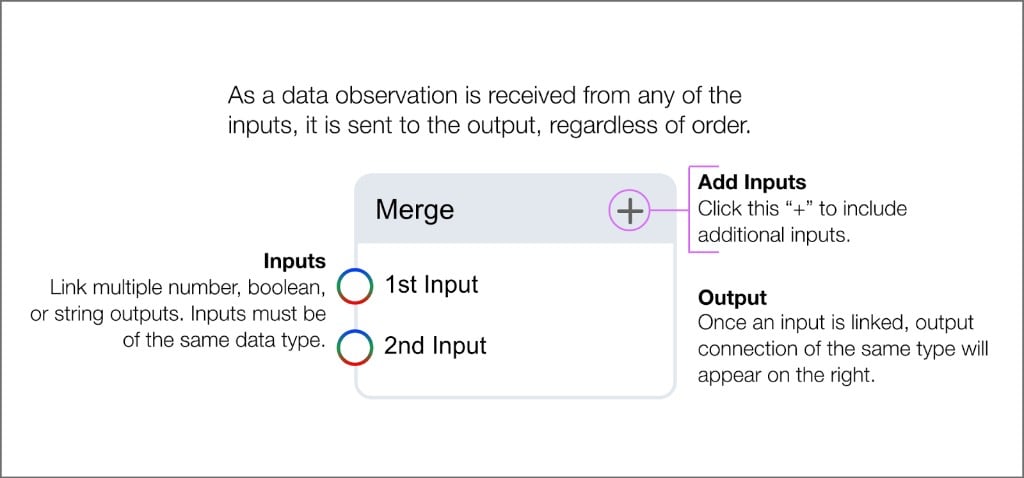
Merge
Sends data from any of its inputs to the output as observations are received, regardless of order. Inputs must be of the same data type. Select+ to add additional inputs.
Comparison blocks
Comparison blocks evaluate values against each other or against list membership. Combine these blocks to build complex conditions that evaluate multiple fault criteria at the same time.Greater Than
Outputs true if the left operand is greater than the right. Accepts number inputs or static values.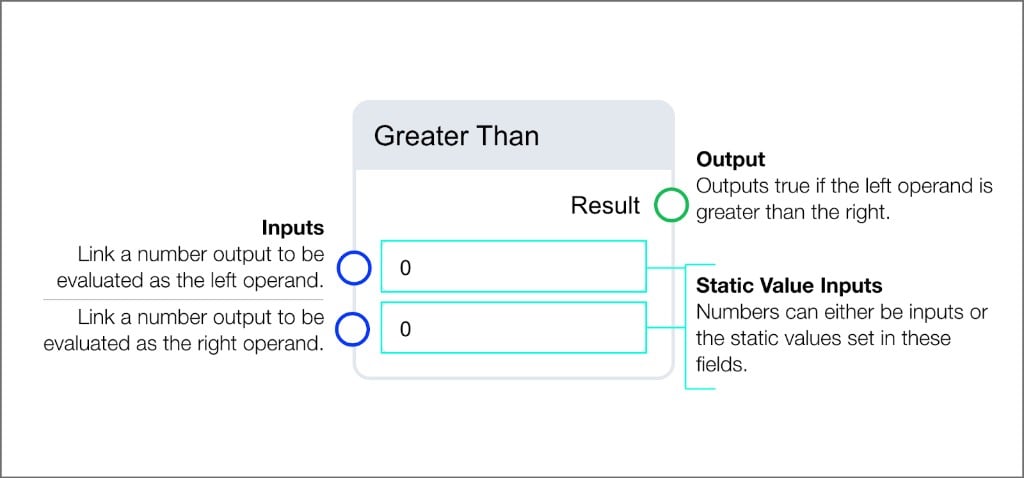
Less Than
Outputs true if the left operand is less than the right. Accepts number inputs or static values.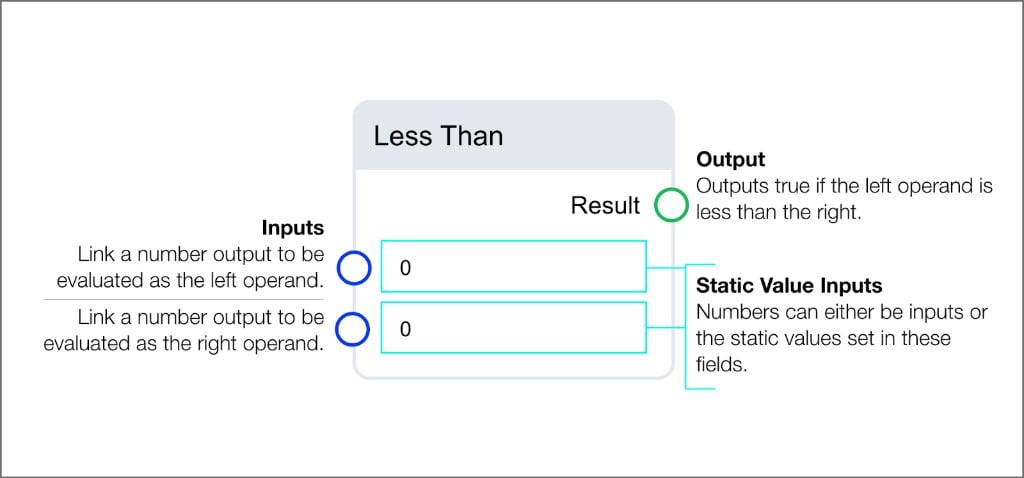
Equals
Outputs true if both inputs are evaluated as equal. Accepts number, boolean, or string operands of the same type.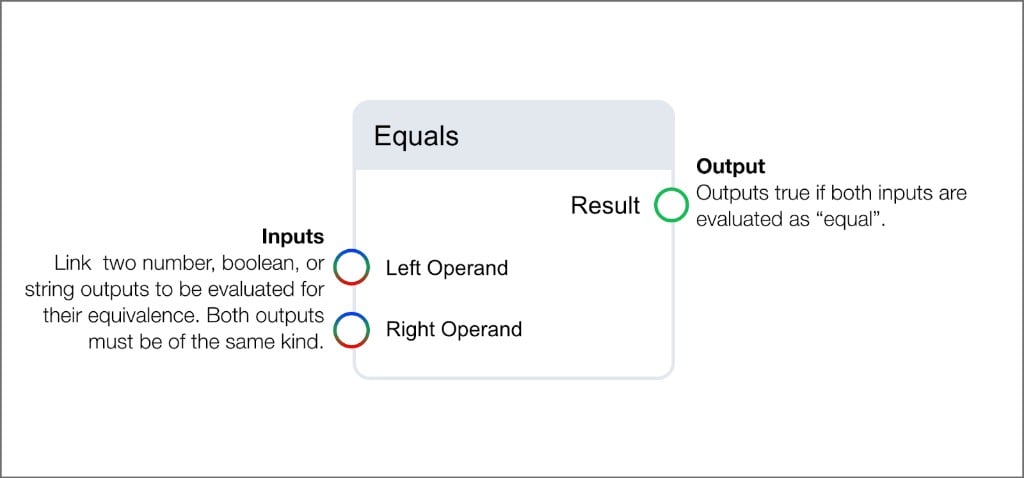
In
Outputs true if the data observation received by the Value input is found as an item in the input list. Accepts lists of numbers, booleans, or strings.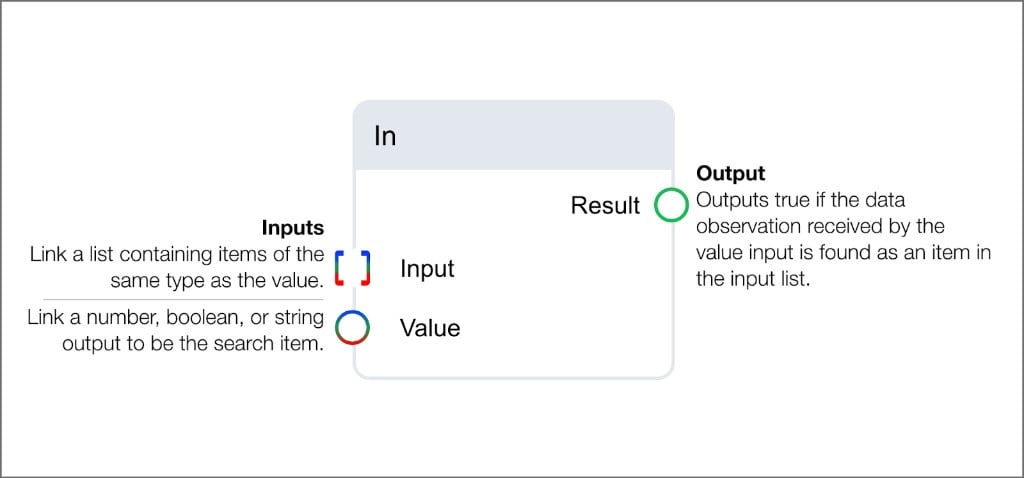
All
Outputs true if all items in the input list match the provided value. Accepts lists of numbers, booleans, or strings.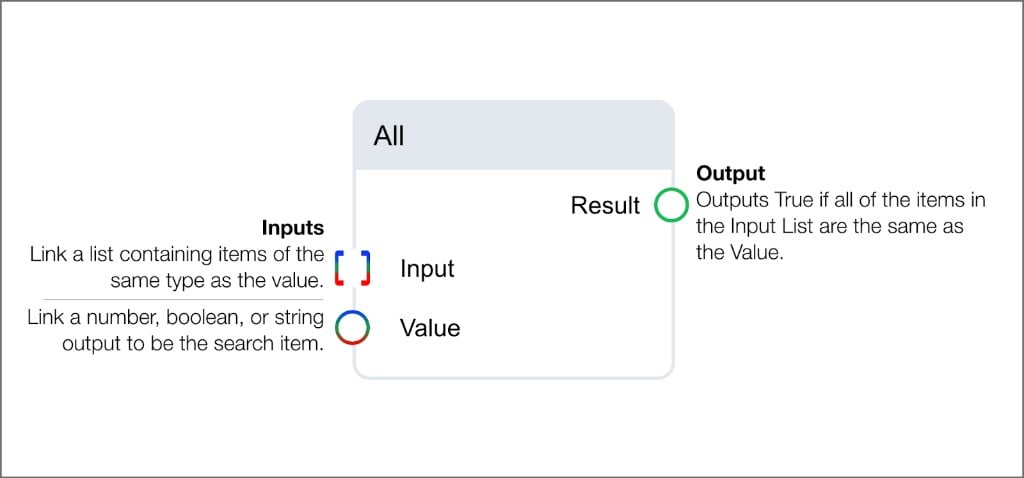
Timing blocks
Timing blocks introduce delays into routine logic. Each timing block accepts a time unit (seconds, minutes, or hours) and a count value. You can set the count as a static number or link it from another block’s output.Debounce
Waits for the specified amount of time and outputs a value only if that value has been unchanged during that period.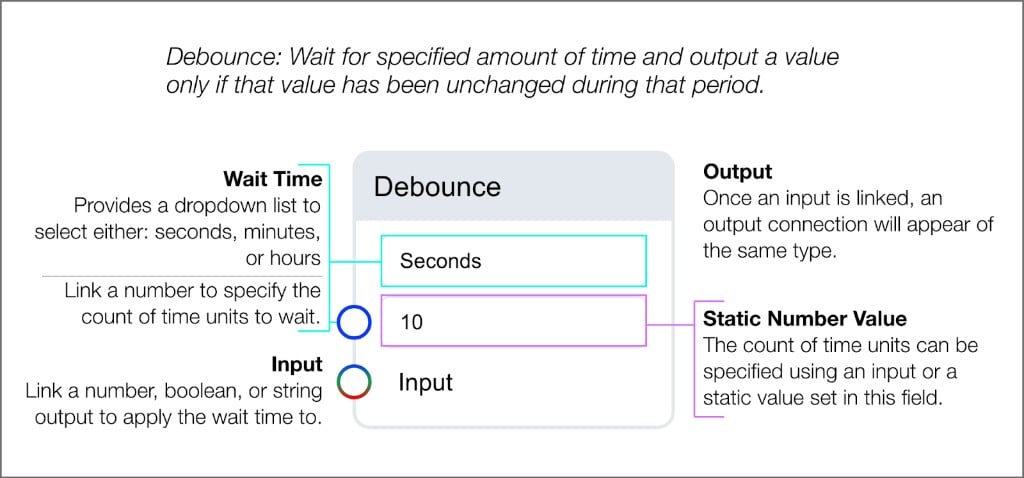
Audit
Waits for the specified amount of time and outputs the last value received from the input.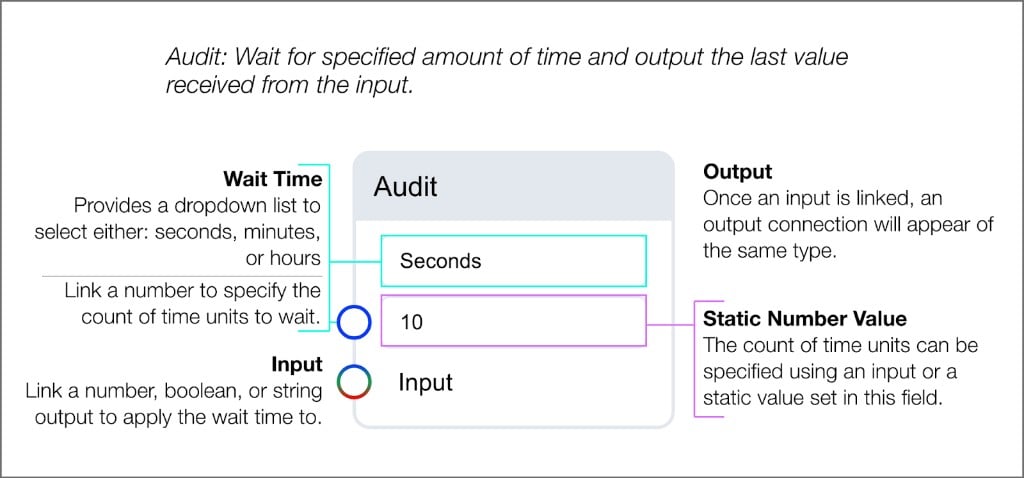
Buffering blocks
Buffering blocks collect data over a specified time window or count for use with Arrays blocks.Buffer Time
Collects values from the input into a list that is returned after the specified amount of time.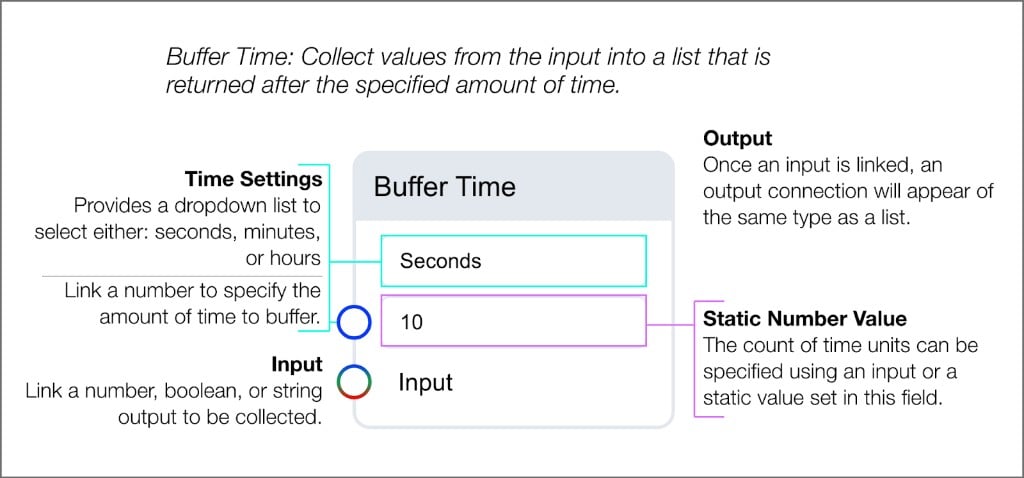
Buffer Count
Collects values from the input into a list that is returned when the count is satisfied.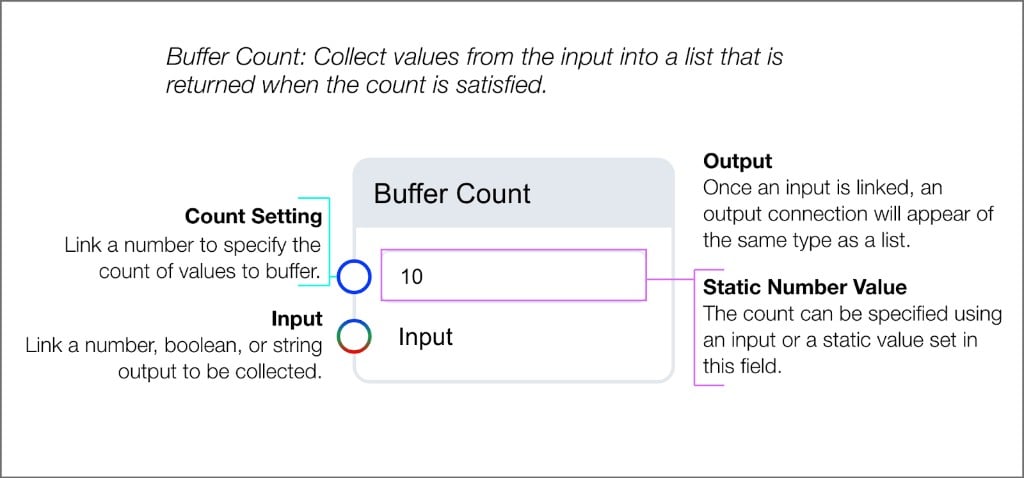
Schedule blocks
Schedule blocks evaluate the current day and time against a configured weekly schedule.Time Window
Outputs true when the current day and time fall within the configured weekly schedule. Use this block to limit evaluation to occupied hours, maintenance windows, or other recurring periods.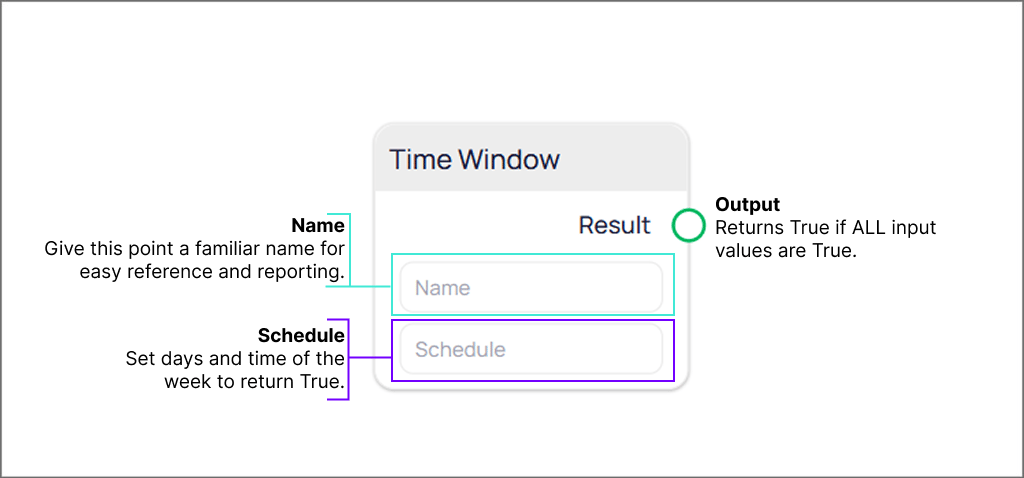
A free-form label for the block. Use a name that makes the schedule purpose clear during debugging and reporting.
Select
Schedule to open the schedule configuration dialog. Choose the days of the week and the hours when the block should return true. Selected days appear as filled circles. For each selected day, set a start time and end time.Use + on a day row to add another time range for that day. Use Copy to all to apply one day’s times to every other selected day. Select Save to apply the schedule, or Cancel to discard changes.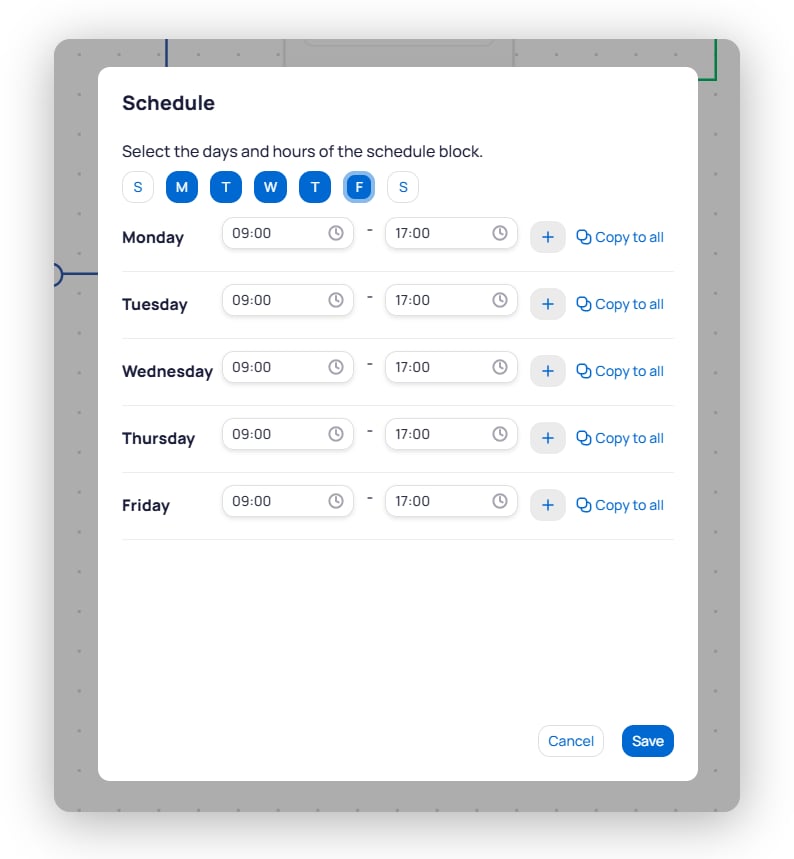
The Schedule dialog sets days of the week and daily time ranges for the Time Window block
Result output returns true when the current time matches any configured range for the current day. Outside those ranges, the output is false.
Alarming blocks
Alarming blocks generate events and check device or connector health.Alarm Trigger
Every FDD routine must include and end with an Alarm Trigger block. When the Alarm Trigger receives a true boolean input, the system generates an event.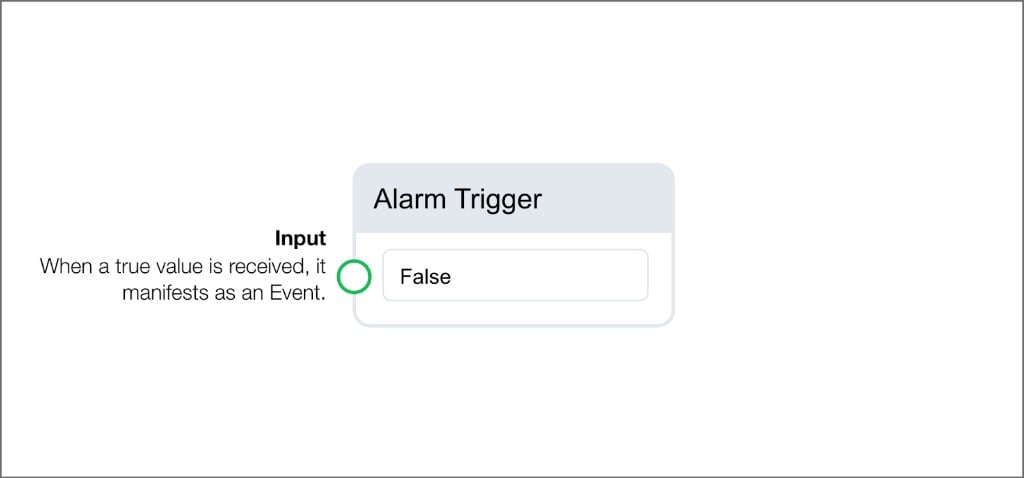
Device Status
Outputs the status of a device you select. Use it to gate alarms on device health.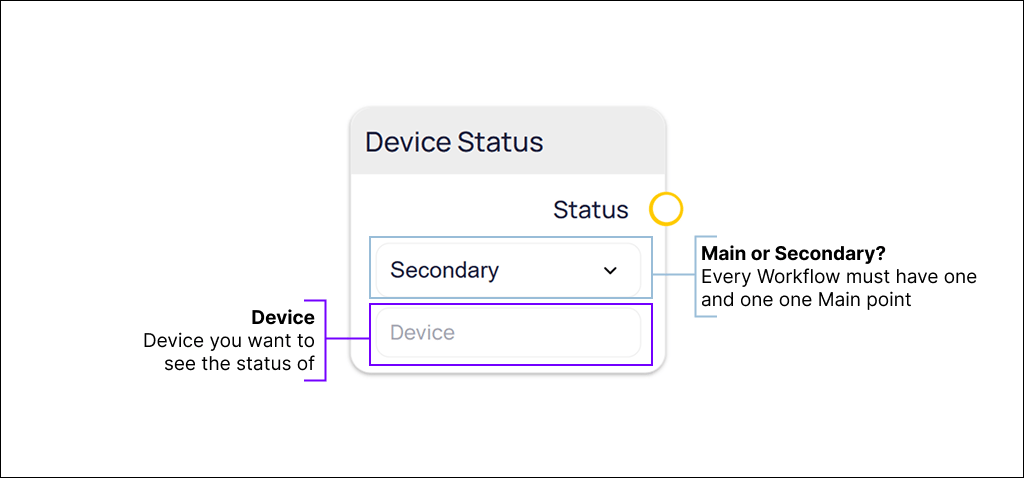
Designate whether the device is the main reference or a supporting device. Every routine must have exactly one main point.
Select
Device to open the Select Device dialog. Choose the device whose status you want to see, then select Save.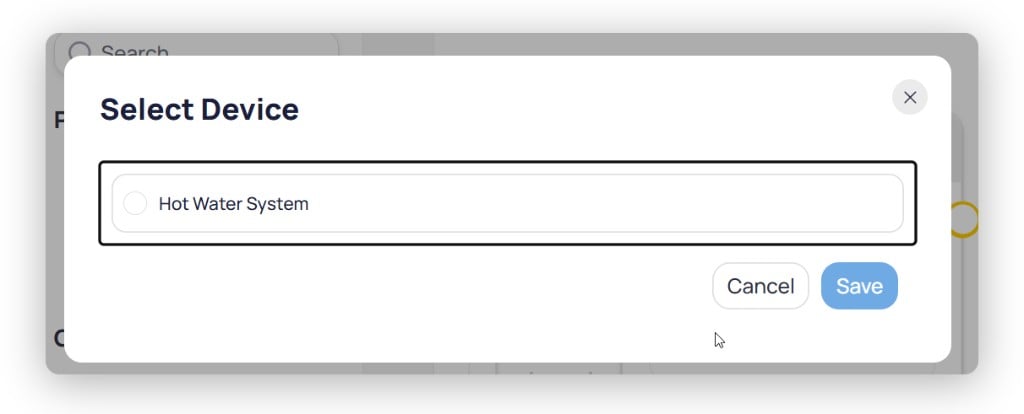
The Select Device dialog lists the devices available to the routine
Status output carries the current status of the selected device.
Connector Status
Outputs the connector status for a device you select. Use it to gate alarms on data source health.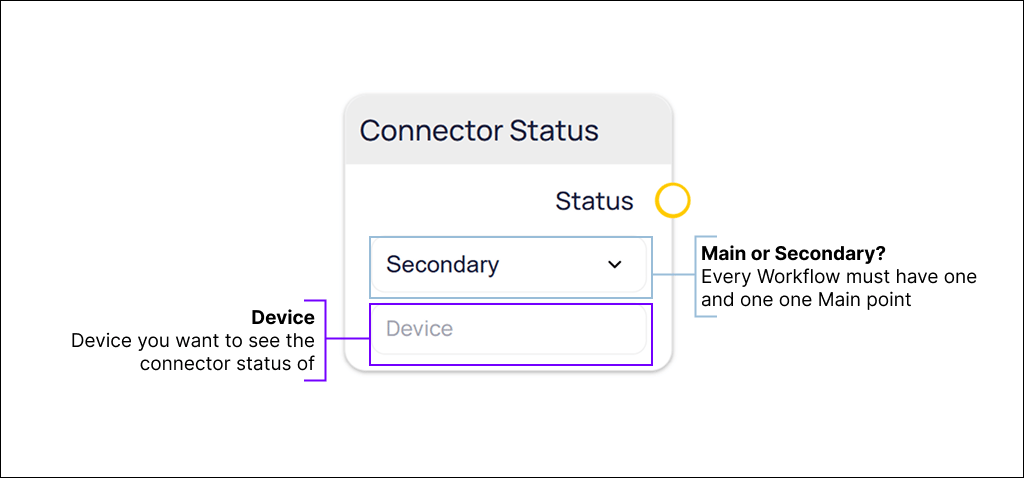
Designate whether the device is the main reference or a supporting device. Every routine must have exactly one main point.
Select
Device to open the Select Device dialog. Choose the device whose connector status you want to see, then select Save.Status output carries the current connector status of the selected device.
Next steps
Routines
Create, test, and manage routines using the logic builder and debugger.
FDD configuration
Apply routines to your devices and configure monitoring parameters.