

Document table columns
The All documents table can show these columns. Use the column control at the right edge of the header row to show or hide fields. Scroll horizontally when many columns are visible.Portfolio view
Open Documents from the portfolio sidebar to work across all buildings where Document Management is enabled.All documents list
The portfolio All documents view shows every file in scope in one table. Use Search by name and the filter row to narrow results.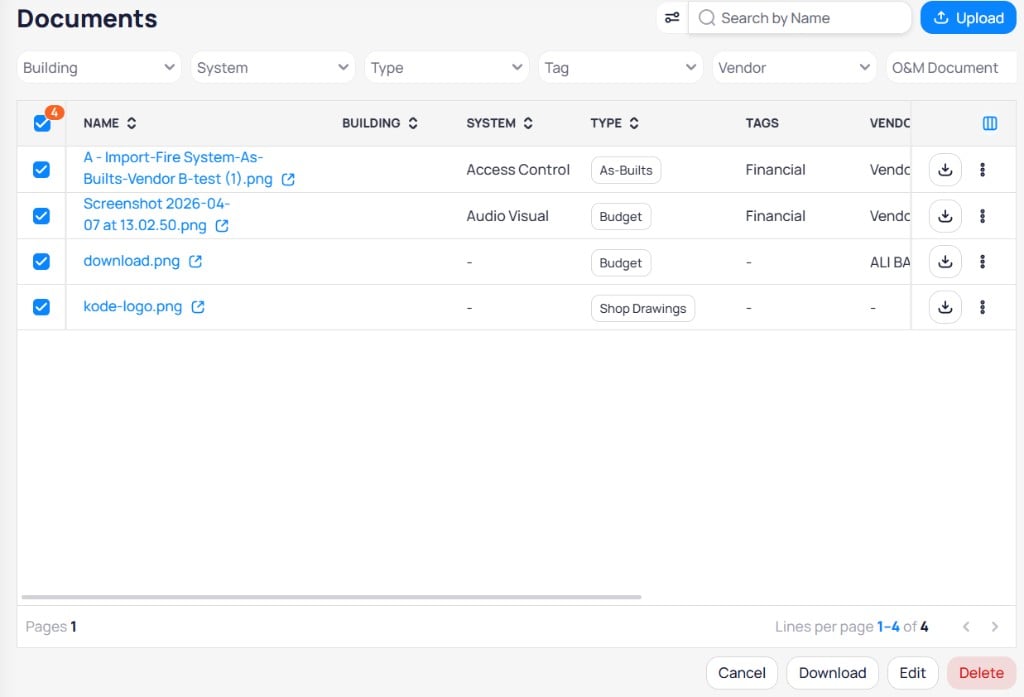
Portfolio All documents list with Building filter and cross-site columns
Portfolio filters
- Search by name — Find documents by file name
- Building — Limit results to one or more buildings
- Division — Filter by CSI division. Results include that division and any section beneath it. For example, Division
23also returns23 05 93. - Section — Filter by a six-digit CSI specification section. Matches include any section beneath the level you select.
- System — Filter by system from the platform ontology. You cannot add systems manually in this module.
- Type — Filter by document type
- Tag — Filter by one or more tags
- Vendor — Filter by a vendor from the AssetOps Vendors list
- Document class — Filter by development, pre-occupancy, or O&M
- O&M document — Quick filter for operations and maintenance manuals
Portfolio list actions
- Upload — Add new documents. Select a Building on upload. See Upload documents.
- Download — Download a single file from the row action
- Row menu — Edit, Replace, or Delete. See Row actions.
- Bulk actions — Select rows to use Cancel, Download, Edit, or Delete in the footer bar
Building view
Open Documents from the building sidebar under Visualization and documents after you select a site. The list and filters apply to that building only. Use the header toggle to switch views:All documents list
All documents is the default table at the building level.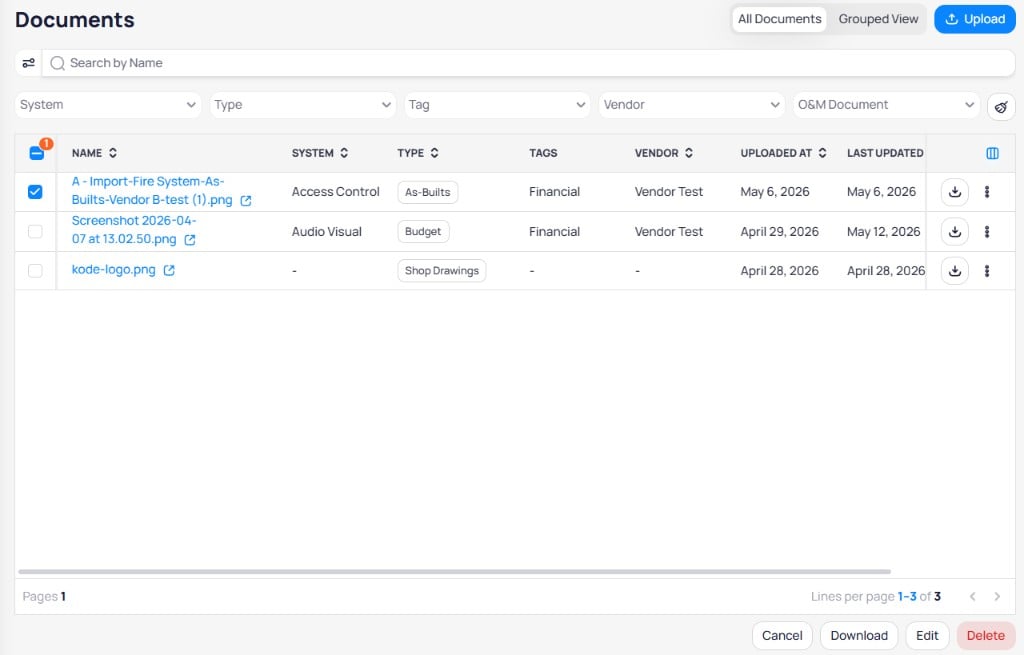
Building All documents list scoped to the open site
Building filters
- Search by name — Find documents by file name
- Division, Section, System, Type, Tag, Vendor, Document class, O&M document — Same meanings as the portfolio filters. The Building filter is not shown because the view is already scoped to the open site.
Building list actions
- Upload, Download, row menu (Edit, Replace, Delete), and bulk actions work the same as at the portfolio level. You do not select Building on upload because the site is already set.
Grouped view
Select Grouped view in the header to organize documents by category. The left panel lists groups; the right panel shows documents for the selected group. Select a grouping tab, then select a group name to load its document list. Each group shows a document count. Grouped view supports a split layout: groups on the left and files on the right. Collapse or resize the left pane as needed.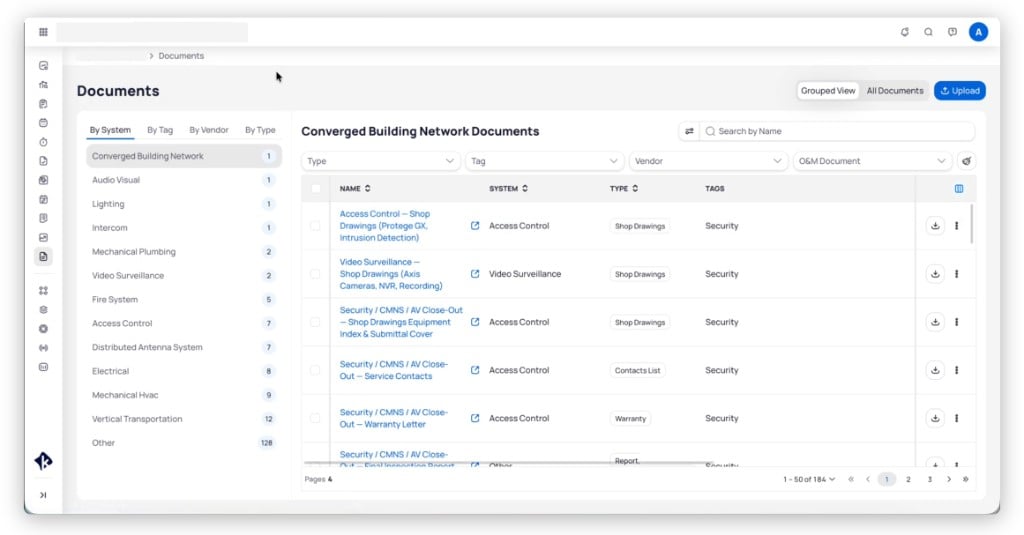
Building-level Grouped view with System selected
- Division
- System
- Tag
- Vendor
- Type
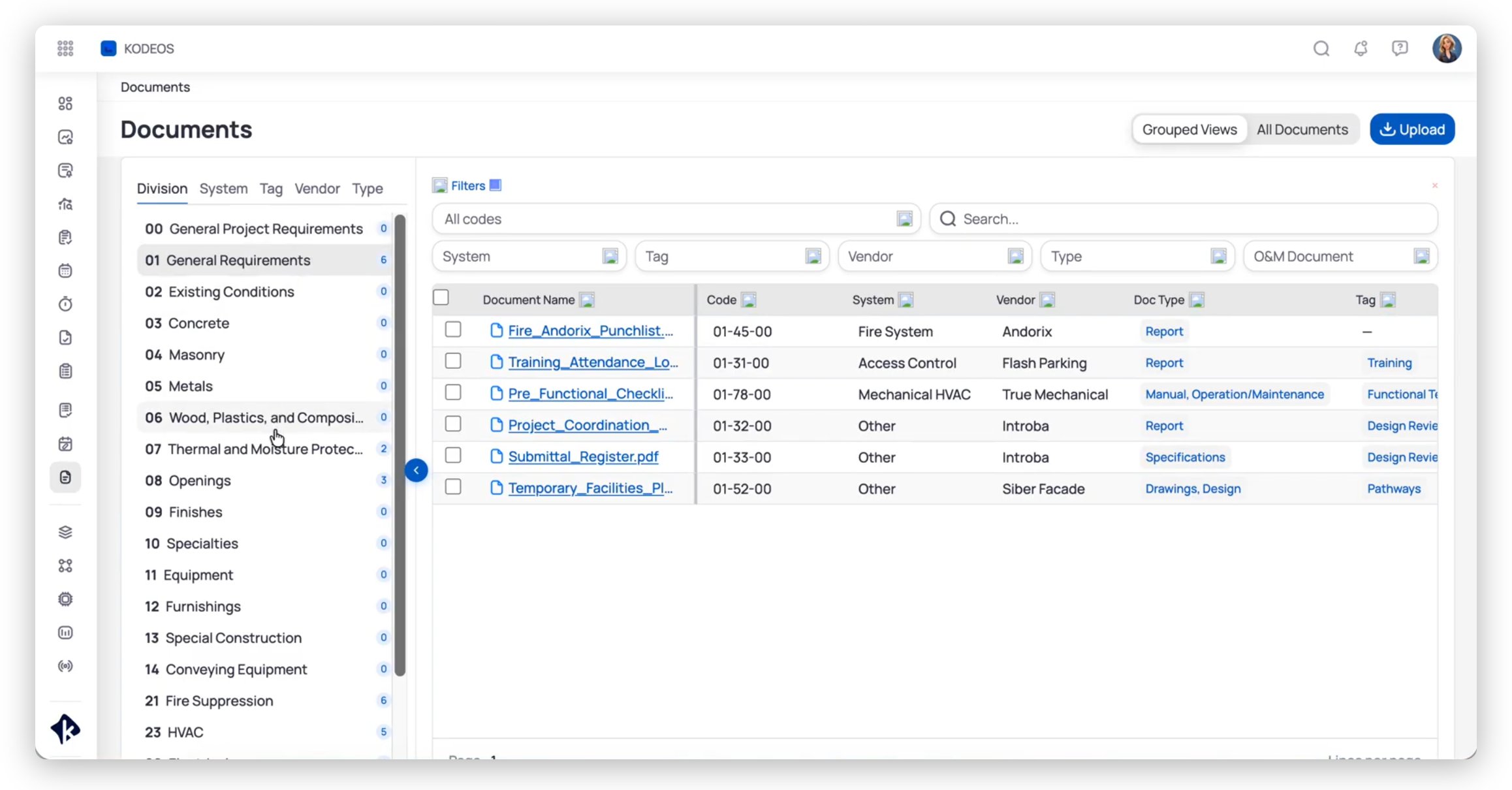
Grouped view Division tab with CSI MasterFormat list and document table
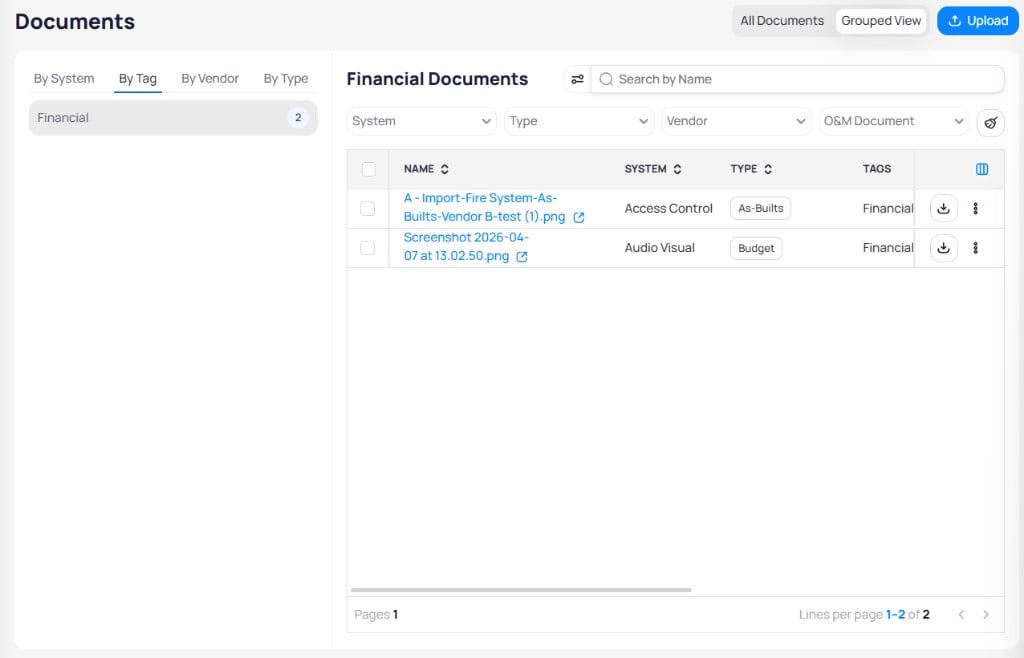
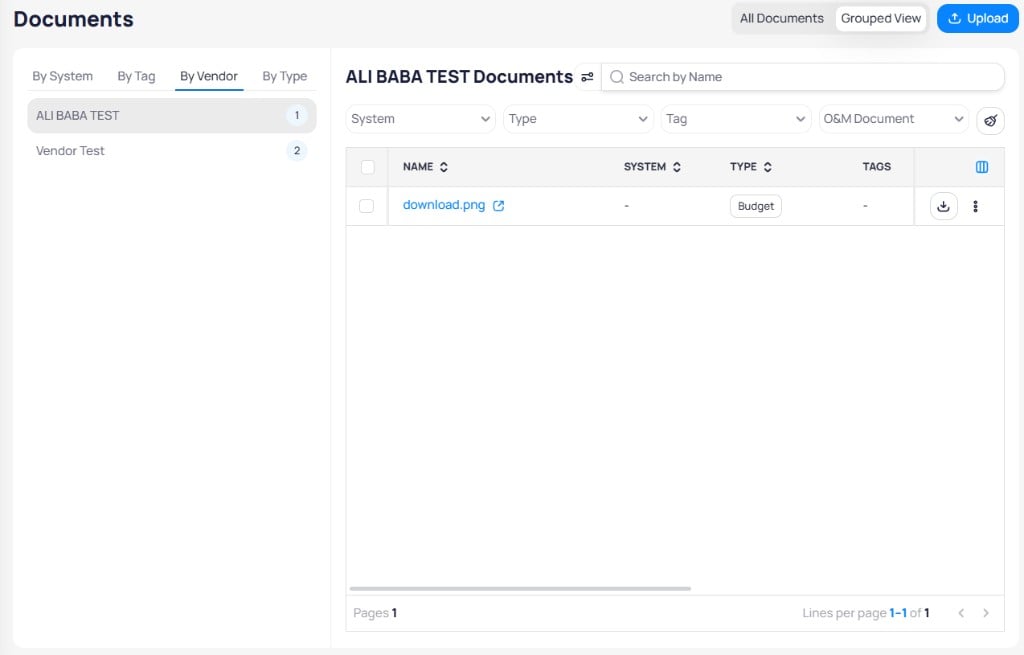
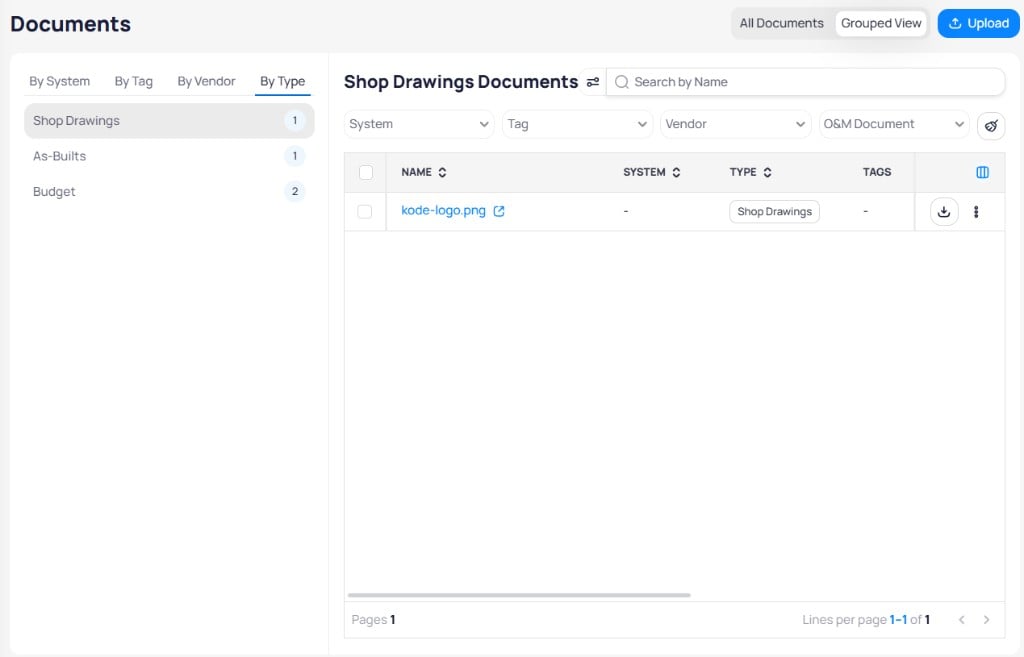
CSI divisions
Division and Section are metadata fields seeded from the CSI MasterFormat® list at the portfolio level. They are not free text, tags, or system values. The seeded list follows the current MasterFormat standard published by the Construction Specifications Institute (CSI).230593 and 23 05 93 match.
Filter and browse by division
- Filtering on Division
26returns that division and sections such as26 05 33or26 51 00. - Division and Section filters combine with System, Type, Tag, Vendor, Document class, and Building (portfolio only).
Type a section to select it
In upload, bulk edit, or division selectors, type a section number or name. Spacing and punctuation are ignored, so230593, 23 05 93, and 23-05-93 all match. Typing firestop finds 07 84 00 Firestopping and sets Division 07.
Results outside the current selection appear under a separate heading rather than returning no matches. For example, typing lighting while Division 23 is selected shows that the match lives in Division 26.
Reclassify documents without a division
Filter to documents with no Division to open a finite backlog list. Select rows and assign a division in bulk edit.Upload documents
Select Upload from the portfolio or building Documents page to open the Upload Document(s) dialog. Drag files into the upload area or select files to browse.- Maximum file size: 500 MB per file
- Supported extensions include Microsoft Office (
.docx,.xls,.xlsx,.ppt,.pptx) and CAD or 3D formats (.dwg,.rvt,.fbx,.3ds,.max) - Supported MIME types include
application/pdf; image types such asimage/png,image/jpeg,image/gif,image/bmp,image/tiff, andimage/webp; and broader categories such asapplication/,audio/,font/,example/,message/,model/,multipart/,text/, andvideo/*
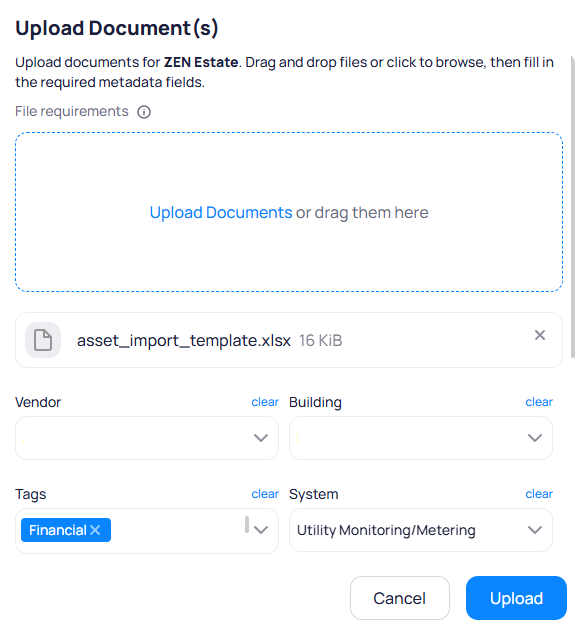
Upload dialog with vendor, building, tags, and system metadata
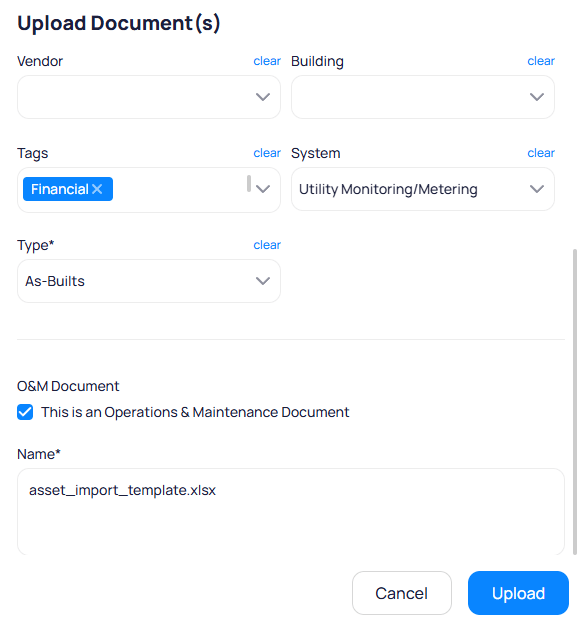
Upload dialog with document type, O&M flag, and file name
Add files
Set context metadata
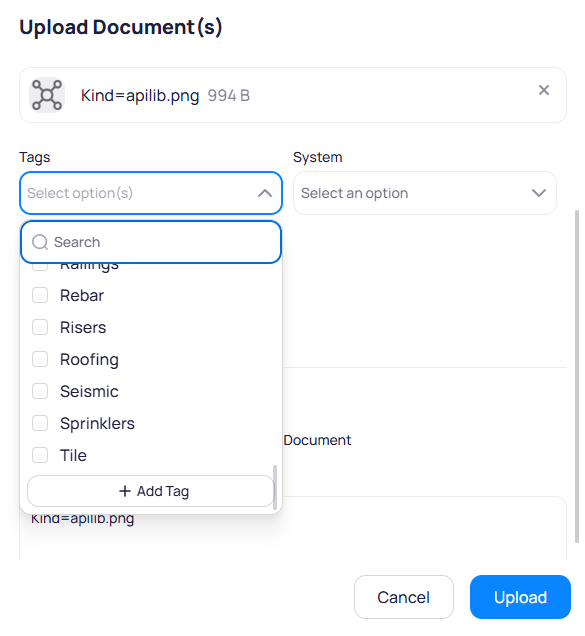
Tags multi-select with search, existing tags, and Add Tag option
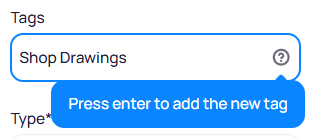
Press Enter to add a new tag while uploading
Set type and name
Upload
Row actions
Open the vertical ellipsis menu on a document row in the portfolio or building list.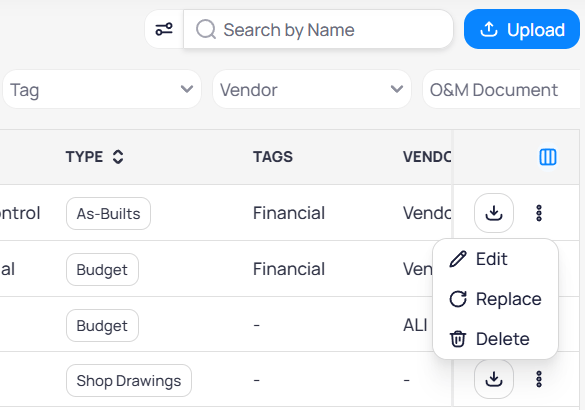
Per-document menu with Edit, Replace, and Delete
Bulk edit documents
Select multiple rows in the portfolio or building list, then select Edit in the footer bar to update metadata for every selected document at once. Bulk edit supports Division, Section, Tags, System, Type, Vendor, Document class, and other shared fields. Assign Division in batches of 50 or more documents to reclassify backlogs efficiently. The tag picker in bulk edit supports unlimited tags with a searchable list. Tag options sort alphabetically.Document detail page
Select a document Name link from the portfolio or building list to open its detail page.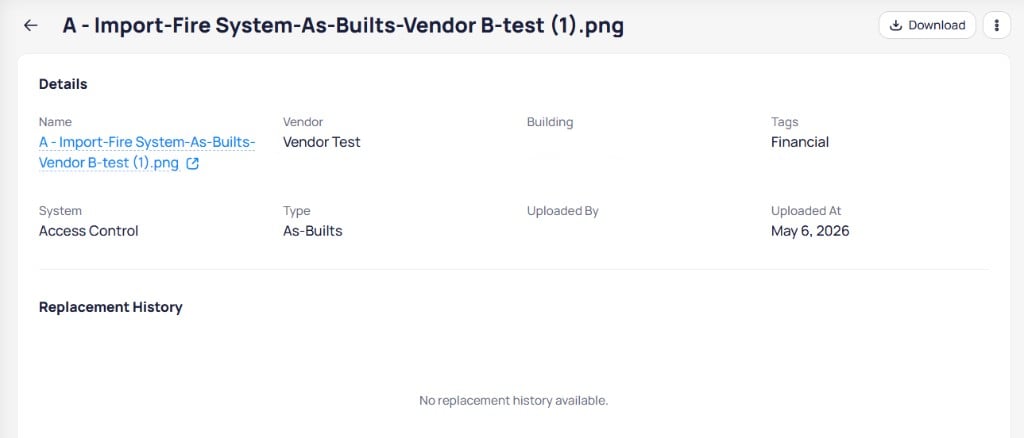
Document detail page with metadata and replacement history
Metadata
Replace and version history
Replace archives the current file as a prior version and attaches a new file to the same document record. Metadata stays with the document entity. The Replacement history section lists prior file versions when replacements exist. Each entry shows the file name, Replaced at date and time, and the user who replaced the file. When no replacements have been made, the section shows that no history is available.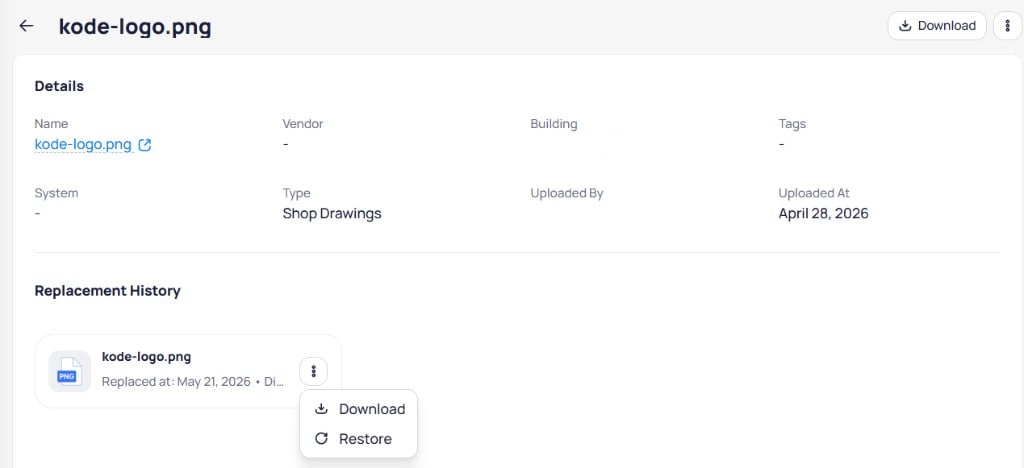
Replacement history with Download and Restore actions for a prior version
Document types
Document types are categories you assign on upload and in filters (for example, As-Builts, Budget, or Shop Drawings). Configure types in portfolio Settings only. They apply in both portfolio and building views.Configure document types in Settings
- Open Settings from the portfolio sidebar.
- Select Document types in the Settings sub-navigation.
- Use Search document types to find an existing type, or select + Add document type to create one.
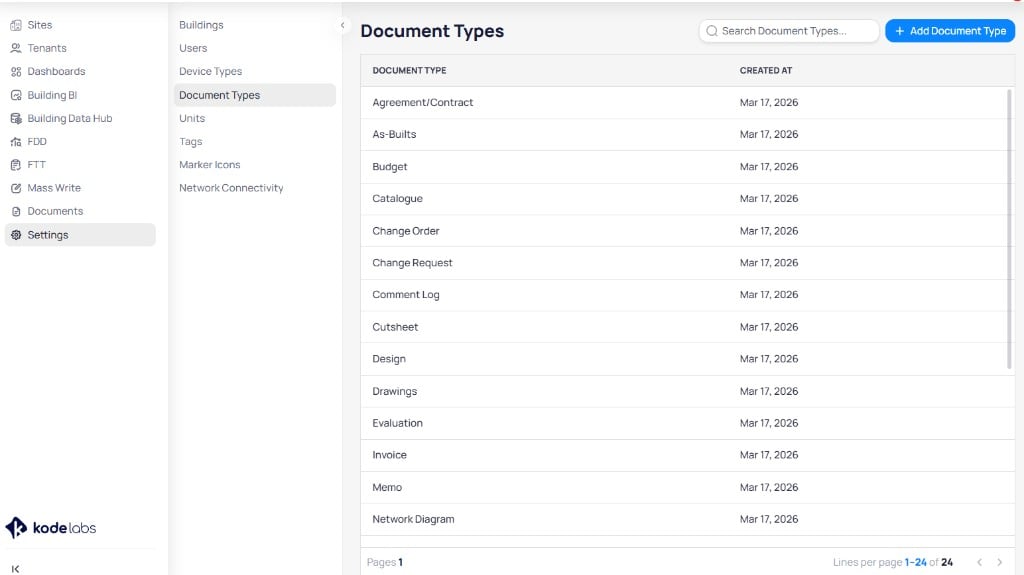
Document Types in portfolio Settings with search and add actions