As a channel partner in Launchpad, one of your primary responsibilities is activating KODE OS and enabling products for client organizations. Before doing so, ensure the following prerequisites are met:
You already have existing clients in your Launchpad workspace.
Your clients have already added buildings to their Launchpad workspace.
After you create a client, switch to the client’s Launchpad workspace and create the buildings for that client. Then return to your channel partner view to activate KODE OS and enable products for the buildings you created.
If you are a client organization, contact your KODE Labs representative to enable products for your buildings.
Activation for client organizations is performed from a client’s Details section and must be completed individually for each client. To activate KODE OS for a client organization, follow the steps outlined below.
1
Open the Clients page
In Launchpad, navigate to the Clients page via the left-hand sidebar.
2
Select a client
Select a client from the list. You will be redirected to their Details section.
3
Activate KODE OS
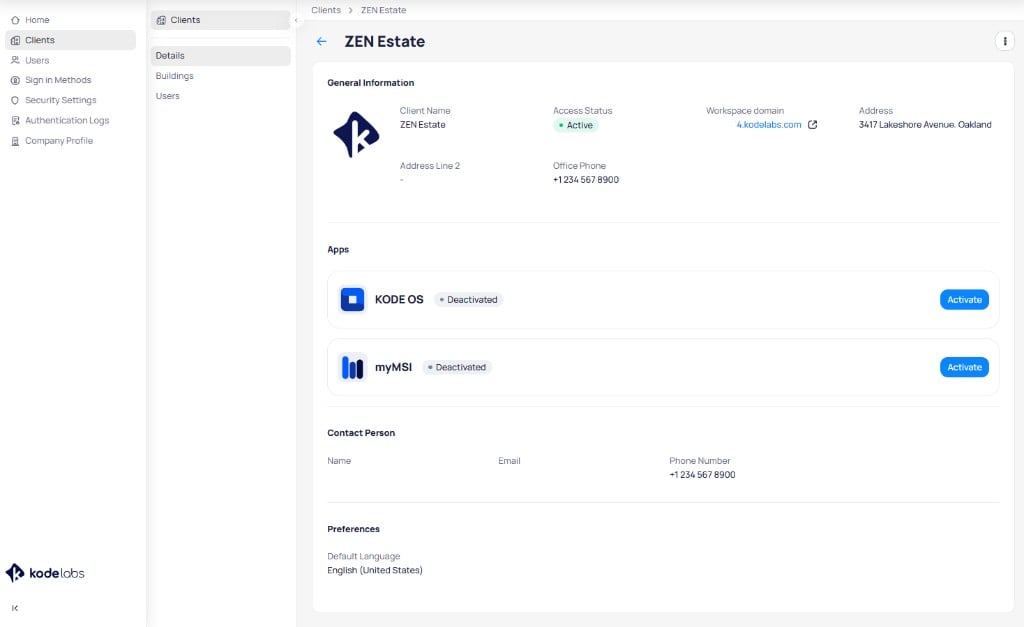
In the Details section, locate Apps and click Activate for KODE OS.
The Apps section displays KODE OS and myMSI with their activation status
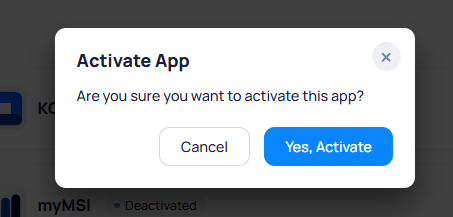
A confirmation dialog appears. Click Yes, Activate to proceed.
Once KODE OS is active, the products available to you as a channel partner will appear, allowing you to proceed with enabling products for buildings in the client’s portfolio.
As a channel partner, you can enable products either for multiple or all buildings in a client’s portfolio at once, or for a specific building individually. Product enablement is available from the Details and Buildings sections
The client’s Details section allows you to enable products across multiple or all buildings in the client’s portfolio simultaneously. To do so, follow the steps outlined below:
1
Open the Clients page
In Launchpad, navigate to the Clients page via the left-hand sidebar.
2
Select a client
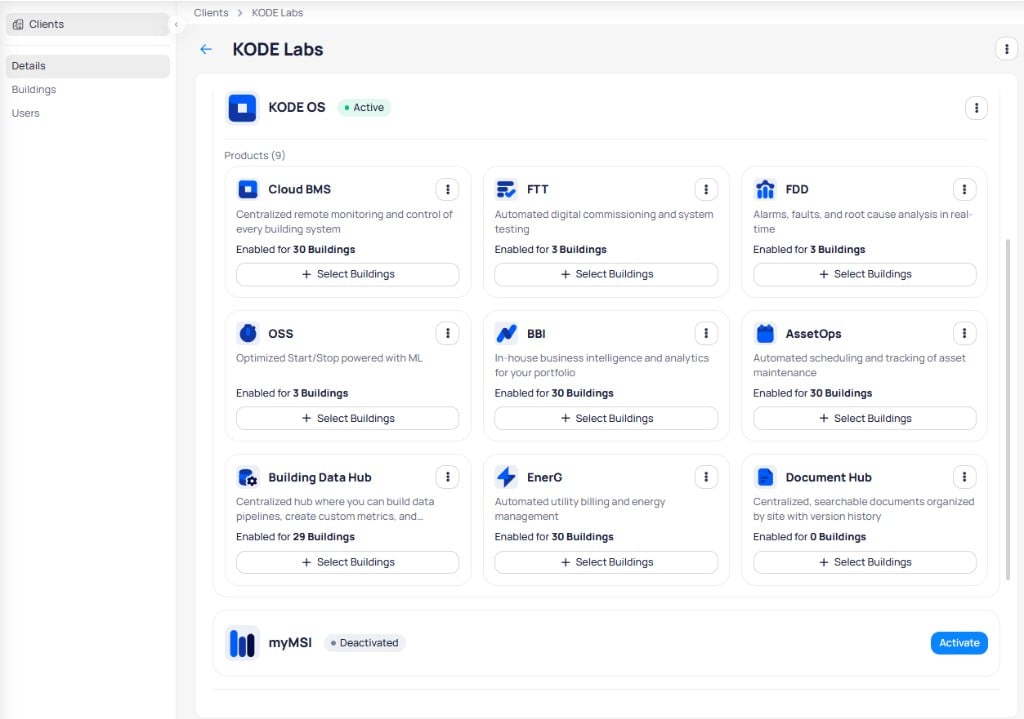
Select a client from the list. You will be redirected to their Details section.Assuming KODE OS is active, you should see product cards for all available products.
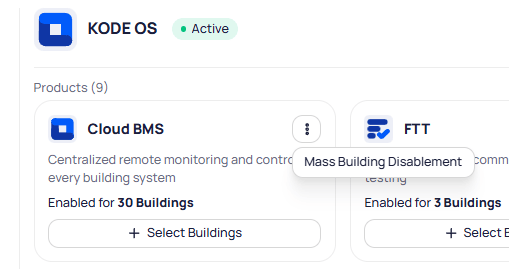
The Details section shows all KODE OS products with building counts and Select Buildings controls
3
Click +Select Buildings on a product card
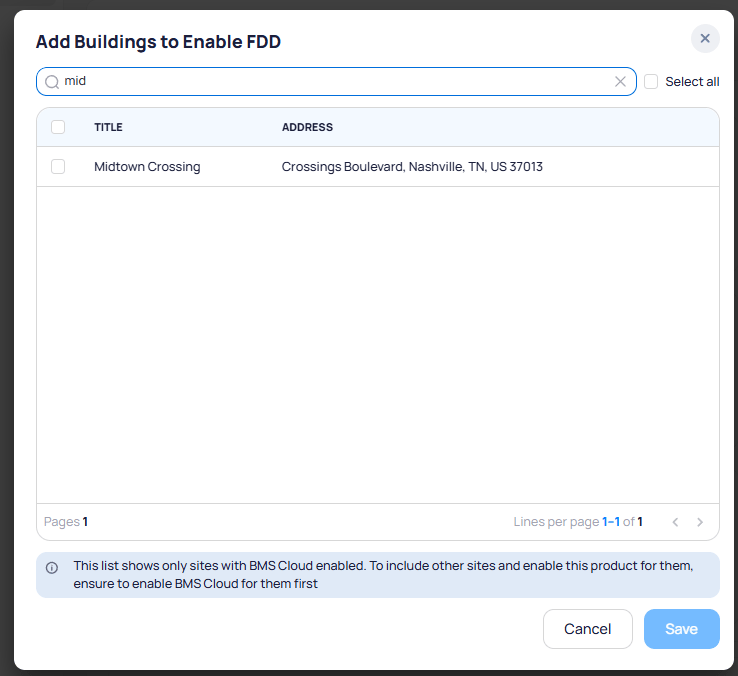
Each product card has a +Select Buildings button, allowing you to choose the buildings where the product should be enabled. A dialog opens where you search for and select the buildings to enable.
The Select Buildings dialog lets you search and select buildings for product enablement
To disable a product across all buildings, click the icon and select Mass Building Disablement.
4
Save
After selecting the buildings, click Save to enable the product.
The client’s Buildings section allows you to enable products for individual buildings by selecting a building and activating products from its dedicated page. To do so, follow the steps outlined below:
1
Open the Clients page
In Launchpad, navigate to the Clients page via the left-hand sidebar.
2
Select a client
Select a client from the list. You will be redirected to their Details section by default.
3
Navigate to the Buildings section
Navigate to the client’s Buildings section and select a building.
4
Enable products
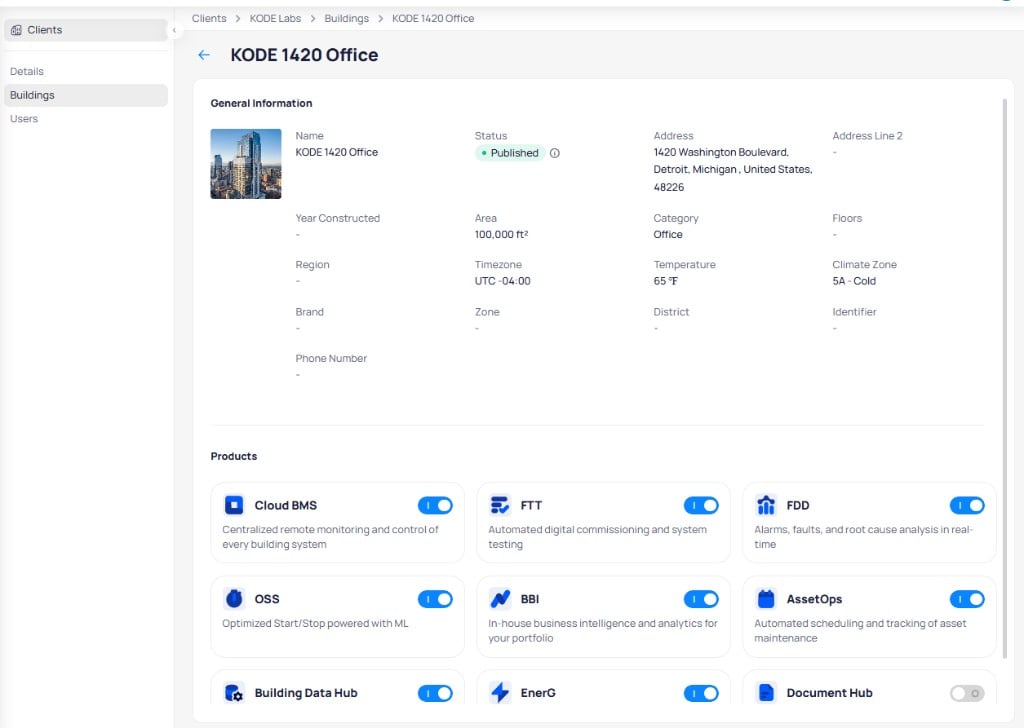
Toggle on the products you want to enable for the selected building. The building page shows general information at the top and product cards with toggle controls at the bottom.
Each building page shows general details and product toggles for individual enablement
Last modified on August 18, 2026
Was this page helpful?
Assistant
Responses are generated using AI and may contain mistakes.