

Accounts and users
Your account is your single identity across the entire platform. It stores login credentials, security settings, and personal preferences, and it belongs to your parent organization. Your user profile is different. It represents your presence within a specific organization and carries org-specific context such as your position, department, or role. Each organization you belong to has its own independent user profile for you, with its own role and permissions assigned by that organization. When you join a new organization, Launchpad creates a new user profile for you there. That profile is independent from the profile you hold in your parent organization.Regardless of how many organizations you belong to, every user profile connects back to your account in your parent organization.
Manage your account
To access your account settings, select your profile icon in the upper-right corner of Launchpad and choose Manage Account. The account portal has four sections: Organizations, Account, Activity, and Invitations.Organizations
The Organizations page lists every workspace tied to your account. Each organization appears as a card with its logo and name. Select Open Organization to enter that workspace. Use the search field to filter organizations by name. Toggle between grid view and list view using the icons in the upper-right corner of the page. If you belong to more than one organization, you can also switch instances from the profile menu or during sign-in. See Workspaces and sign-in for the full sign-in flow.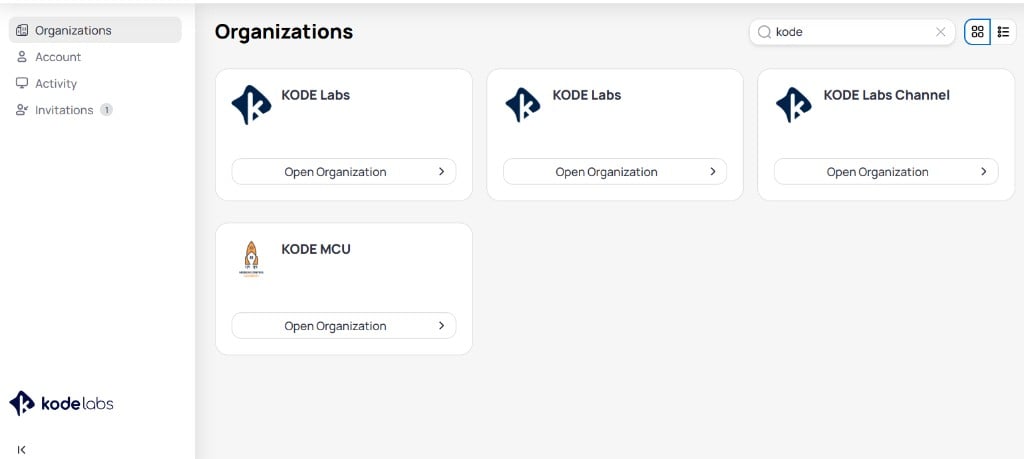
The Organizations page lists all workspaces associated with your account, with an option to open each one
Account
The Account page displays your general information, including your name, email address, phone number, active sign-in methods, creation date, and default language. ClickEdit to update your details.
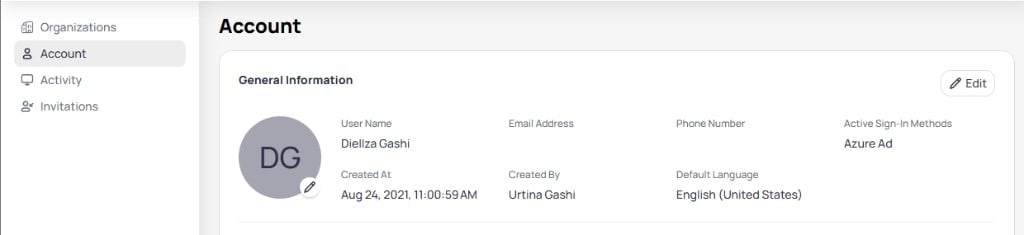
The Account page shows your general information including name, email, sign-in methods, and language preferences
Activity
The Activity section provides visibility into your sign-in history. It contains two subsections: Sessions and LoginIPs.
Sessions lists all active sessions grouped by device and browser, showing the number of sessions for each.
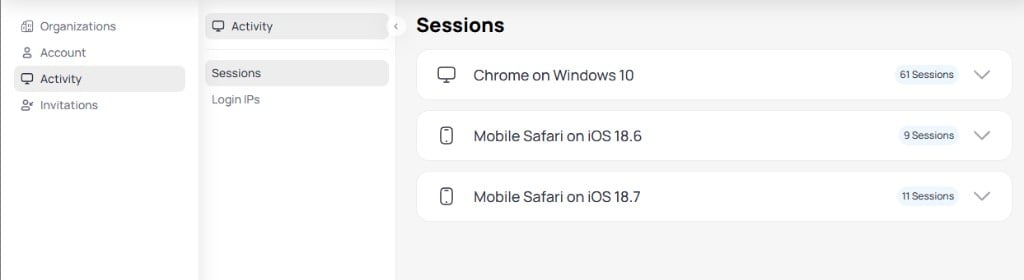
The Sessions page groups active sessions by device and browser with session counts
IPs displays all IP addresses used to sign in to your account, with first seen and last seen dates, frequency, and location. You can remove an IP address using the three-dot menu.
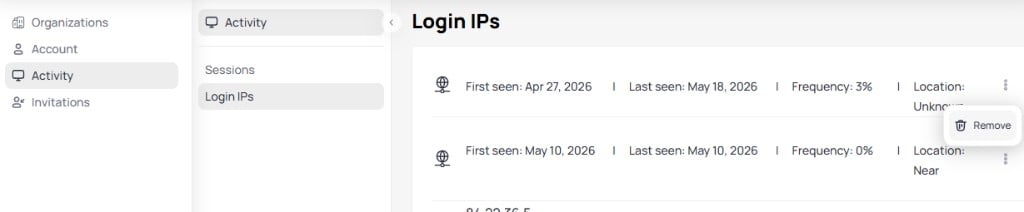
The Login IP addresses page shows all addresses used to access your account with frequency and location details
Invitations
When another organization invites you, you receive an email with aReview Invitation button. A notification badge also appears on your profile icon and next to Invitations in the profile menu.
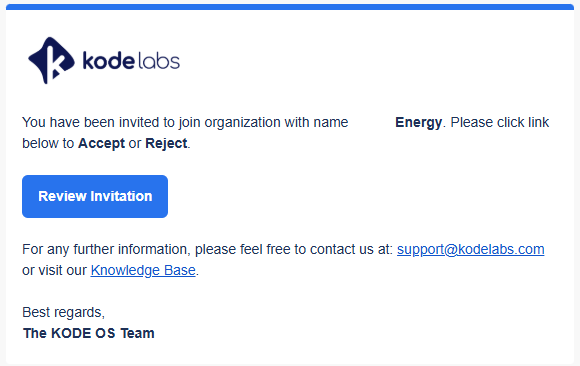
The invitation email identifies the organization and provides a Review Invitation button to accept or reject
- Click Invitations from the profile menu to open a popup where you can accept or reject pending invitations directly.
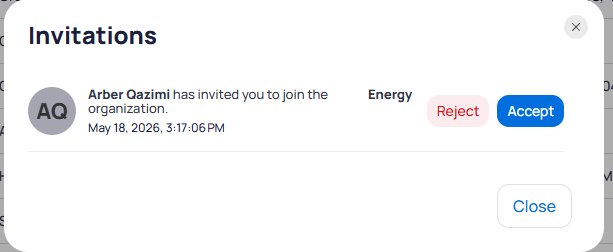
The Invitations popup shows pending invitations with options to accept or reject each one
- Open the Invitations page in the account portal to view all invitations in a full-page layout.
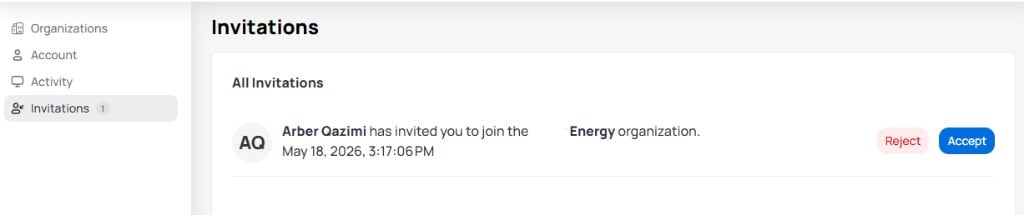
The Invitations page in the account portal lists all pending invitations with sender, organization, date, and response options
User roles
User roles define what a user can view and do within Launchpad. Both channel partners and client organizations have their own set of Launchpad roles, with each role reflecting the different responsibilities each organization type carries.Roles apply whether you’re adding a user directly or inviting one from a trusted organization. The organization extending the invitation always assigns the role—independent from the Launchpad role the user holds in their parent organization. For more, see Trust settings.
- Channel partners
- Client organizations
Role
Full access to Launchpad. Admins can navigate all platform features, manage client organizations and their details, manage users, and configure SSO settings.
Role
Read-only access to Launchpad. Users with this role can view client details, user information, and sign-in methods, but can’t make changes.
Role
No access to Launchpad. Users with this role exist in the system and the channel partner can manage them centrally, but they can’t log in to Launchpad.