

- Creating and managing client organizations
- Activating applications for client organizations (KODE OS)
- Enabling KODE OS products for the buildings under those clients
- Controlling which products each client can use and for which buildings
- Adding new internal users
- Configuring security settings
- Setting up SSO
- Managing the company profile
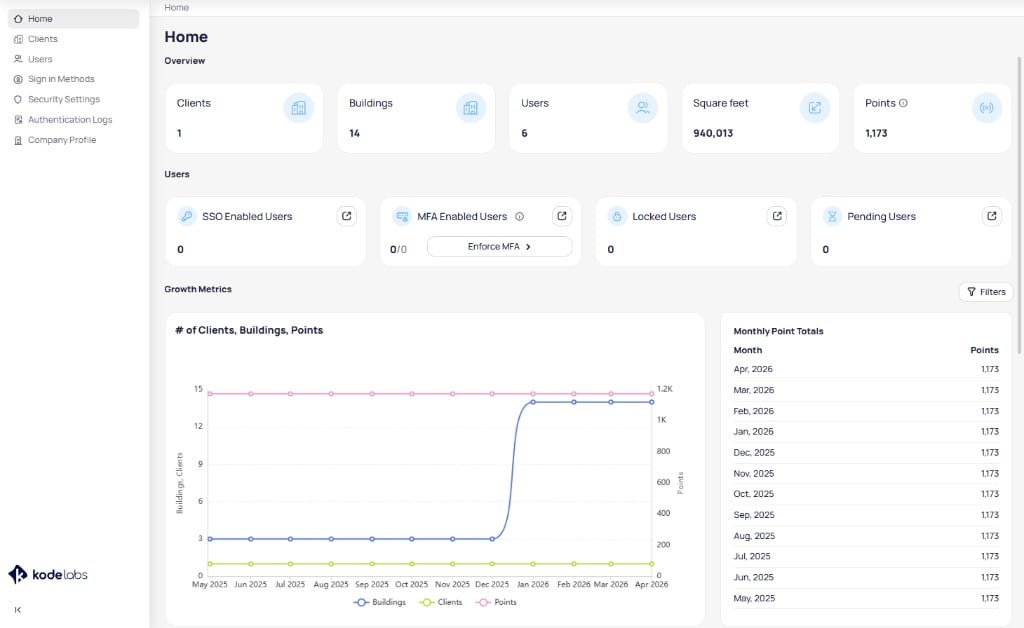
The channel partner Home page shows portfolio-level metrics, user security status, and growth trends
Authentication logs
The Authentication Logs page records all sign-in events across your organization. Each log entry shows the user name, email, date and time, status, identity provider, message, IP address, and browser agent. You can search and filter logs to investigate specific sign-in activity.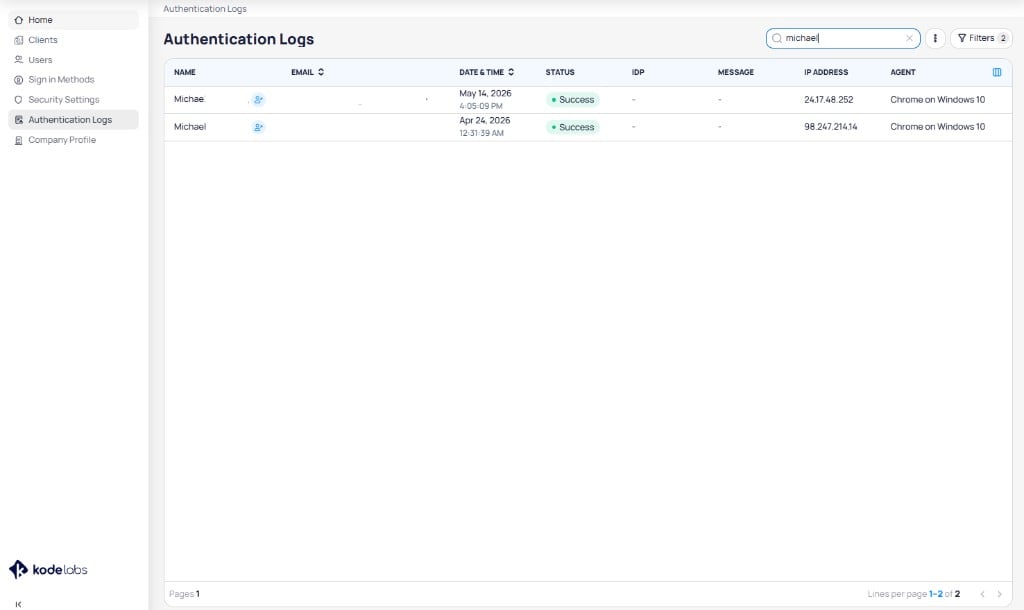
Authentication Logs displays a searchable, filterable record of all sign-in events
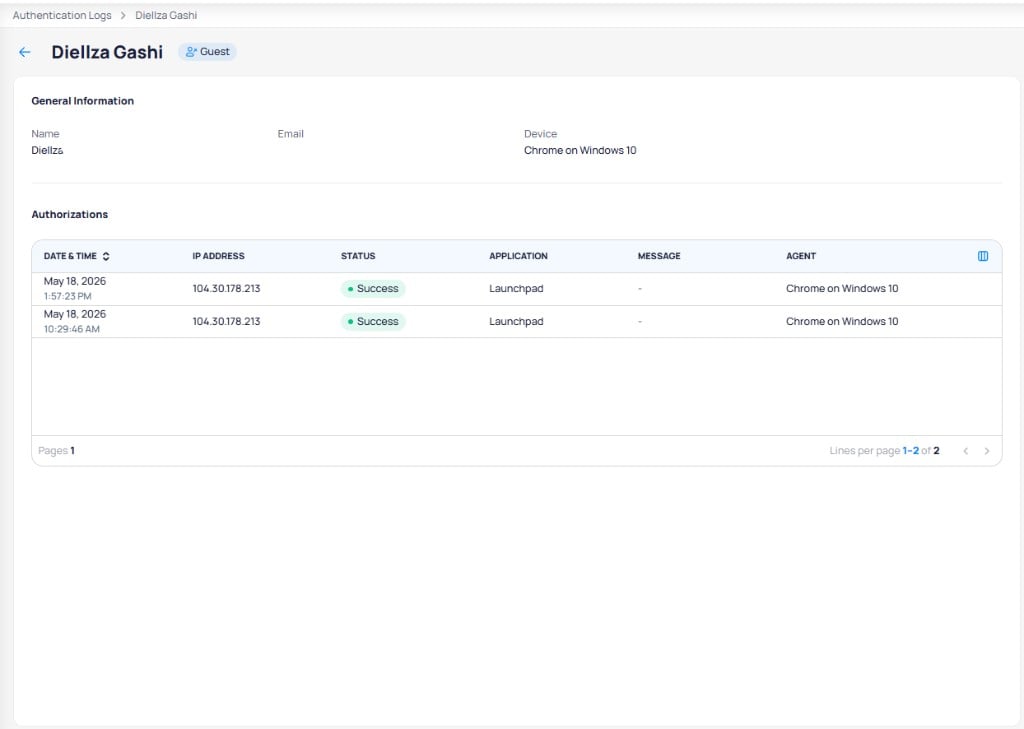
A user's log detail page shows general information and a table of all authorization events
Company profile
The Company Profile page displays your organization’s general information, contact person, and preferences. You can edit each section using theEdit button.
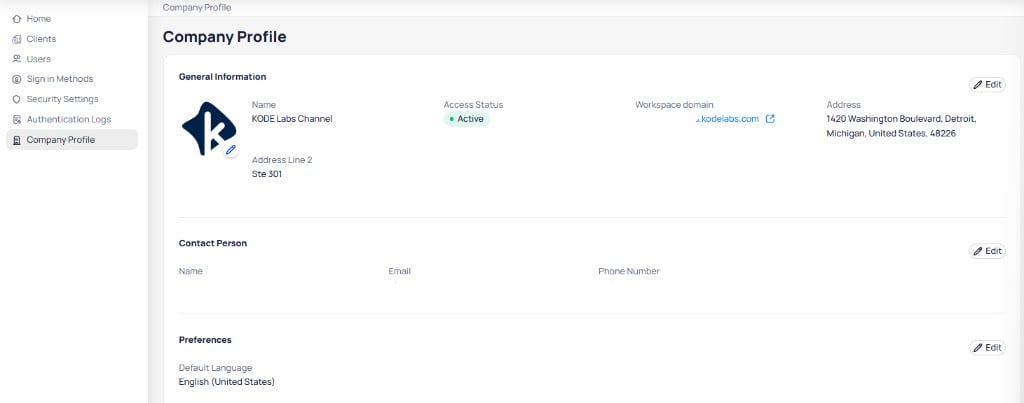
Company Profile shows organization details, primary contact, and language preferences
Next Steps
Learn how to create and manage clients and users as a channel partner.Client Management
Navigate the Clients page and manage client details, buildings, and users.
User Management
Create and manage Channel Partner users in Launchpad.
Enable products
Enable KODE OS products for clients and their buildings.