

Portfolio defaults are configured under Settings > Completion policies. Use this page to override policies for the selected building.
Require actions
Set completion policies for the building based on your operational preferences.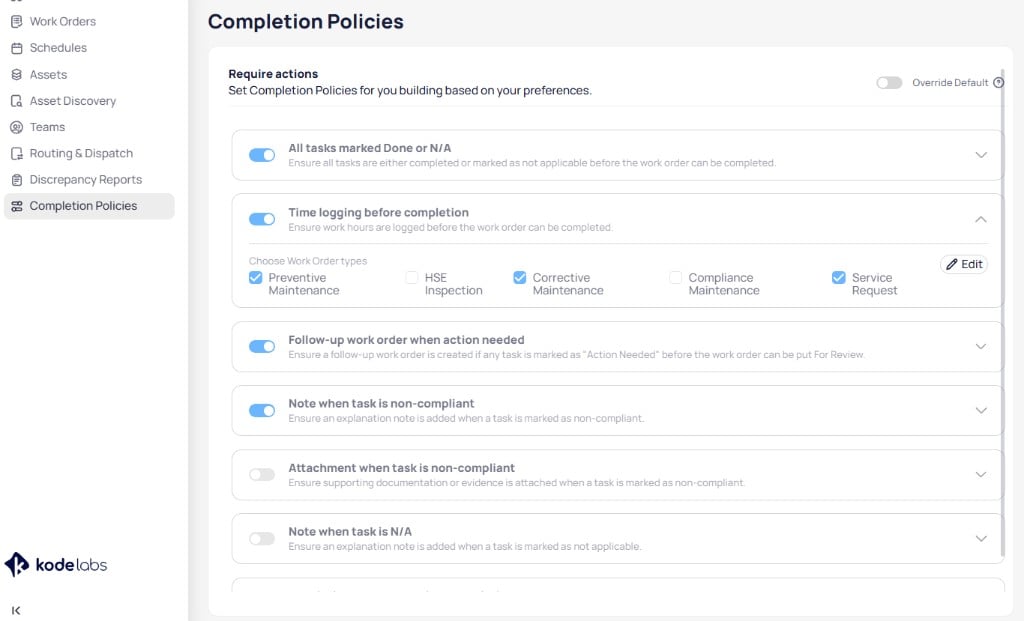
Completion policies list rules with toggles, work order type scope, and Override Default
Override default
Use Override default in the top right to enable building-specific policies instead of portfolio defaults from Settings. When override is off, the building uses portfolio rules.Policy options
Toggle each policy on or off. Expand a rule to choose which work order types it applies to, then select Edit to save.Toggle
Ensure all tasks are completed or marked not applicable before the work order can complete. Applies to preventive maintenance and inspection work orders.
Toggle
Require logged work hours before completion. Expand the rule to select work order types such as preventive maintenance, corrective maintenance, or service request.
Toggle
Require a follow-up work order when any task is marked Action needed before the work order moves to For review.
Toggle
Require an explanation note when a task is marked non-compliant.
Toggle
Require supporting documentation when a task is marked non-compliant.
Toggle
Require an explanation note when a task is marked not applicable.
Choose work order types
When you expand a policy, select Choose work order types to limit the rule to specific programs:- Preventive maintenance
- Inspection
- Corrective maintenance
- Compliance maintenance
- Service request
Related modules
Portfolio completion policies
View portfolio default completion policies in Settings.
Status transitions
Control status changes that trigger completion policy checks.