

Create categories and issue types at the portfolio level before you configure routing rules. Create teams at the building level for assignment targets.
How routing works
Routing maps portfolio-level categories and issue types to a building-specific team and assignee. The page has two tabs:- Categories — Default assignment by category
- Issue types — Assignment by specific issue type (overrides or refines category routing)
Categories
The Categories tab lists every portfolio category and its routing assignment for the building.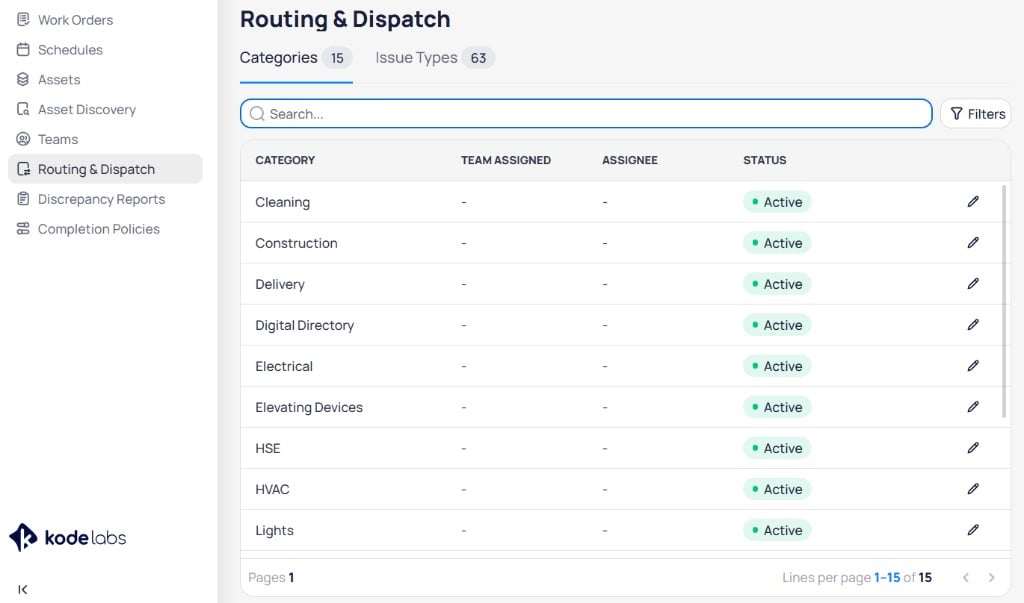
The Categories tab shows category assignments with team, assignee, and status
Use Search to find categories. Select the edit icon on a row to configure assignment.
Filter categories
Select Filters to narrow the list.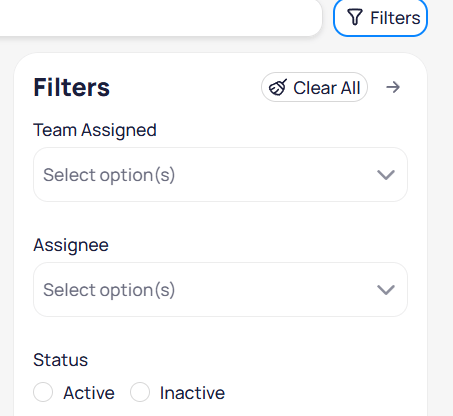
Filter routing rules by team, assignee, or status
Select Clear all to reset filters.
Edit a category assignment
Select the edit icon on a category row to open the assignment dialog.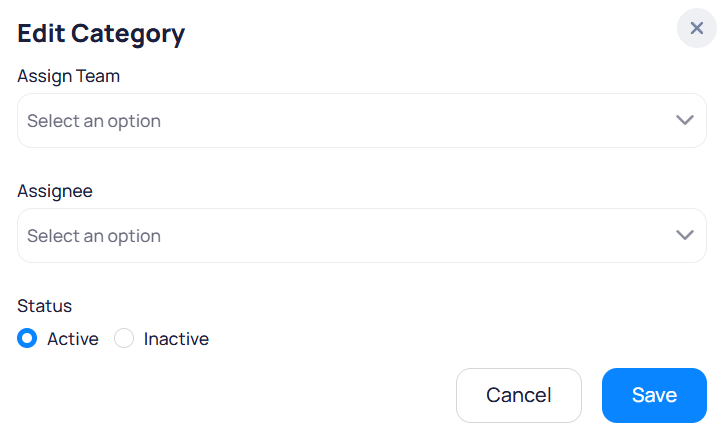
Assign a team, assignee, and status for the category
Dropdown
Team assigned when this category is selected on a work order.
Dropdown
User assigned when this category is selected. Optional if only a team is required.
Radio
Active applies the rule. Inactive disables automatic assignment for this category.
1
Open the Categories tab
Navigate to Routing & dispatch and select the Categories tab.
2
Edit a category
Select the edit icon on the category row you want to configure.
3
Set assignment
Choose Assign team, Assignee, and Status, then select Save.
Issue types
The Issue types tab lists every portfolio issue type with its parent category and routing assignment.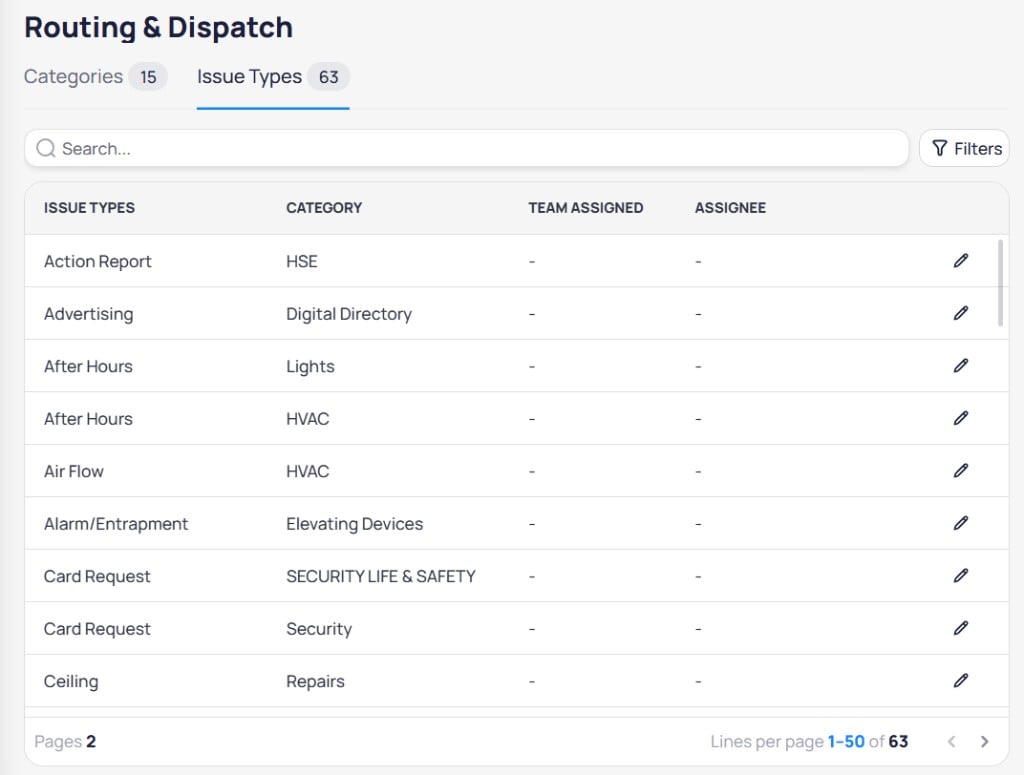
The Issue Types tab maps each issue to a team and assignee
Issue type rules can be more specific than category rules. When both exist, the issue type assignment typically takes precedence for that issue.
Filter issue types
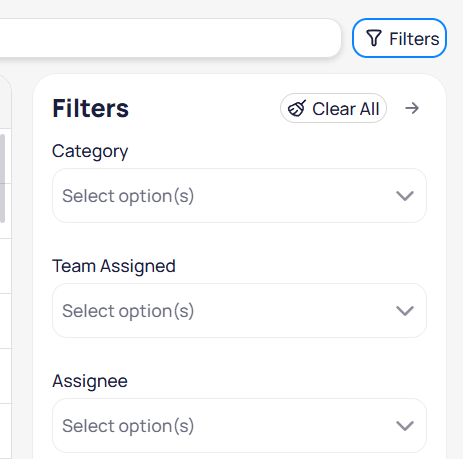
Filter issue types by category, team, or assignee
Edit an issue type assignment
Select the edit icon on an issue type row.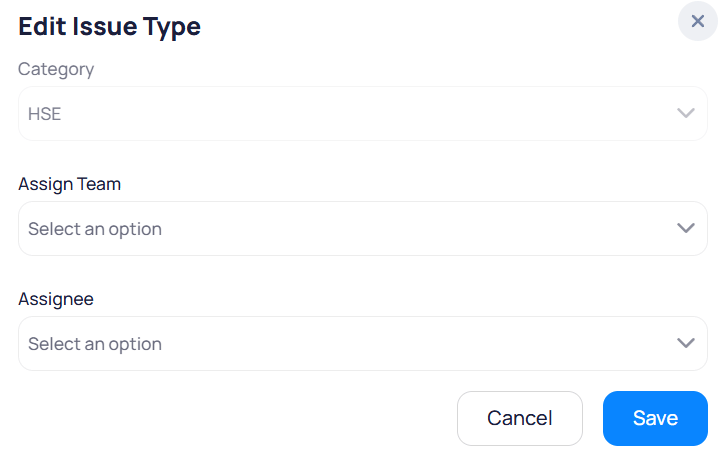
Assign team and assignee for a specific issue type
Dropdown
Parent category for the issue type (read-only or fixed based on portfolio configuration).
Dropdown
Team assigned when this issue type is selected.
Dropdown
User assigned when this issue type is selected.
1
Open the Issue Types tab
Navigate to Routing & dispatch and select the Issue types tab.
2
Edit an issue type
Select the edit icon on the issue type row you want to configure.
3
Set assignment
Choose Assign team and Assignee, then select Save.
Related modules
Categories
Create portfolio categories and issue types that routing rules reference.
Teams
Create building teams used as routing assignment targets.
Create work orders
Create corrective maintenance work orders that use routing for automatic assignment.