

Task templates
A task template is a reusable definition for work performed during preventive maintenance or inspections. Templates include instructions, estimated duration, applicable asset types, and optional attachments. When you schedule work at the building level, you assign templates so generated work orders include consistent tasks.View the templates list
Select Templates under Tasks to open the task templates list.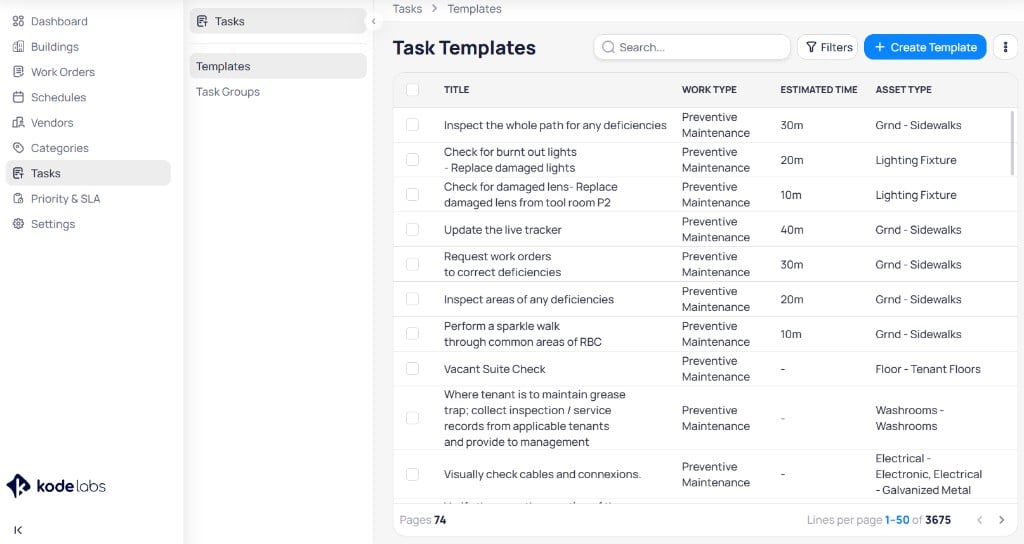
The Task Templates page lists templates with work type, estimated time, and asset type
Template fields
When you create or edit a template, you configure the following fields.Create templates by work type
Select + Create Template to open the creation dialog.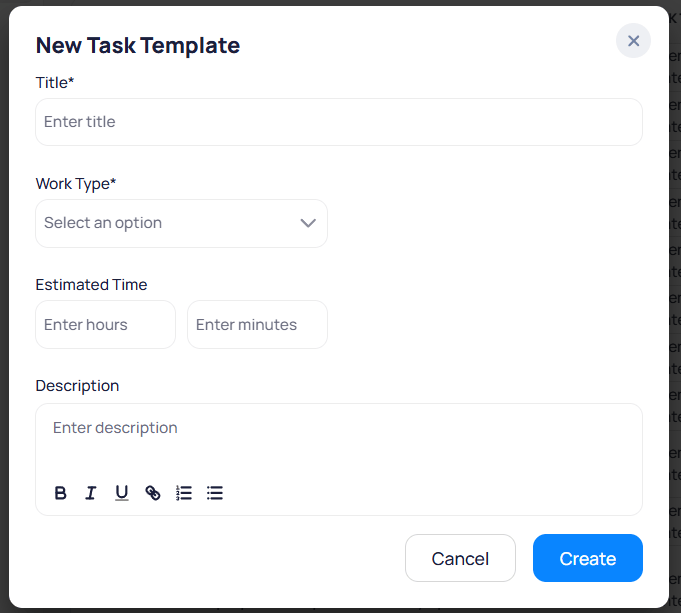
Enter title, work type, estimated time, and description to create a template
- Preventive maintenance
- Inspection
Open Templates
Select + Create Template
Set work type and asset types
Add title, time, and description
Create
View and edit a template
Select a template from the list to open its detail page.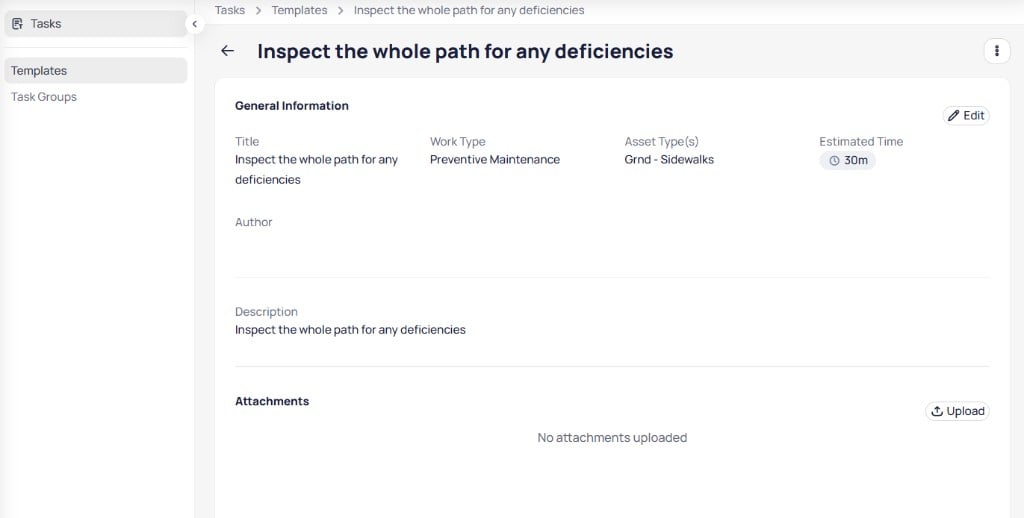
The template details page shows general information, description, and attachments
General information
Description
The Description section shows the full task instructions, including formatted content from the rich text editor.Attachments
The Attachments section stores reference files such as procedures, diagrams, or forms.- Select Upload to add files to the template.
- Attachments copy to work orders that use the template when your organization configures that behavior.
Other actions
Use the menu in the upper right corner of the page to delete the template.Open a template
Edit or attach files
Save changes
Import, export, and bulk update
Import and export
Open the menu next to + Create Template.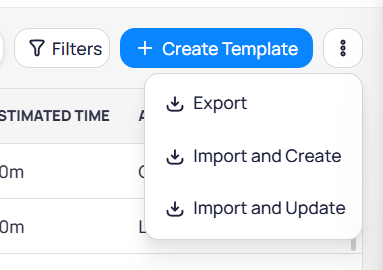
Export, import and create, or import and update templates from the overflow menu
- Task Template Import — Add new templates in bulk
- Task Template Import and Update — Add and update templates together
Bulk edit
Select one or more templates using row checkboxes, then select Edit.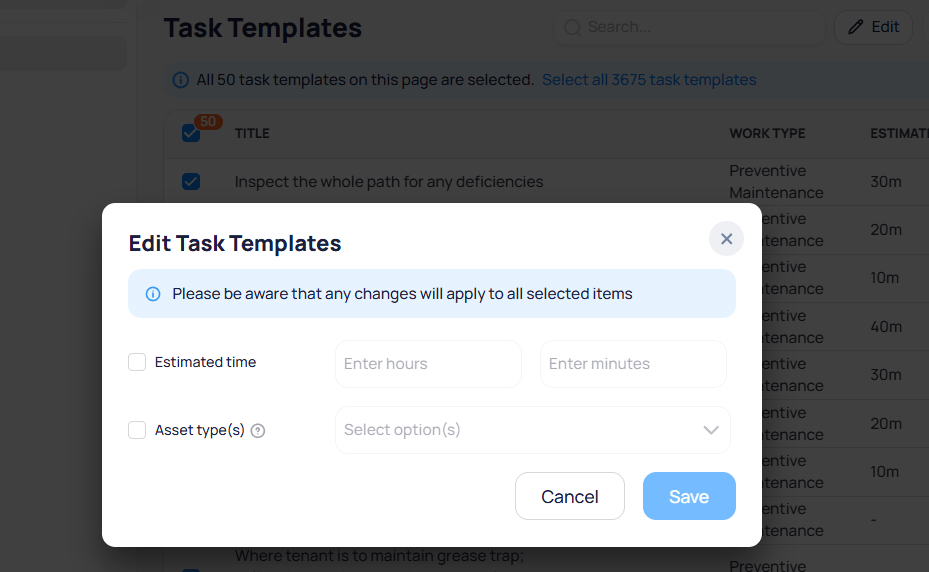
Bulk edit applies estimated time and asset type changes to all selected templates
Bulk delete unused templates
Select unused task templates that are not linked to active schedules, then delete them in bulk. Templates that are still used on live schedules are not removed; those rows appear as failures in the batch result and exportable report.Use templates on schedules
Assign templates when you create building-level schedules: Each generated work order includes the tasks from the templates you selected. Define templates at the portfolio level first, then reference them during schedule configuration.Task groups
A task group bundles multiple task templates that share a Work type and apply to the same asset types. Use a group when scheduled work always requires the same set of tasks, such as a multi-step inspection or preventive maintenance checklist across several asset types.View the task groups list
Select Task groups in the Tasks secondary navigation.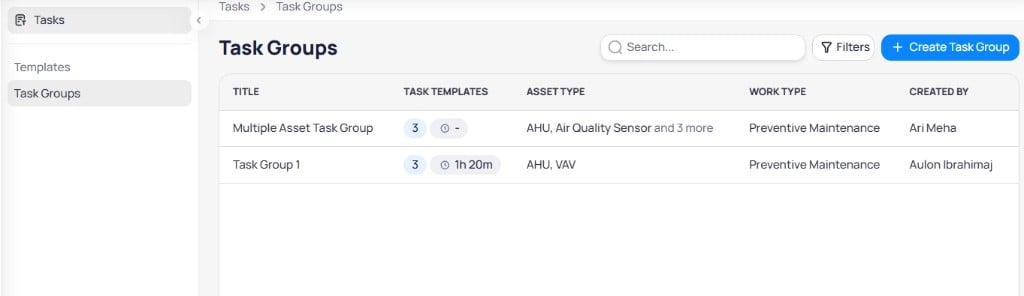
The Task Groups page lists groups with template count, asset types, and work type
Task group fields
During creation and on the details page, a task group includes:Create a task group
Creating a task group uses a three-step wizard: General info, Task templates, and Overview.Step 1: General info
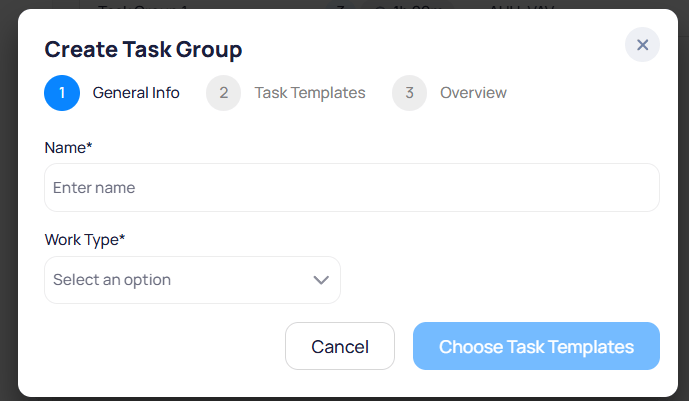
Enter the task group name and work type in the first step
Select + Create Task Group
Enter name and work type
Continue
Step 2: Task templates
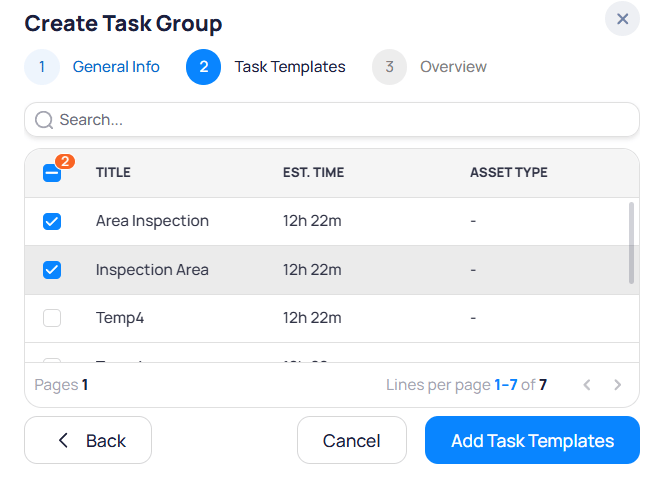
Search and select task templates to include in the group
Step 3: Overview
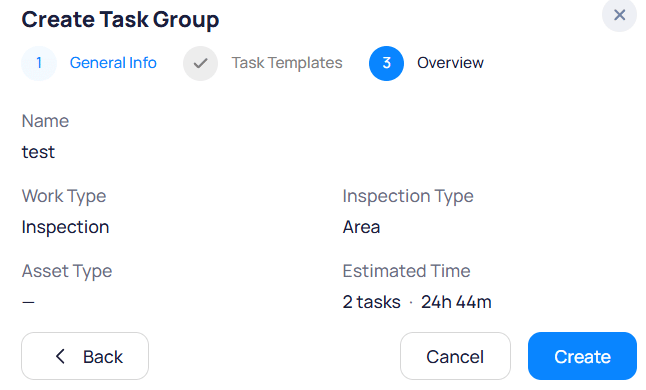
Review task group details before you create the group
- Name and Work type
- Inspection type — For inspection groups
- Asset type — Asset types linked to the group
- Estimated time — Template count and combined duration (for example,
2 tasks · 24h 44m)
View and manage a task group
Select a group from the list to open its details page.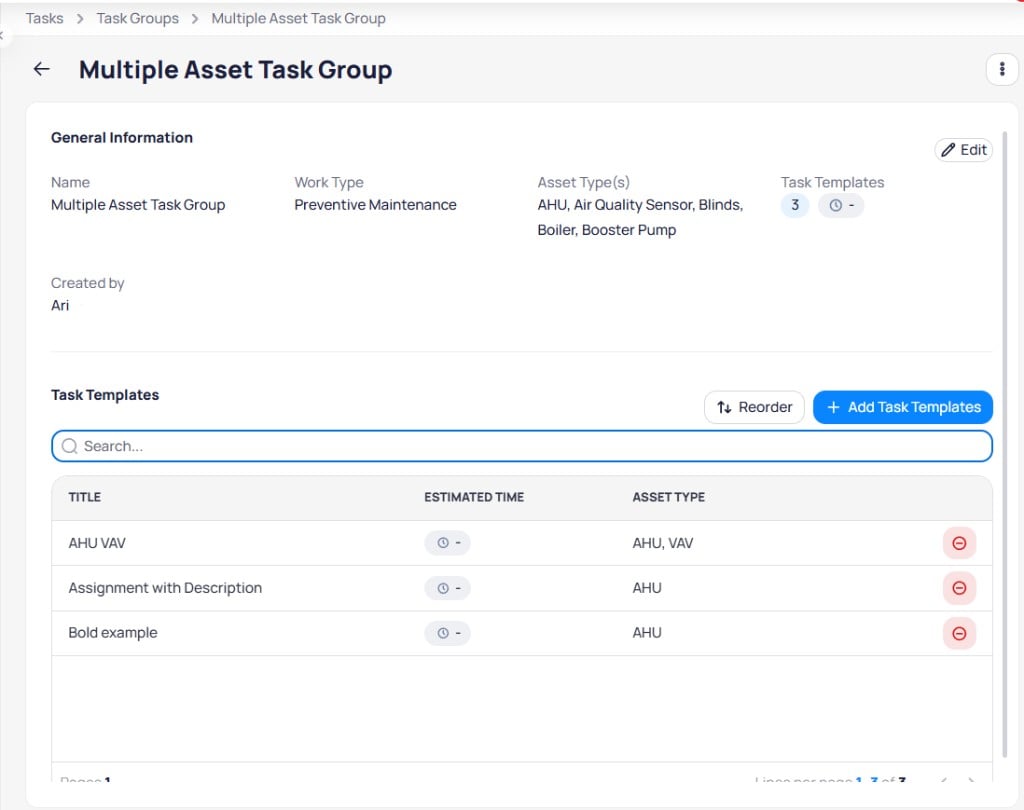
The task group details page shows general information and linked task templates
General information
Review Name, Work type, Asset type(s), Task templates count, total estimated time, and Created by. Select Edit to update the group name or work type.Templates in the group
The Task templates table lists each template in execution order.Open a task group
Add or reorder templates
Save changes
Edit or delete a task group
- Select Edit on the details page to change group metadata.
- Open the menu in the upper right corner to delete the group.