

View the teams list
The Teams page lists every team for the selected building.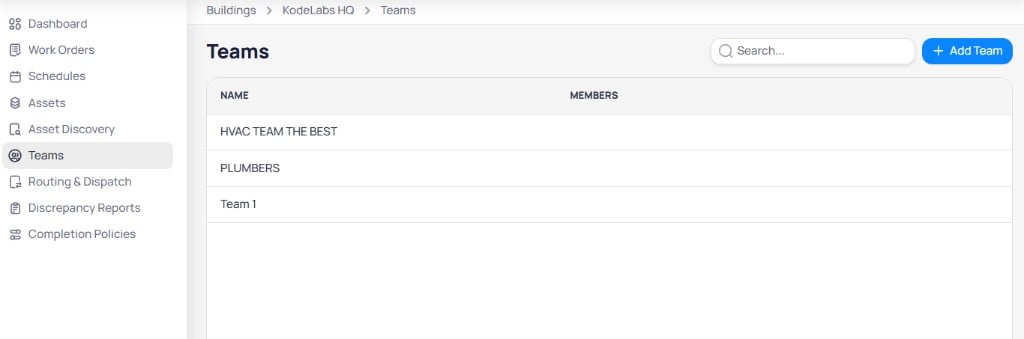
The Teams page lists team names and member counts with search and add actions
Use the search field to filter teams by name. Select + Add Team to create a new team.
Create a team
Creating a team uses a two-step flow: General info and Assign members.Step 1: General info
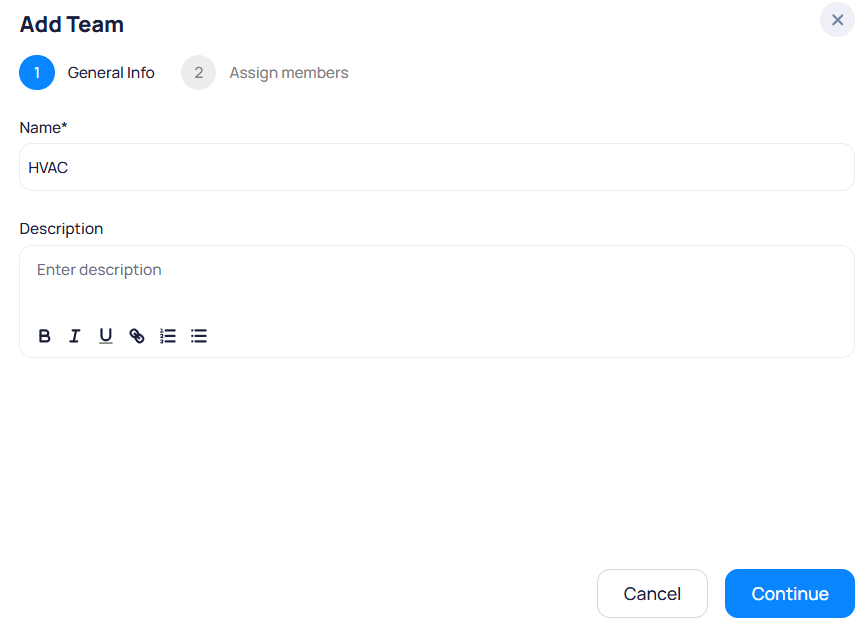
Enter the team name and description
Field
required
Display name for the team, such as HVAC or Plumbers.
Field
Optional details about the team’s responsibilities. Supports rich text formatting.
1
Open Teams
From the portfolio level, open a building, then select Teams.
2
Select + Add Team
Select + Add Team in the top right.
3
Enter general info
Enter Name and Description, then select Continue.
Step 2: Assign members
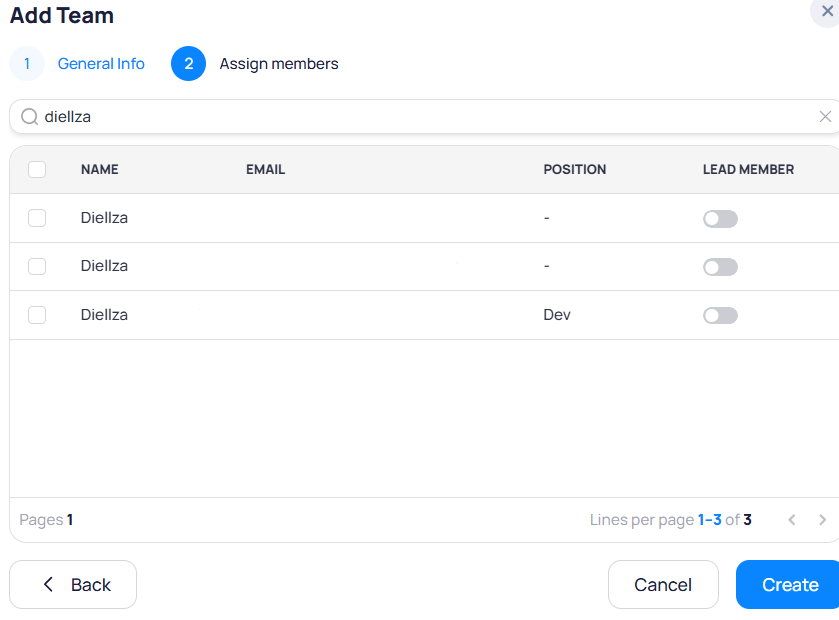
Search for users and assign them to the team
Enable Lead member for one or more users who coordinate work for the team.
Team details
Select a team from the list to open its details page.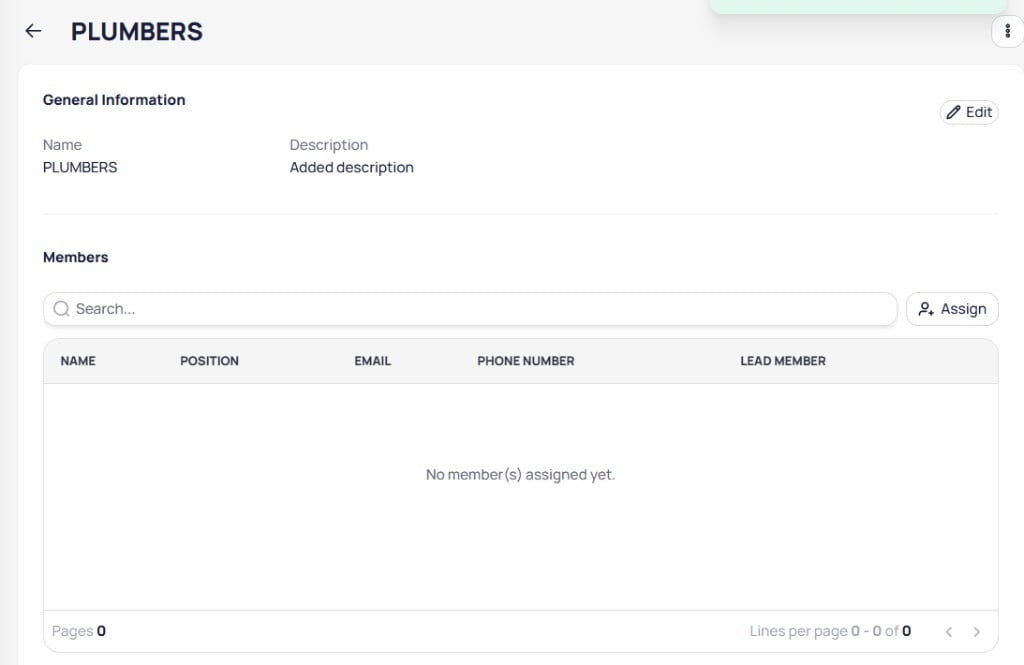
The team details page shows general information and assigned members
General information
Review Name and Description. Select Edit to update team details. Use the menu in the upper right corner to delete the team.Members
The Members section lists users assigned to the team.
Select Assign to add members after the team is created. Use search to find users in large teams.
Unassign a member
Open the row menu on a member and select Unassign to remove that user from the team.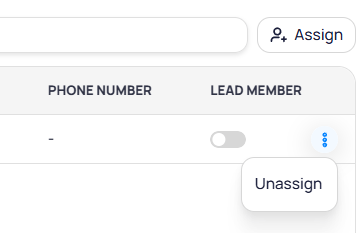
Use the row menu to unassign a member or toggle lead member status
Related modules
Work orders
Assign teams when you create work orders at the building level.
Routing & dispatch
Route work to teams automatically based on category and rules.